
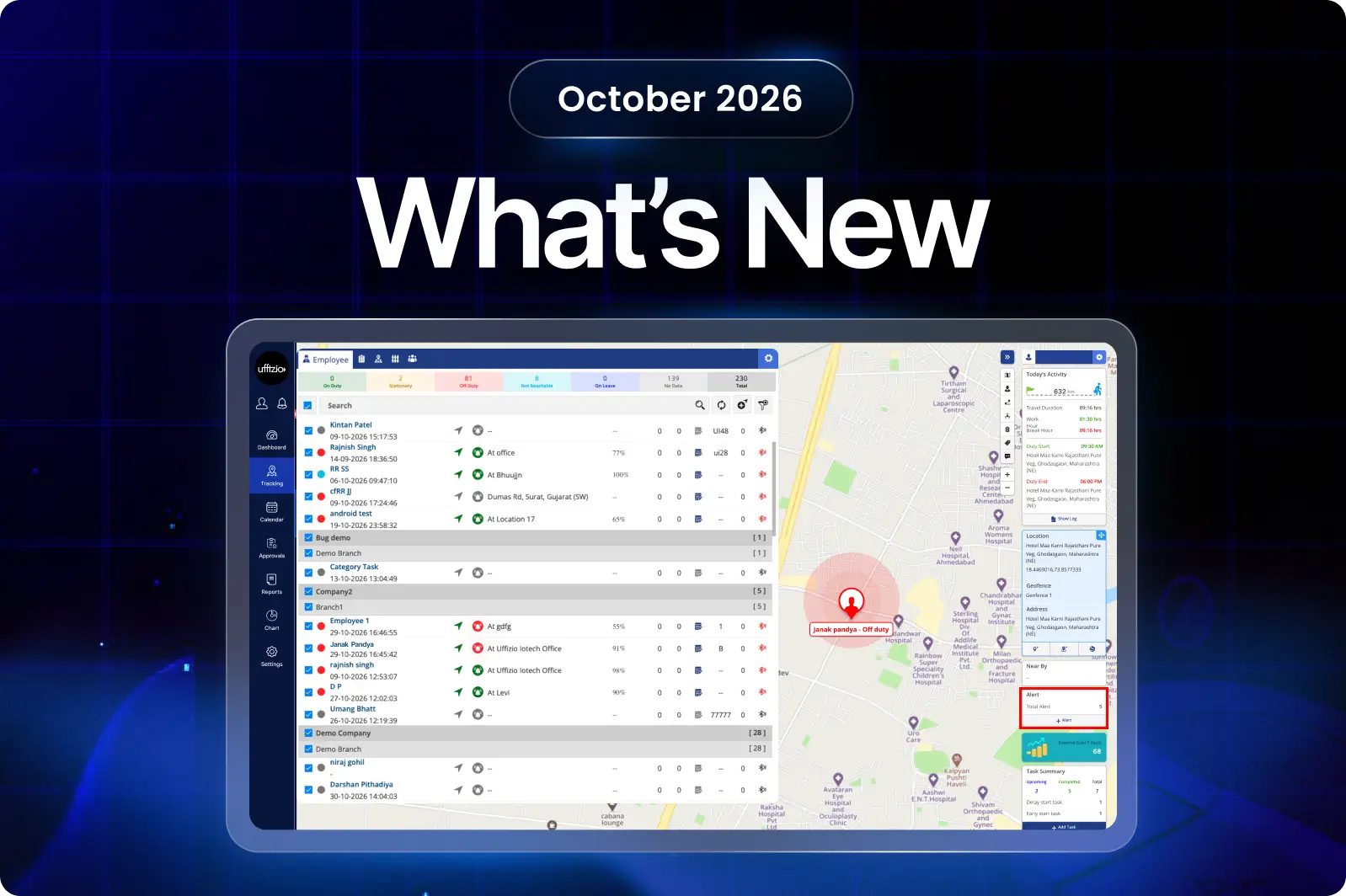
MISES À JOUR DES TÂCHES
The October month updates introduce key enhancements across the Web Dashboard, TaskEye Manager App, and Employee Mobile App to simplify daily fieldwork and improve overall productivity. Field staff now receive instant prompts on the Employee App for disconnected GPS or network issues, secure log saving during sign-outs, and quick onboarding using simple company codes. Paired with real-time manager sign-in alerts, redesigned route playback, and consolidated reports for clients, these updates make daily tracking transparent, boost client trust, and make system setup and team training effortless.
1. Track shift-by-shift travel distance odometer readings from the attendance reports
Attendance logs previously recorded punch times without physical travel records, making it difficult to verify trip distances when staff completed multiple shifts in a day.
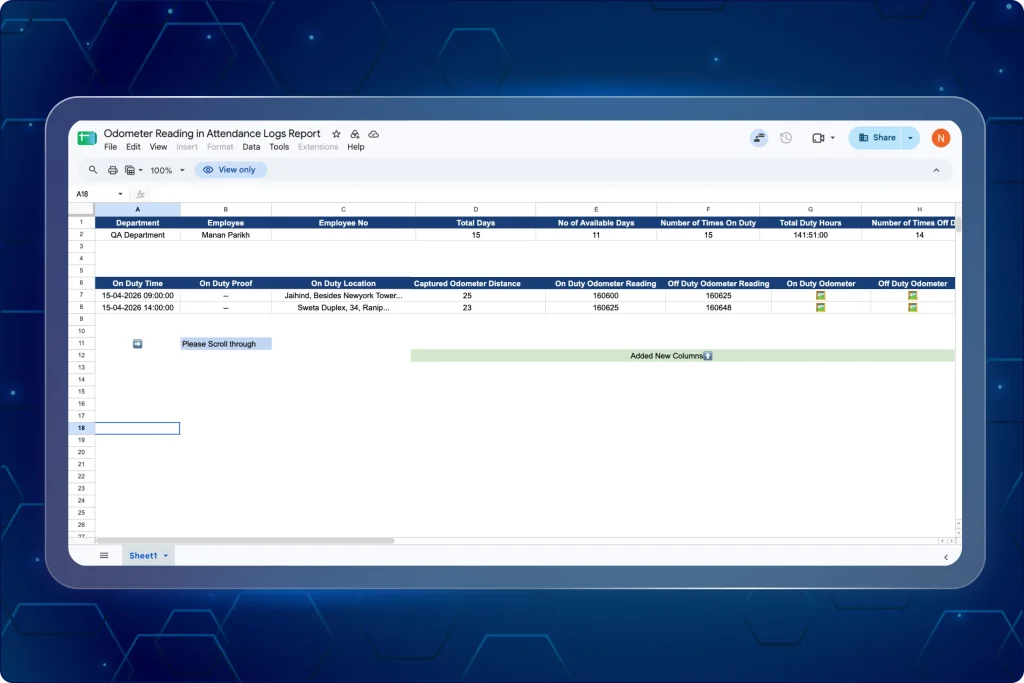
The Web App now logs OCR-verified odometer readings, calculated travel distances, and visual photo proofs for every individual On Duty and Off Duty punch cycle (as seen in image 1 below).
Que peuvent faire les managers maintenant ?
- Review shift-by-shift travel distances calculated automatically between On Duty and Off Duty punches.
- Inspect numeric start and end odometer readings extracted via OCR for each shift.
- Open clickable photo proofs directly from the log to inspect vehicle dashboard images.
- Track multiple daily punch cycles as distinct, sequential log entries for each employee.
- Check total aggregated travel distance across selected timeframes in the summary view.
- Identify unrecorded or disabled tracking instantly, marked clearly with a double dash (–).
Pourquoi cette mise à jour est-elle importante ?
- Eliminates manual distance calculations by computing travel for every punch cycle automatically.
- Prevents travel expense disputes through OCR-extracted readings backed by verifiable photo evidence.
- Provides complete visibility into daily multi-trip movements without cross-referencing separate reports.
- Speeds up travel claim reviews and approvals for administrative teams.
2. Verify asset and vehicle usage in task history reports with start and end QR scan logs
Task history records captured time and location details without recording the physical asset or vehicle scanned during task execution.
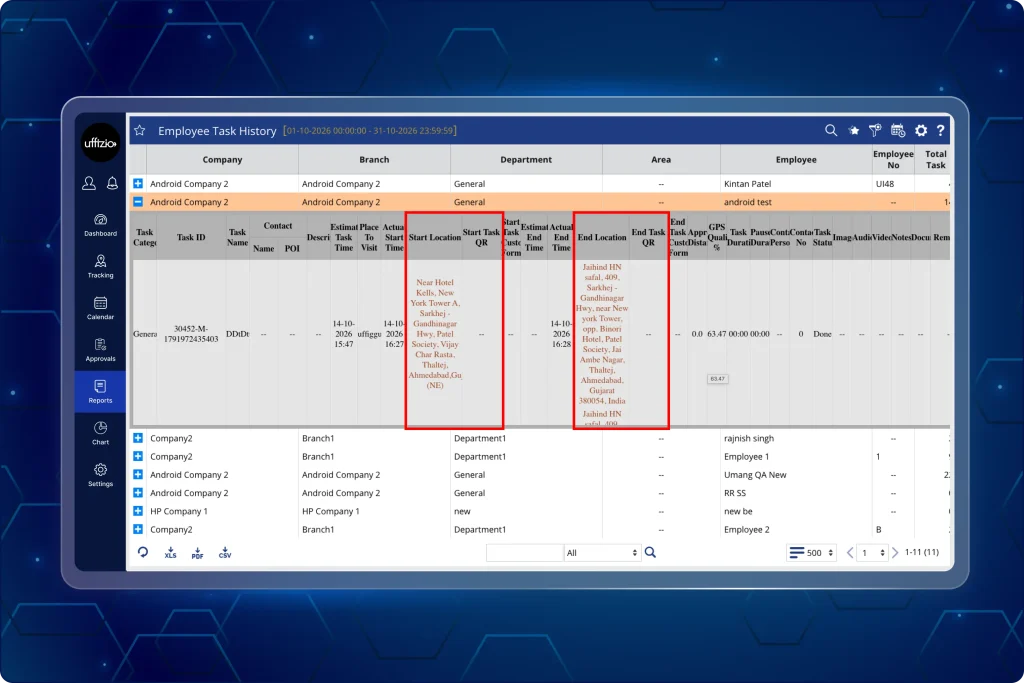
Managers can now cross-verify the exact QR code scanned at both the start and end of a task from the web app. This creates a complete, audit-ready verified data for field assets and mode of transport used (as seen in image 2 below).
Que peuvent faire les managers maintenant ?
- View the exact QR text string captured when field personnel start an assigned task.
- Review the final QR text string recorded when personnel conclude the task.
- Check start and end asset verification records alongside existing location and timestamp data.
- Include QR scan data in table views, CSV spreadsheets, and PDF report exports.
Pourquoi cette mise à jour est-elle importante ?
- Confirms that field personnel interacted with the designated vehicle, machine, or site asset.
- Prevents improper asset use by recording scans at both the initial and final stages of field tasks.
- Simplifies operational audits by consolidating asset identity with location and duration data.
- Delivers clean data exports for client billing, internal verification, and compliance checks.
3. Direct users to the correct app with company code-based registration system
Previously, new users frequently downloaded the wrong app for their role, causing broken account setups, unlinked team members, and high drop-off rates during initial onboarding.
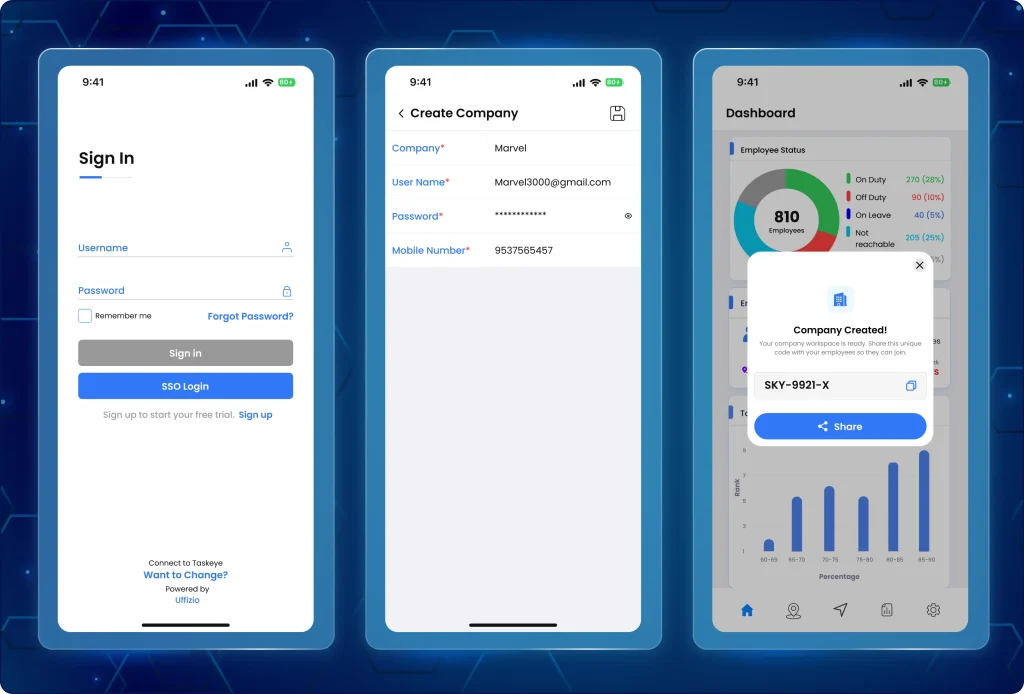
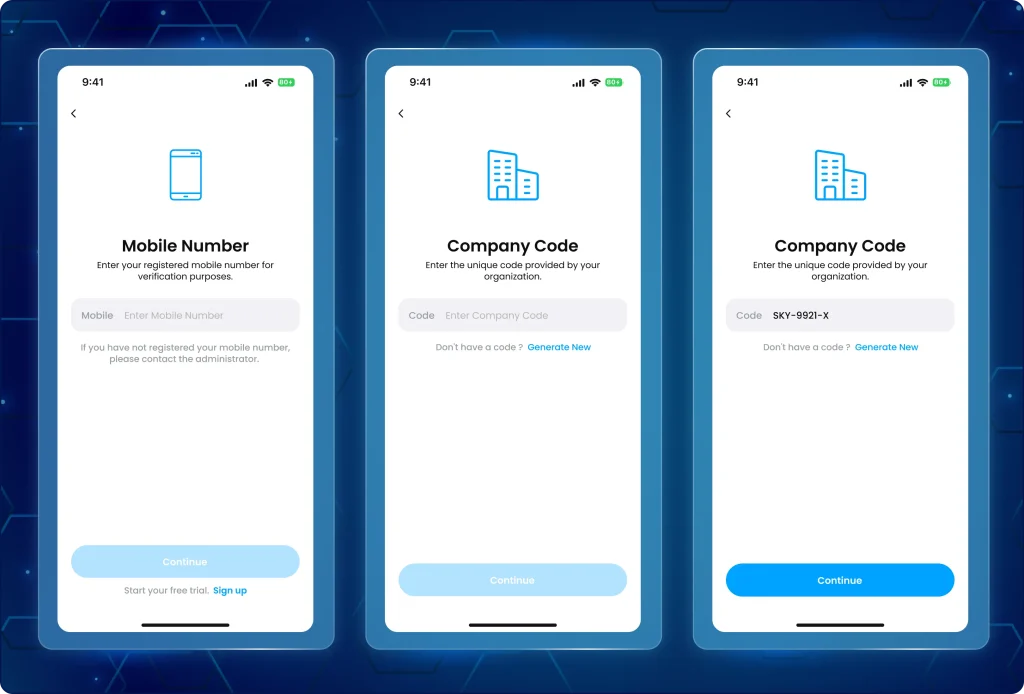
Now, managers can quickly generate unique registration links to onboard and give a trial of the TaskEye mobile app to their employees using the Company Code verification system (as seen in image 3 below).
Que peuvent faire les managers maintenant ?
- Generate a unique Company Code instantly upon company registration.
- Share the company code and direct app download links with field personnel via native device sharing.
- Monitor remaining trial days through an active countdown displayed in the profile section.
- Access direct profile links to explore the Employee Mobile App during the trial period.
- View clear renewal and reseller contact details if the 14-day trial period concludes.
3.1 Login to the TaskEye employee app with company codes shared by managers
Field personnel can join their organization directly using a verified code or redirect to manager onboarding if needed (as seen in image 3.1 below).
Qu'est-ce qui a changé sur l'application ?
- Enter a verified Company Code during registration to link directly to the correct organization.
- Auto-fill the company code when installing and launching the app via a shared invitation link.
- Redirect seamlessly to the TaskEye Manager App if attempting to set up a new company without a code.
- Switch or explore the Manager App through a dedicated deep link inside the user profile.
Pourquoi cette mise à jour est-elle importante ?
- Eliminates onboarding confusion by guiding users to the correct application based on role.
- Connects field staff accounts to organizations from the initial registration step.
- Accelerates team rollout using shareable invite links with auto-filled company credentials.
- Gives prospective clients an organized path to evaluate both managerial and field workflows.
4. Track accurate routes with the redesigned playback interface on the TaskEye manager app
Previously, the route playback on the manager app looked outdated and often showed different route paths and distance calculations compared to the TaskEye Web app.
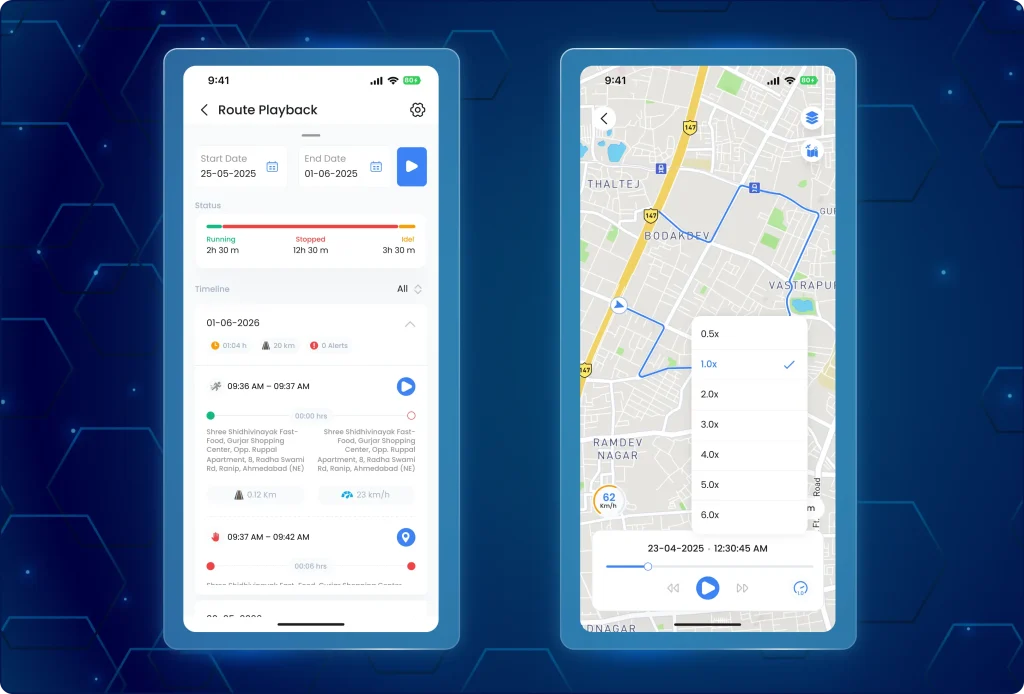
The app now features a fresh, easy-to-use playback screen with TaskEye’s own calculation logic, aligning route and distance data across web and mobile (as seen in image 4 below). Managers can now monitor field staff travel on a cleaner map with matching distance numbers and upgraded playback controls on the mobile app.
Que peuvent faire les managers maintenant ?
- Share route playback details directly from the mobile app.
- Review route playback that matches the exact paths, distance values, and data shown on the web dashboard.
- Step through employee travel using a redesigned controller, map markers, and interactive info cards.
- View travel summaries, timeline checkpoints, and key travel events in structured data tiles.
- Access the previous playback view temporarily while completing the transition to the updated interface.
Pourquoi cette mise à jour est-elle importante ?
- Eliminates distance discrepancies between the web dashboard and the manager mobile app.
- Delivers a uniform tracking experience regardless of whether managers review data on desktop or mobile.
- Simplifies mobile route reviews with clearer map markers, timelines, and playback controls.
- Facilitates quick coordination between team leaders through direct route sharing.
5. Monitor field staff sign-ins and protect employee app data with cloud-based data syncing
Previously, when a field employee opened and logged into the app or logged out at the end of their shift, managers did not get any alerts. Managers had to guess whether an employee was actively using the app or had closed/exited it.
Furthermore, if the employee logged out or cleared the app’s cache/storage on their phone, any activity records or logs that had not yet uploaded to the server get wiped out permanently. As there was no timestamped proof of when the staff signed in or out, verifying actual work hours became difficult.
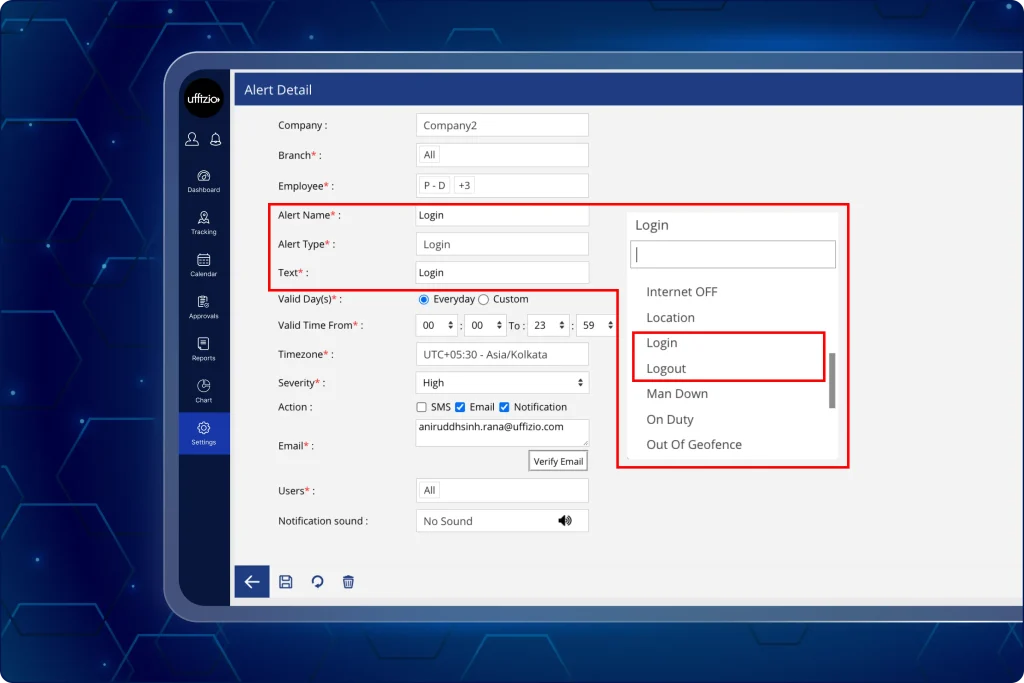
Now, with the latest update, the field manager receives an instant alert as soon as the employee logs in/out or stops using the app. The system logs every sign-in and sign-out in the activity timeline alongside the date, time, and device used, creating an unchangeable audit trail.
When an employee taps “Log Out,” the app pauses to push all unsaved mobile logs to the cloud before completing the sign-out. Therefore, even if the employee clears the app storage or switches phones right after, none of their work records are lost.
Que peuvent faire les managers maintenant ?
- Receive instant alerts on the web screen the moment an employee signs in, signs out, or disconnects.
- Spot sign-ins and sign-outs easily using distinct alert icons in the notification bell.
- Check sign-in, sign-out, and disconnect history in the activity timeline, complete with date, time, and device details.
- See clear notes in the timeline whenever a sign-out happens due to a reset or cleared token.
- Review activity timeline records on both the web dashboard and the TaskEye Manager App.
Pourquoi cette mise à jour est-elle importante ?
- Gives managers immediate visibility into who is active in the field and who has signed off.
- Prevents data loss by saving unsent logs before an employee signs out of the app.
- Creates an accurate audit trail of work hours with device, date, and time records.
- Helps teams resolve shift timing and attendance questions quickly.
6. Review and process employee leave from a dedicated approval screen on the web app
Managers previously lacked a dedicated screen to process employee leave requests, causing approval delays and limited operational visibility.
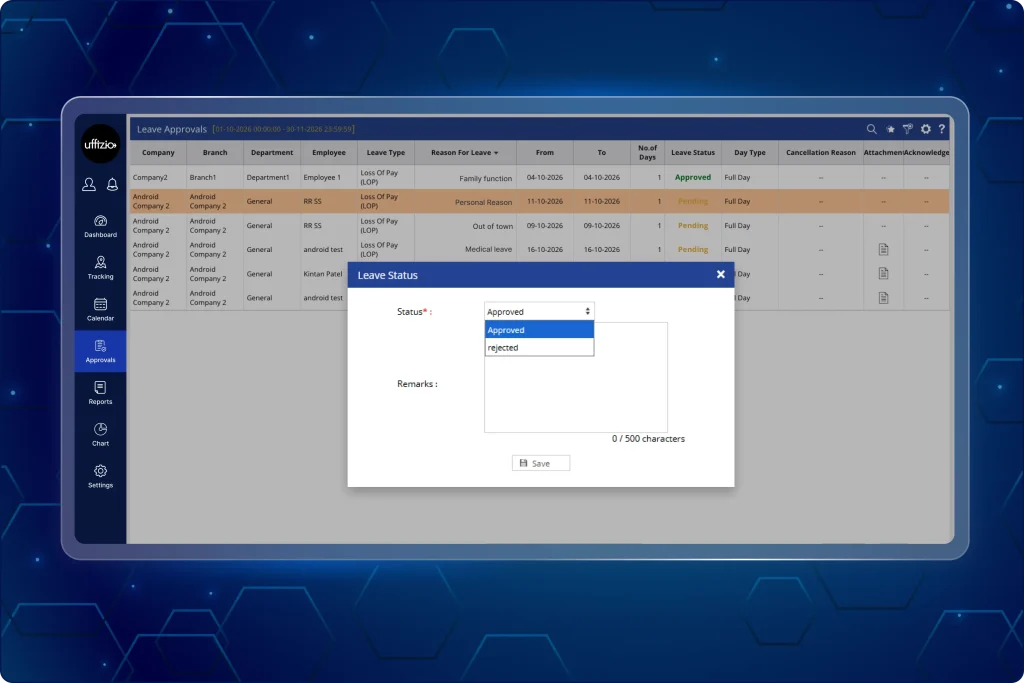
The TaskEye Web app now allows managers to review submitted leave details, make instant decisions, and track leave records from a single place. They can also filter applications, review supporting documents, and process decisions directly from the screen (as seen in image 6 below).
Que peuvent faire les managers maintenant ?
- View all pending leave applications automatically upon opening the screen.
- Filter requests by company, branch, department, employee, or approval status.
- Review complete request details, including leave types, dates, total days, employee reasons, and attached files.
- Approve or reject pending requests instantly through a quick pop-up window.
- Access locked, view-only records for requests that have already been approved or rejected.
- Check cancellation reasons whenever an employee withdraws an application.
- Track accurate numbers in dashboard summary widgets, including upcoming leaves planned for the current month.
Pourquoi cette mise à jour est-elle importante ?
- Speeds up leave review and decision-making time by placing all pending leave requests first eliminating manual filtering.
- Eliminates guesswork by displaying full leave context and attached proofs in one place.
- Prevents accidental changes by switching processed requests to view-only mode.
- Keeps dashboard summary widgets accurate for daily workforce and shift planning.
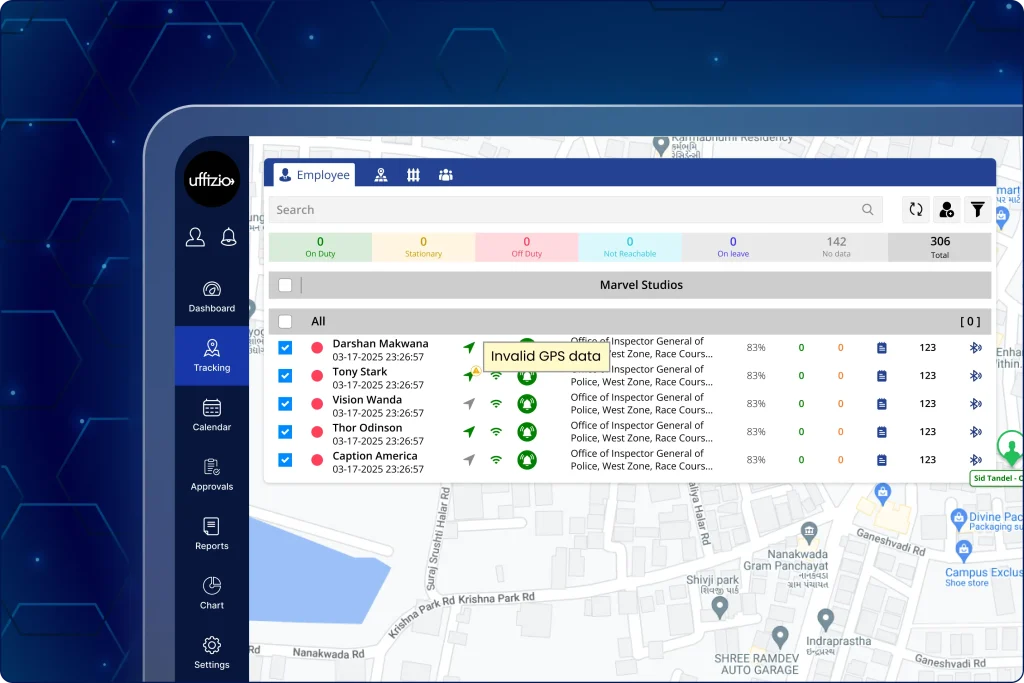
7. Identify device or network disconnectivity issues with real-time alerts, timestamps, and last-synced location data
The system previously labeled disconnected devices with a generic “Offline” status, leaving managers unaware of the actual cause of data gaps during active shifts.
The web app now alerts field personnel the moment GPS, network, or sync issues occur and records the exact reason, timestamps, and last known location in the activity timeline (as seen in image 7 below).
Therefore, managers can now pinpoint the exact device or network cause behind tracking gaps instead of guessing why a device stopped sending updates.
Que peuvent faire les managers maintenant ?
- Review specific offline causes such as Internet Disconnected, GPS Disabled, or GPS Data Not Synced in place of generic offline tags.
- Track paired state changes in the activity timeline, including Airplane mode, device shutdowns and restarts, mock locations, and Battery Saver activation.
- Spot background tracking restrictions early when battery-saving settings limit app operations.
- Inspect the employee’s last known location alongside the date, time, and recorded event description.
- Review system wake-up events triggered to keep background location tracking running.
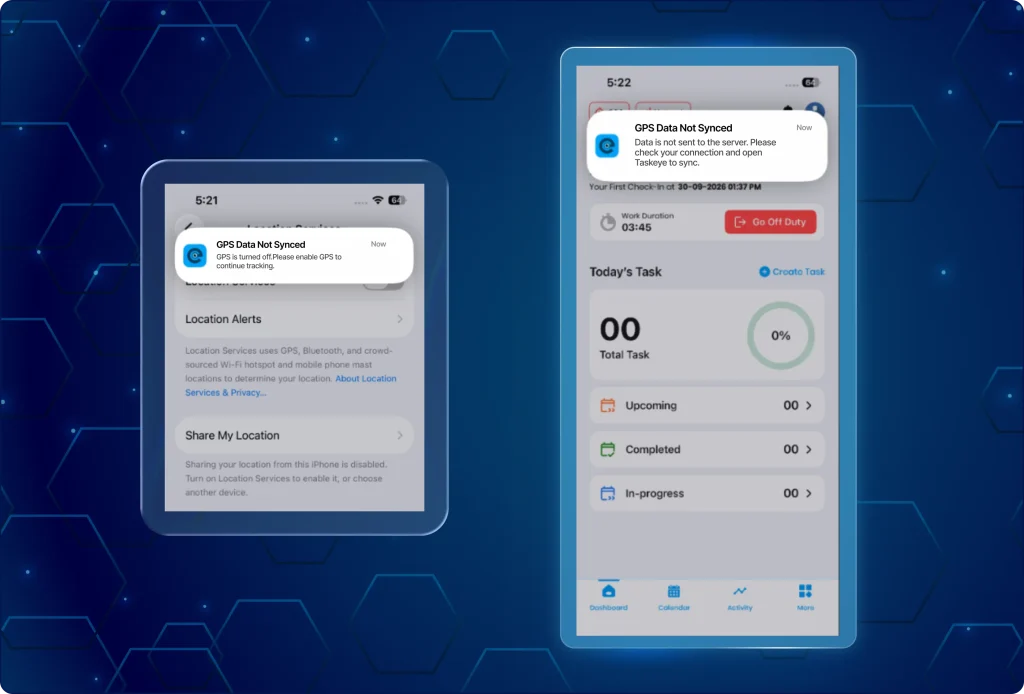
7.1 Receive instant device dis-connectivity or network unavailability alerts on the employee mobile app
Field personnel receive immediate on-screen warnings so they can fix phone settings and maintain continuous shift tracking (as seen in image 7.1 below).
Qu'est-ce qui a changé sur l'application ?
- Receive an immediate local prompt when GPS is turned off while on duty, reminding staff to turn it back on.
- Get instant alerts when the mobile data or Wi-Fi connection drops during work hours.
- See clear notifications when data synchronization fails, prompting staff to verify their network and retry.
Pourquoi cette mise à jour est-elle importante ?
- Replaces vague offline statuses with clear, verified technical causes.
- Explains tracking gaps clearly during route reviews and shift audits.
- Helps field personnel fix phone settings immediately to prevent lost work records.
- Enables managers to separate genuine network drops from intentional device tampering.
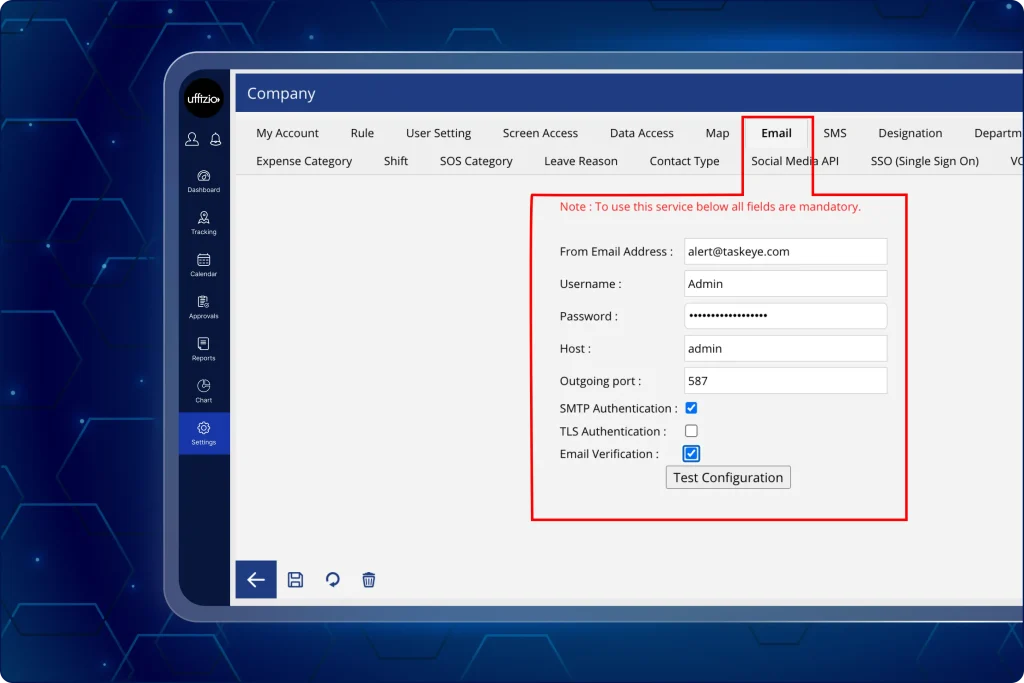
8. Confirm completed site visits with automated email alerts to site admins
Previously, clients received no automatic confirmation when field supervisors completed site inspections, requiring manual emails and phone calls to confirm visits at deployed manpower locations.
But now the assigned site administrator receives an automated email notification whenever an inspection or visit finishes, sharing inspector details, visit times, and task summaries (as seen in image 8 below).
Que peuvent faire les managers maintenant ?
- Send automated email confirmations to the assigned site administrator the moment a visit is completed.
- Display the visiting supervisor’s name, site name, date, and exact visit timestamps directly in the email.
- Deliver full task summaries and inspection notes straight to the client’s inbox.
- Trigger automatic visit emails for tasks initiated directly by field staff as well as managers.
- Route emails dynamically so each separate client location receives updates tailored to its specific administrator.
Pourquoi cette mise à jour est-elle importante ?
- Proves that scheduled visits and surprise inspections occurred without manual follow-up calls.
- Delivers inspection records to the right site contact for each distinct client location.
- Increases client trust by providing immediate, documented verification of field operations.
- Saves managers time spent writing, compiling, and sending manual visit reports.
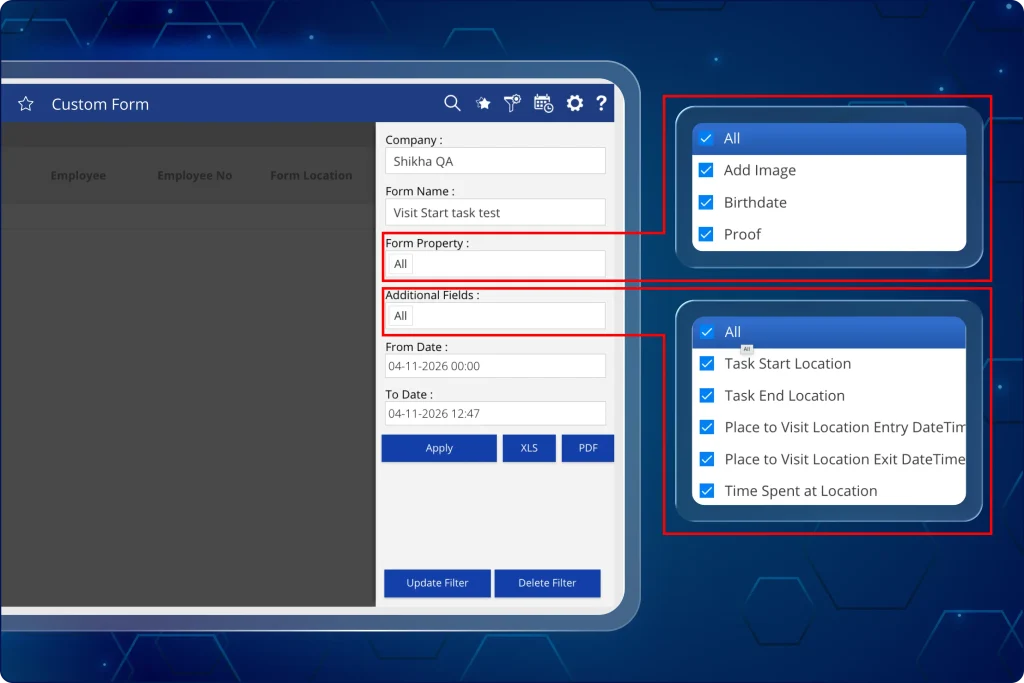
9. Export unified task and custom form data in a single consolidated report from the dashboard
Clients previously had to export separate Task History and Custom Form files, using manual spreadsheet formulas to match records by Task ID.
Managers can now customize report columns to view physical visit tracking and field-submitted data side by side. The web app allows them to combine task movement, location entry and exit times, and submit form answers into a single downloadable report (as seen in image 9 below).
Que peuvent faire les managers maintenant ?
- Add task tracking details directly into the Custom Form Report using a multi-select field filter.
- Include task start and end locations alongside exact start and completion timestamps.
- View visited site locations, entry and exit times, and total duration spent on site.
- Review submitted form answers, uploaded images, and video links alongside location data.
- Rearrange and organize added columns across the data table to suit reporting needs.
- Download the complete configured view directly into XLS spreadsheets or PDF files with clickable media links.
Pourquoi cette mise à jour est-elle importante ?
- Eliminates manual spreadsheet merging and lookup formulas across separate downloads.
- Connects field-submitted answers directly to verified site entry, exit, and location timestamps.
- Simplifies client reporting by delivering visit proofs, media, and form inputs in one file.
- Saves administrative time spent compiling data for audits, client billing, and service reviews.