
การอัปเดต TaskEye
What if everyday field operations could be handled with fewer manual updates and quicker decisions? September brings practical improvements across workforce tracking, travel expenses, alerts, and task monitoring. From bulk record updates and nearby address identification to distance-based expense calculations, the latest updates simplify routine field operations. Over-speed alerts and estimated arrival times add more context for managers monitoring employees and active tasks. Five updates, several everyday challenges, and one goal: making field operations easier to manage with TaskEye.
1. Update large number of customer and employee records in bulk
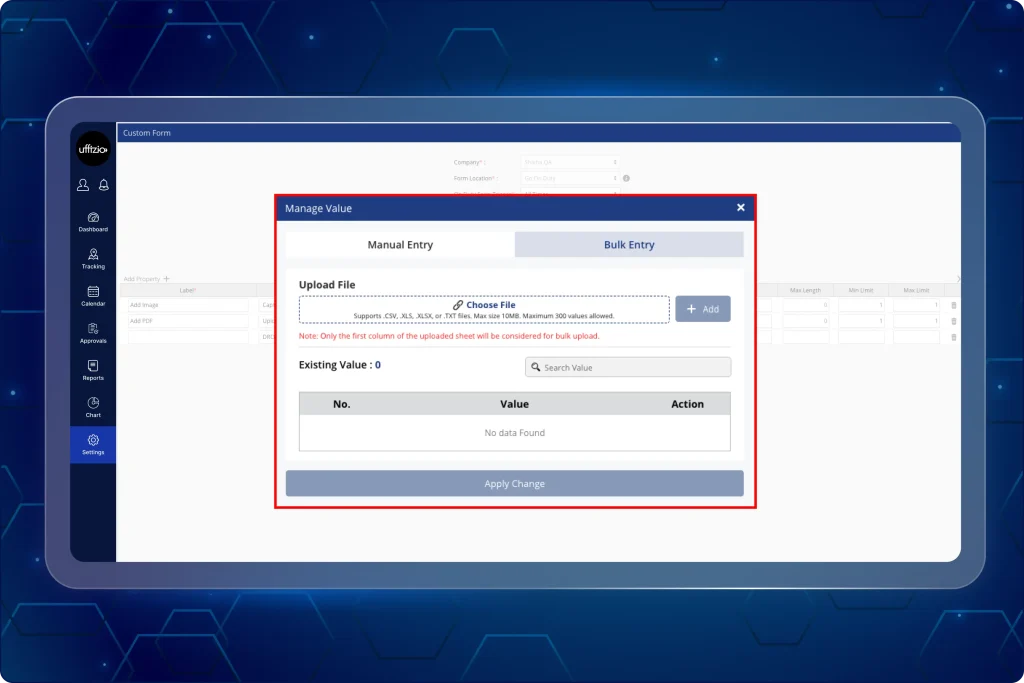
Updating large numbers of customer and employee records manually one after the other can take significant time and increase chances of data-entry errors. Managers can now update multiple customer and employee details in a single Excel sheet (as seen in image 1 below).
They can also update the existing records in bulk through a structured Excel file with built-in data validation. Additionally, this update allows managers to quickly spot all the data errors highlighted in the Excel sheet in red.
All the data validation errors get identified instantly and can be cross-verified with the exact Excel row before re-uploading the file.
ตอนนี้ผู้จัดการสามารถทำอะไรได้บ้าง?
- Download a predefined Excel template.
- Update existing Customer or Employee details in bulk.
- Upload the completed .xlsx file for processing.
- View validation errors directly on the screen.
- Identify invalid fields highlighted in red.
- Match errors with their Excel row numbers.
- Validate uploaded records before applying changes.
- Review invalid records and their corresponding Excel row numbers.
- Correct errors and re-upload the file.
What value does this update bring?
- Reduces manual record-by-record updates.
- Saves time when handling large data volumes.
- Supports more consistent updating of customer and employee data.
- Helps reduce data-entry errors making validation issues easier to identify.
2. Finding nearby customer addresses has now become faster!
Till now, the field employees faced a lot of difficulty while manually searching through the bulky list of addresses to find their nearest located customers.
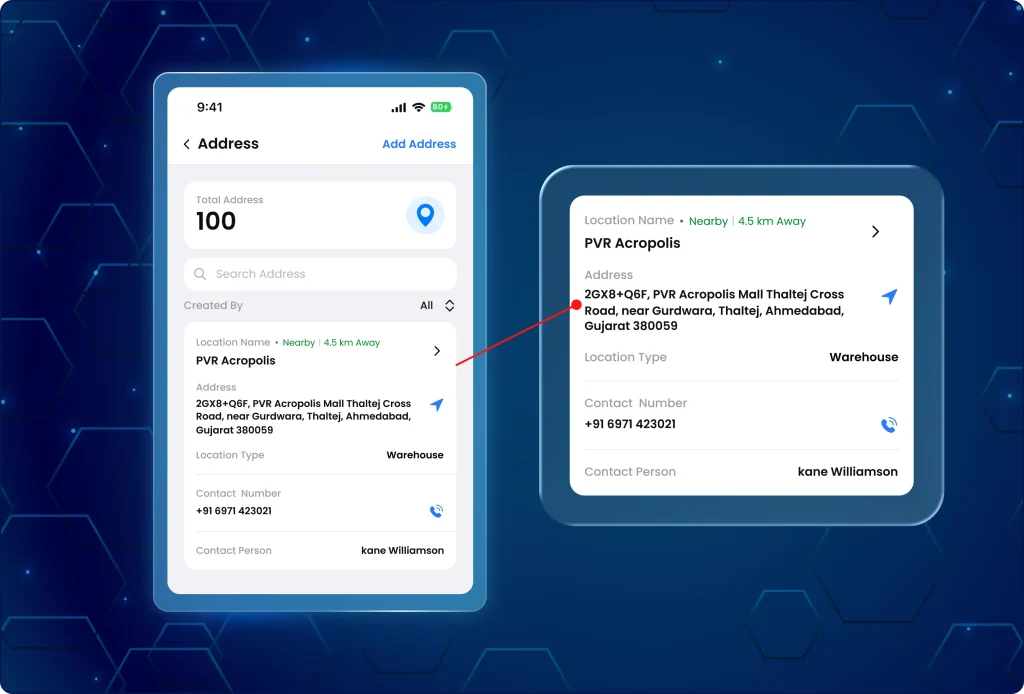
เดอะ TaskEye Employee app now sorts customer addresses based on the employees current GPS location and highlights locations within 5 km for quicker identification (as seen in image 2 below).
พนักงานสามารถทำอะไรได้บ้างในตอนนี้?
- View addresses sorted from nearest to farthest.
- See the calculated distance in kilometers.
- Identify addresses within a 5 km radius.
- Spot nearby locations with a Nearby badge.
- Search the full customer database while retaining proximity-based sorting.
What value does this update bring?
- Reduces time spent finding nearby customers
- Makes large address lists easier to scan
- Helps field employees identify closer locations quickly
- Keeps search results organized by proximity
- Provides clear distance information for each address
3. Customise travel expenses and reimbursements for employees based on their mode of transport
Previously, field managers calculated expenses inaccurately, as they combined the expenses incurred while completing in-office work and commuting expenses using the company vehicle while being on-duty.
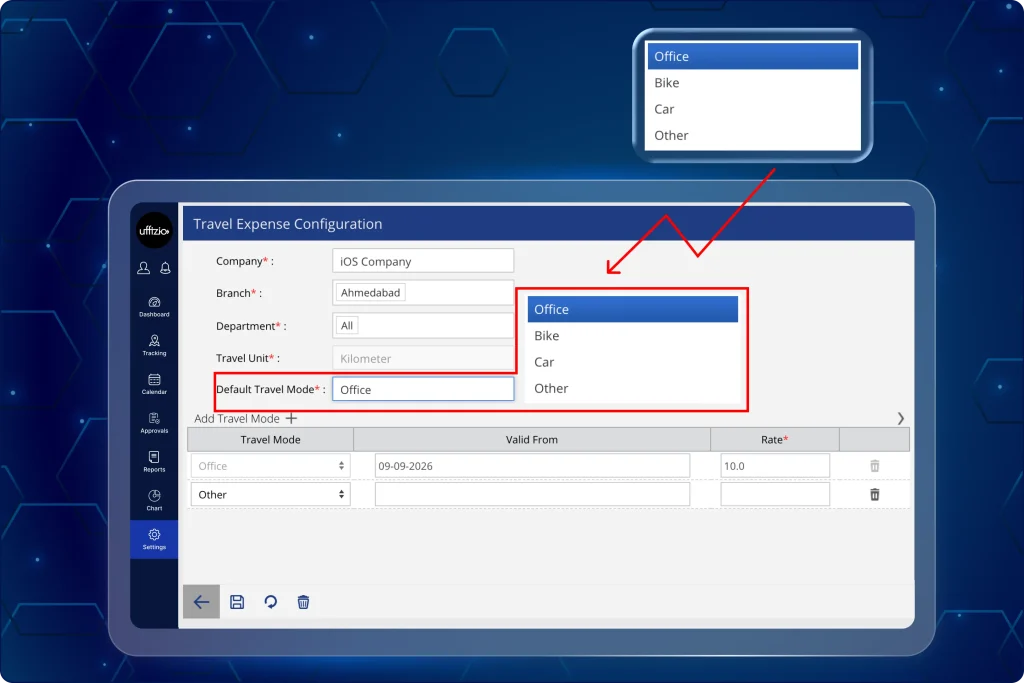
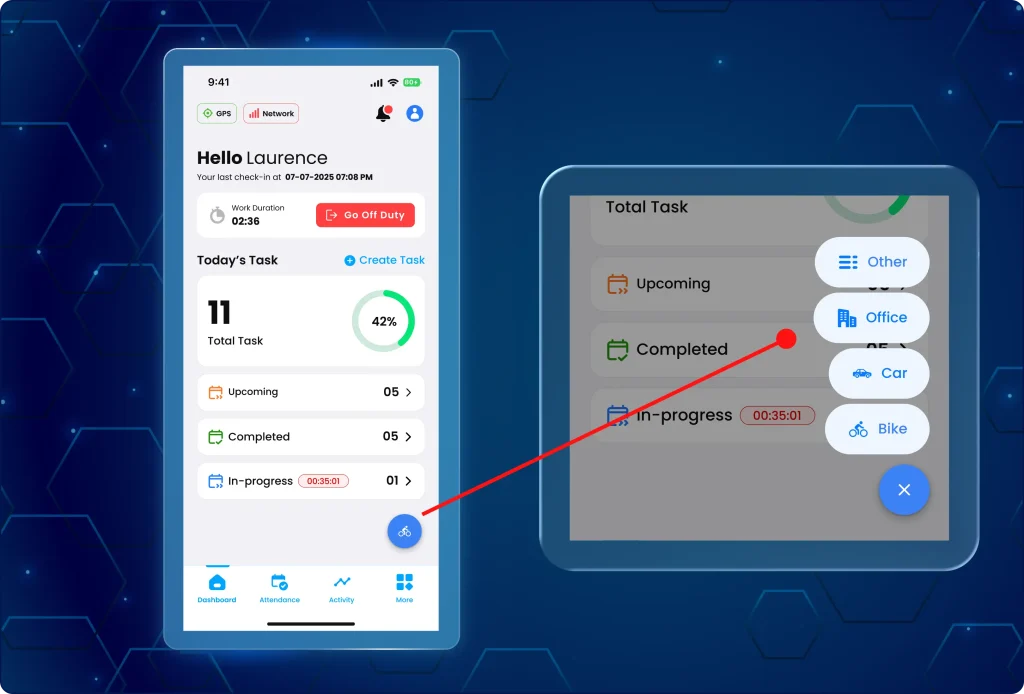
With the latest update, managers can automatically pair GPS distance capture with designated travel reasons and mode of transport, ensuring zero-expense logging for company transport while applying precise per-kilometer rates for eligible travel (as seen in image 3 below).
Additionally, the managers can set travel allowances for employees using different modes of transportation, such as Car, Bike, and more.
ตอนนี้ผู้จัดการสามารถทำอะไรได้บ้าง?
- Configure branch and department-specific per-kilometer reimbursement rates across distinct travel modes (Bike, Car, and Office).
- Apply zero-expense rules automatically for company transport or internal tasks via the dedicated Office Mode setting.
- Generate multi-layered Travel Expense Reports showing On Duty and Off Duty sessions alongside recorded Travel Modes, total distance traveled, rate per km, and calculated totals.
- Review split distance entries automatically when multiple travel modes occur within the same operational shift.
- Define customized travel allowances across organizational units without altering core attendance logs.
3.1 Enter and submit travel classification directly from the employee mobile app
Field employees can categorize daily transport methods in seconds during routine duty check-ins (as seen in image 3.1 below).
What is newly added on the mobile app?
Field employees can now:
- Select Car, Bike, or Office vehicle as the travel mode and change the travel mode during active duty.
- Maintain uninterrupted GPS location tracking and accurate distance logging regardless of the selected mode.
- Automate expense claim eligibility seamlessly without manual travel voucher calculations upon marking Off Duty.
What value does this update bring?
- Reduces manual travel expense calculations and applies vehicle-specific rates to travelled distance.
- Enforces zero-rate expense calculations whenever company-owned vehicles or office duties are selected.
- Captures transparent session records linking GPS distance directly to configured departmental rates.
- Removes manual distance recording and verification workflows for operations and finance teams.
- Retains uninterrupted operational GPS visibility for field teams without distorting reimbursement totals.
4. Get instant alerts when employees driving speed exceeds the approved limit
Earlier there was no way for managers to identify over speeding instances and distinguish between genuine speed increases due to instances such as vehicle accelerations and overspeeding.
This led to a lack of visibility of field team members responsible for rash driving and constantly breaking the set speed limit rules during their service hours.
4.1 Set employee vehicle over-speeding limits and exemptions on the manager web app
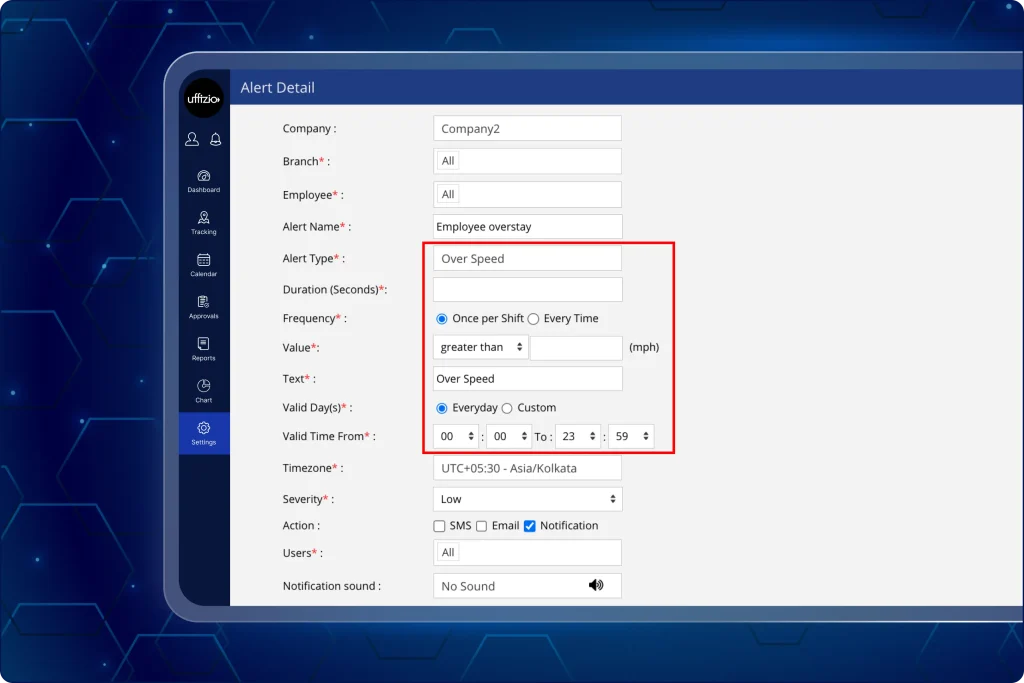
Operations managers can set custom speed limits, over-speed threshold, duration of overspeeding and monitor transit speeds live at different time periods across specific field employees and branches.
Managers can define when sustained speeding should trigger an alert and how often it should be reported instead of reacting to brief changes in vehicle speed (as seen in image 4.1 below).
ตอนนี้ผู้จัดการสามารถทำอะไรได้บ้าง?
- Set custom speed thresholds in km/h alongside required time durations in seconds before an alert triggers.
- Filter out temporary acceleration spikes by requiring driving speeds to stay above the limit for a set continuous period.
- Choose alert frequencies between a single warning per shift or instant notifications every time a speed violation happens.
- Deliver instant over-speed alerts containing employee names, live dates and times, recorded speeds, speed limits, and exact locations.
4.2 Receive over-speed and driving rule violation alerts in the manager app
เดอะ แอปผู้จัดการ now supports the same over-speed alert information for monitoring field employees.
Supervisors can receive over-speed warnings showing recorded vehicle speeds, time stamps, employee details, and incident locations directly on the mobile interface as soon as a violation occurs in the field.
What is newly added on the mobile app?
- Receive over-speed alerts through configured channels.
- View the employee associated with the alert.
- Check the date and time on which the overspeeding happened.
- View recorded speed and tally it with the configured threshold.
- Identify the location from where the alert has been triggered.
What value does this update bring?
- Highlights reckless driving habits quickly to protect field staff and vehicles on the road.
- Ensures alerts trigger only when speeding continues for a specified duration rather than during brief speed changes.
- Sends accurate location, speed, and employee details straight to decision-makers without delay.
- Gives teams the choice between one alert per work shift or continuous tracking for strict compliance.
- Supports timely review of driving-related incidents and keeps over-speed monitoring within existing alert workflows.
5. Track the estimated time of arrival of employees at assigned task locations in real time
Till now, the field managers could monitor the on-site geofenced presence at assigned task locations and the time taken to reach the site, but had no record of the estimated time at which they will be reaching.
Thus they had to contact the employee and receive updates about their expected arrival time which affected dispatch schedules and daily task coordination.
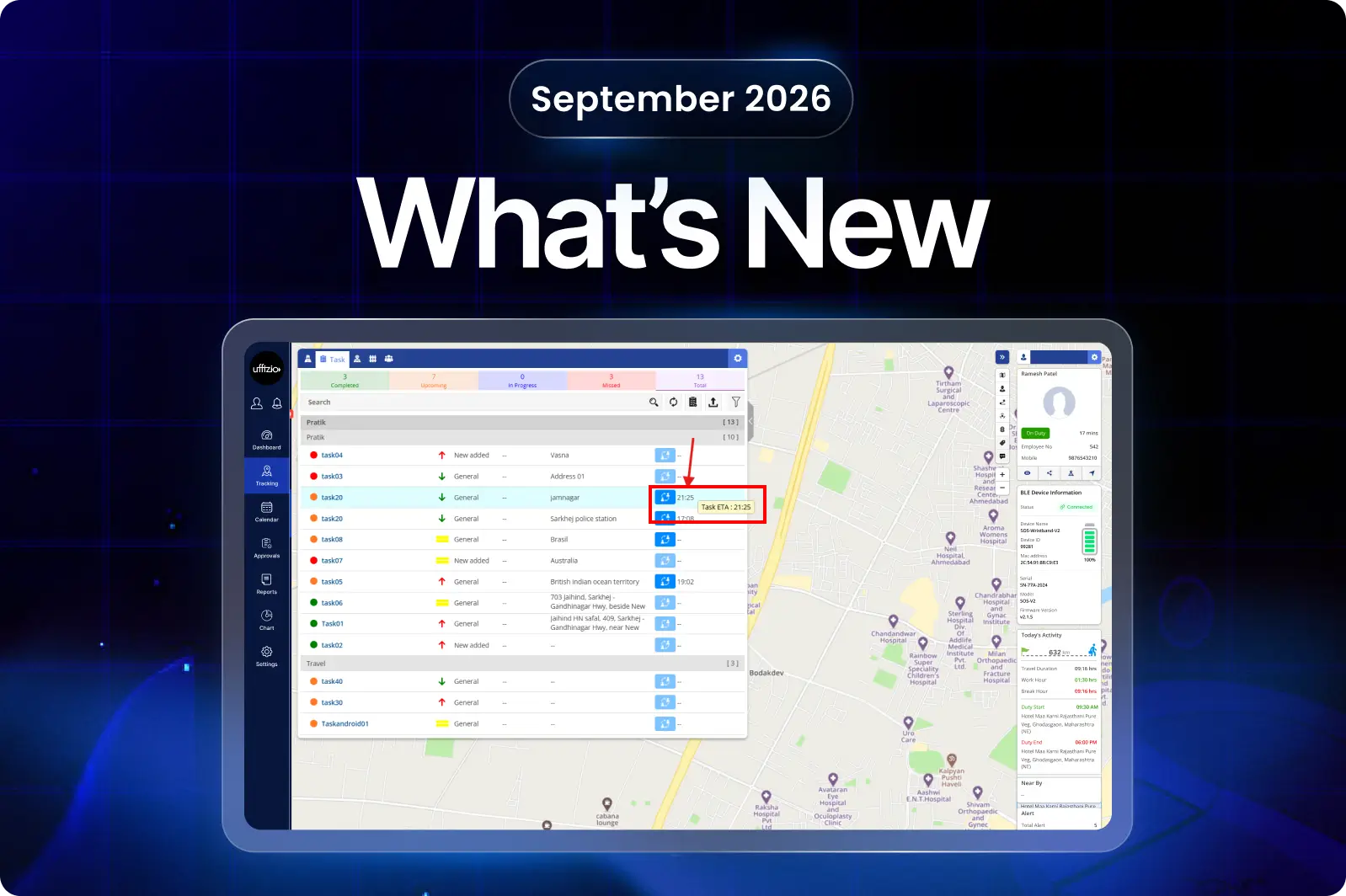
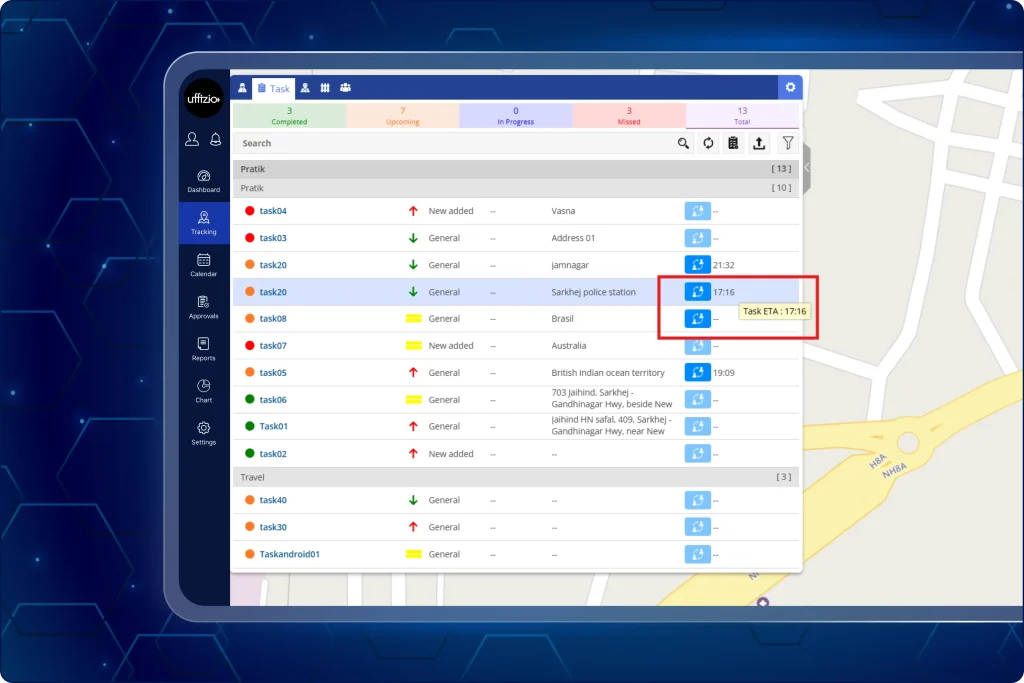
Now, with this new update managers can view the estimated arrival time for assigned employees directly in the Tracking screen (as seen in image 5 below). They can also calculate the arrival times based on live locations and travel distances, displaying dynamic timestamps directly alongside assigned tasks.
ตอนนี้ผู้จัดการสามารถทำอะไรได้บ้าง?
- Turn on automated ETA calculations for team members via a single setting under global company configurations.
- Access built-in explanatory tooltips detailing how arrival estimates calculate using live location and distance data.
- View expected arrival timestamps directly inside a dedicated Estimated Arrival column on the main task tracking screen.
- Monitor transit progress accurately across clients utilizing OpenStreetMap (OSM) navigation services.
What value does this update bring?
- Offers clear visibility into expected arrival windows to help teams coordinate tight field schedules.
- Removes the need for frequent calls or messages asking employees when they will reach task sites.
- Combines live employee locations, task assignments, and expected arrivals into a centralised tracking dashboard.
- Provides a direct, company-wide toggle that updates task monitoring without complex setup steps.