
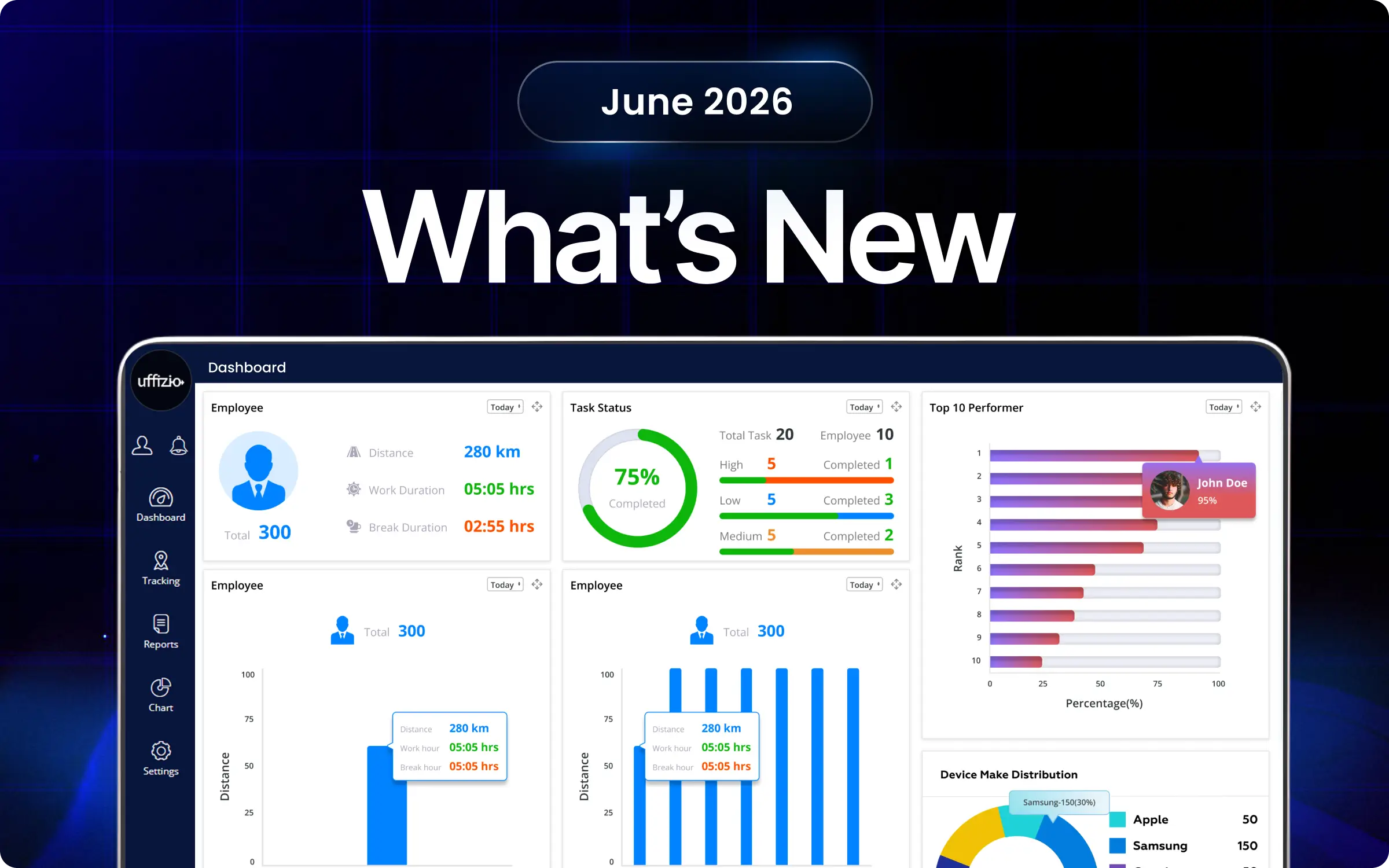
Take a look at what’s new in TaskEye for June 2026. This month’s release introduces smarter workforce management capabilities across the Manager Dashboard, TaskEye Manager App, and TaskEye Employee App. Latest updates include real-time employee alerts, interactive approval dashboards, route optimisation, task templates, BLE device integration, QR-based journey verification, and improved attendance tracking. Explore how these updates help field teams, managers, and organisations improve productivity, visibility, task execution, and operational efficiency through a more connected field workforce management platform.
TaskEye Updates
1. Get a clear view of pending employee-related approvals in the TaskEye Manager App
Managers often had to open separate reports to review pending leave, regularisation, and expense requests.
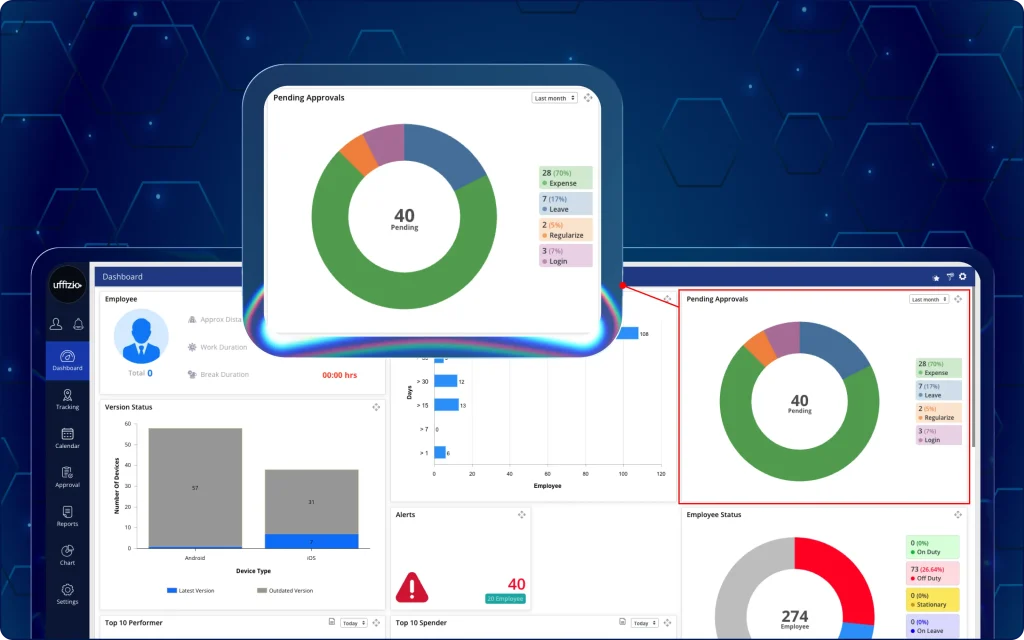
But, the new interactive pie chart dashboard provides a visual overview of all pending approvals and lets managers open the relevant approval report with a single tap.
So, field service managers can now monitor pending employee requests from one interactive dashboard instead of reviewing multiple reports (as seen in image 1 below).
What can managers do now?
- View pending leave, regularisation, and expense requests in a single interactive pie chart.
- Filter approval data using predefined date ranges such as today, yesterday, this week, last week, this month, last month, or a custom date range.
- Select any pie chart segment to instantly open the corresponding approval report.
- Continue using the same selected date filter after opening the detailed approval report.
Why does this update matter?
- Provides a visual snapshot of all pending approvals in one place.
- Makes approval backlogs easy to identify through an interactive pie chart.
- Reduces time spent switching between multiple approval reports.
- Speeds up access to the required approval records with a single tap.
- Helps managers process pending requests faster and improve operational visibility.
2. Plan and manage tasks more efficiently in the TaskEye Manager app
Earlier, managers had limited options for creating and managing tasks from the mobile app, making recurring task planning more manual.
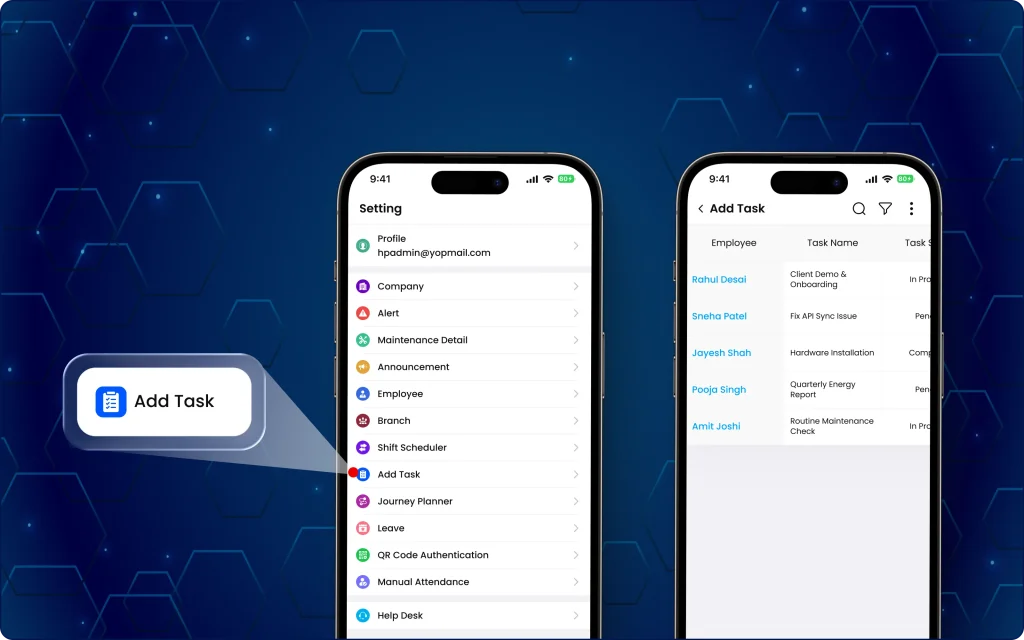
The updated task creation feature makes it easier to create, assign, and schedule one-time or recurring tasks from a single interface (as seen in image 2 below).
Now, they can easily create structured tasks, assign them to employees, and schedule recurring activities without relying on manual planning.
What can managers do now?
- Create both one-time and scheduled (recurring) tasks directly from the taskEye manager app.
- Assign tasks to employees with all required task details in a single workflow.
- Define task schedules using the required date, time, and recurrence settings.
- View key task information, including branch, department, customer, employee, task category, task priority, task ID, task name, task type, schedule validity, and place to visit.
- Filter task records to quickly find the required tasks.
Why does this update matter?
- Simplifies task creation and assignment from the mobile app.
- Reduces manual effort when planning recurring tasks.
- Improves task scheduling and operational planning.
- Provides better visibility into task details and scheduling status.
- Helps teams organise and track field activities more efficiently.
3. Monitor employee activities instantly on the manager dashboard
Previously, managers had to check reports manually to know when employees went on duty, started or completed tasks.
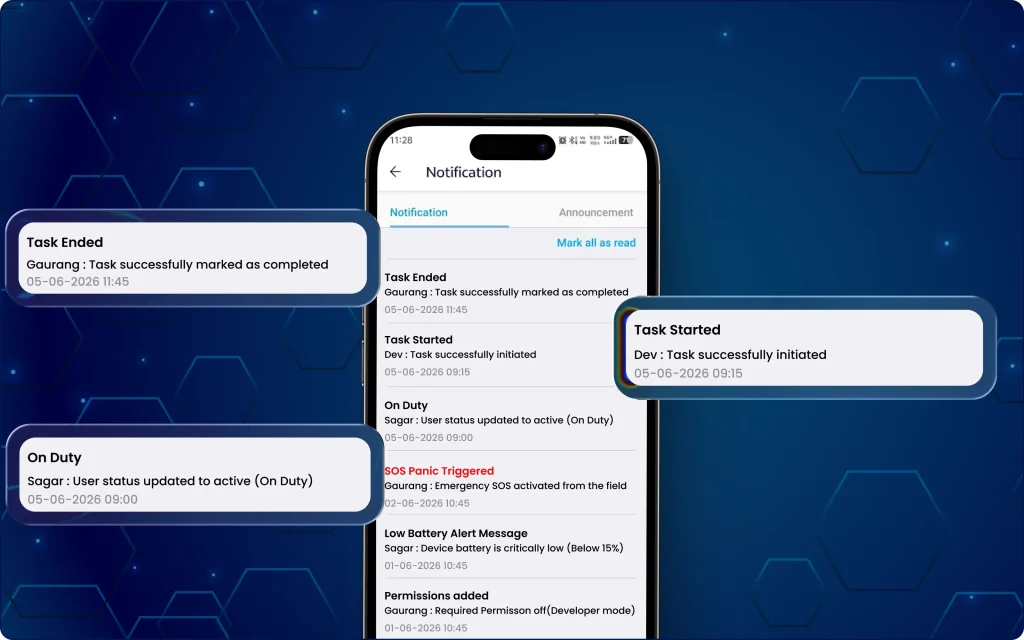
Now, the manager web dashboard supports new alert types for employee duty status and task progress, providing real-time notifications without manually refreshing reports.
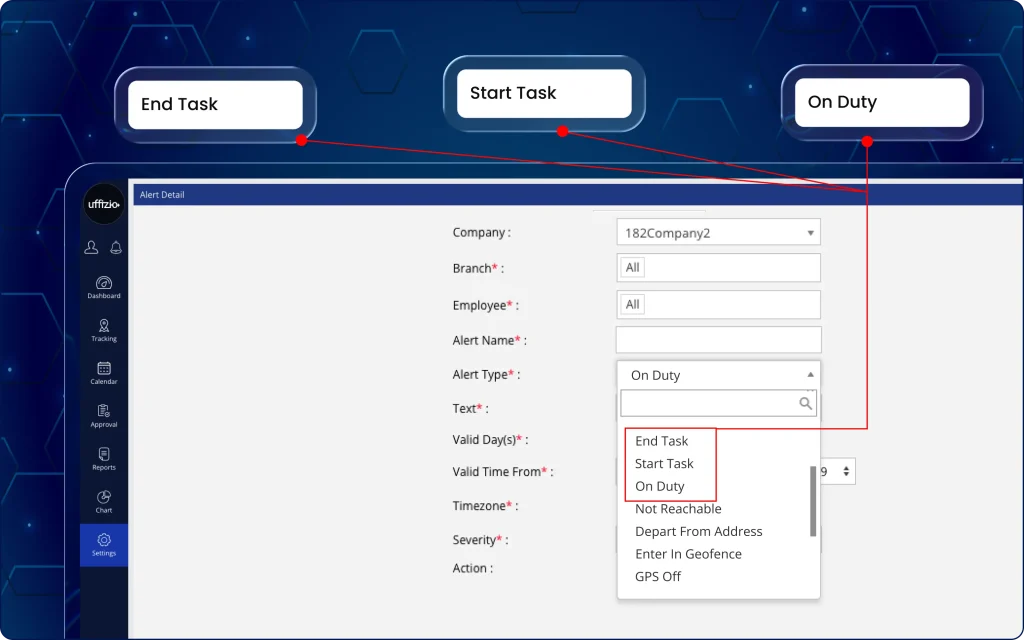
Therefore, the latest update helps managers stay informed as employee actions happen (as seen in image 3 above).
What can managers do now?
- Configure on duty, start task, and end task alerts from the alert settings.
- Receive On Duty notifications either once per shift or every time an employee marks on duty.
- Get instant notifications whenever an assigned employee starts or completes a task.
- View key notification details, including employee name, task name (for task alerts), action status, and the corresponding date and time.
4. Stay updated with real-time alerts in the TaskEye Manager app
The TaskEye Manager App also offers the same employee activity alerts as the status dashboard (as seen in image 4 below).
This ensures a consistent monitoring experience across both platforms.
What can managers do now?
- Configure and receive on duty, start task, and end task alerts on the mobile app.
- Choose whether on duty notifications are sent once per shift or every time an employee marks on duty.
- Receive instant alerts whenever assigned employees start or complete tasks.
- View important activity details directly within each notification for quicker monitoring.
Why does this update matter?
- Provides real-time visibility into employee availability and task progress.
- Reduces the need to monitor reports manually for activity updates.
- Helps managers respond more quickly to field operations.
- Improves supervision with timely employee and task notifications.
- Delivers a consistent alert experience across the Manager Dashboard and TaskEye Manager App.
5. Generate and download journey checkpoint QR codes from the Manager Web App
Previously, managers relied only on GPS-based checkpoints, with no way to create physical QR codes for location verification.
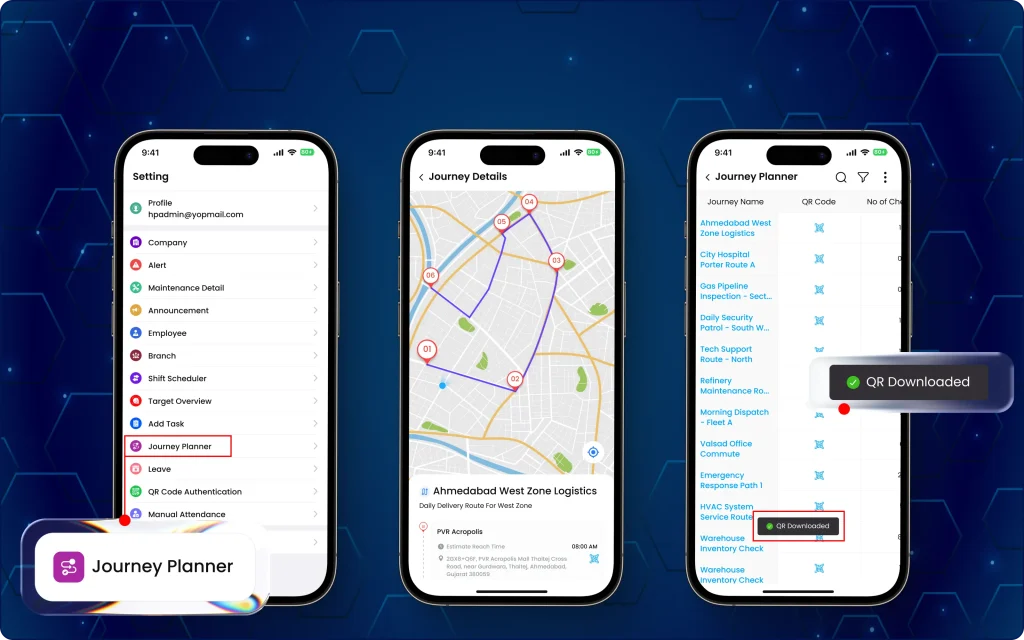
Now, with the Manager Web App, it is easy to generate, download, and print QR codes within minutes, making on-site checkpoint verification easier (as seen in image 5 below).
The latest update automatically generates unique QR codes for every checkpoint and makes them available for individual or bulk download.
What can managers do now?
- Automatically generate a unique QR code for every newly created journey checkpoint.
- Download QR codes individually for specific checkpoints.
- Download QR codes for an entire journey in a single ZIP file.
- Print and place QR codes at physical checkpoint locations for future scanning and verification.
- Receive bulk downloads with QR codes labelled according to their respective checkpoint names.
Why does this update matter?
- Eliminates manual QR code creation for journey checkpoints.
- Simplifies the deployment of physical checkpoint verification.
- Saves time by enabling bulk download of QR codes.
- Improves accuracy by generating a unique QR code for each checkpoint.
- Makes journey verification more organised across multiple checkpoint locations.
6. Manage customers by area in the TaskEye Employee app
Previously, field employees could not assign areas while creating customers or search customer records by area.
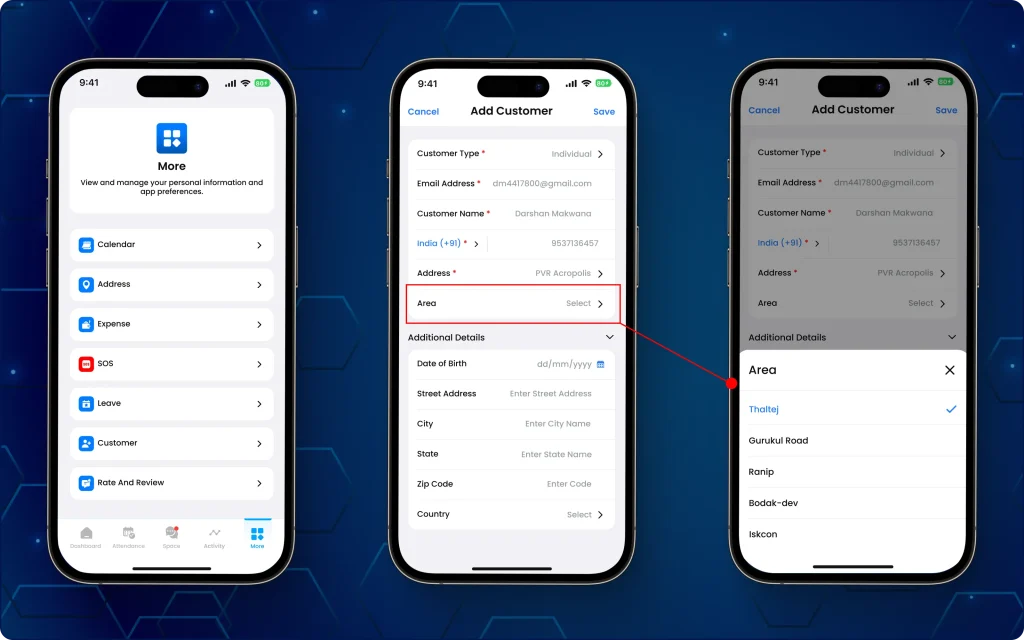
But now, they can assign predefined areas to customers and quickly find customer records using area-based search.
The latest update introduces area selection, area visibility, and area-based search to make customer management more organised (as seen in image 6 below).
What can managers do now?
- Select an area while creating a new customer from the predefined area list configured by the organisation.
- Assign customers only to existing areas without creating new area records.
- View the assigned area directly on each customer card.
- Search customers using area, along with customer name or email, from a single search bar.
- View only customers assigned by managers or created by the employee.
Why does this update matter?
- Organises customer records with standardised area assignments.
- Makes it faster to find customers using area-based search.
- Improves visibility of customer locations during field operations.
- Ensures consistent area selection using centrally managed Area records.
- Helps field employees manage assigned customer records more efficiently.
7. Monitor odometer readings in the TaskEye Manager app
Earlier, managers had to rely on GPS-based travel data, with no visibility into captured odometer readings from the field.
Now, the TaskEye Manager App provides real-time access to employees’ odometer readings recorded during duty activities (as seen in image 7 below).
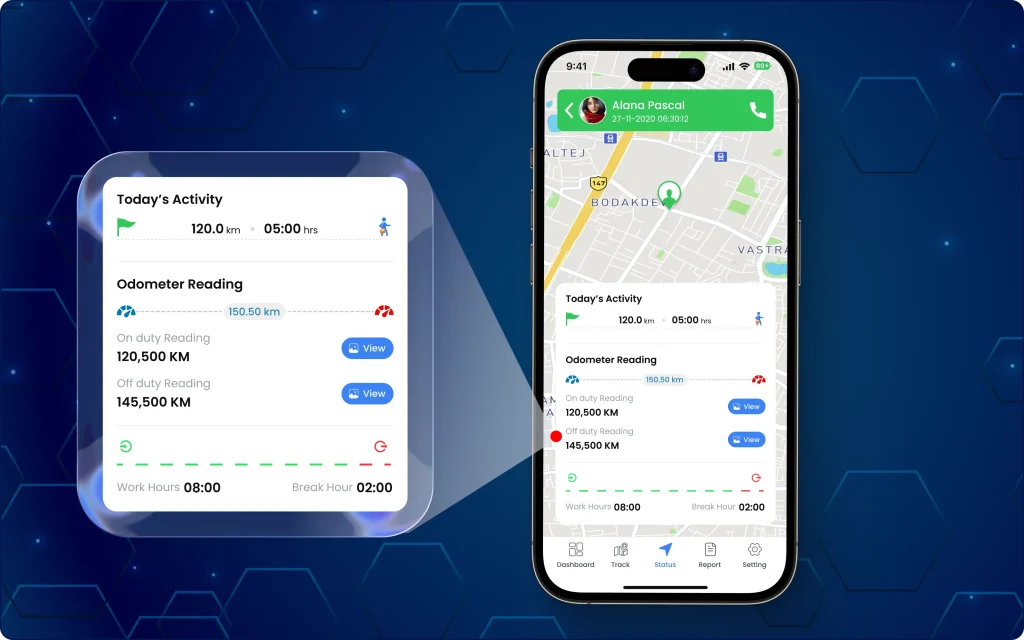
The latest update displays all necessary details and supporting images directly in the status dashboard for easier travel verification.
What can managers do now?
- View the captured odometer distance calculated from employee odometer readings.
- Check the On Duty and Off Duty odometer readings submitted by employees.
- Open the captured On Duty and Off Duty odometer images for verification.
- View odometer information as it is submitted by the employees.
- Easily identify pending or unavailable odometer data when readings have not yet been submitted, or odometer capture is not enabled.
Why does this update matter?
- Improves visibility into employee travel records.
- Supports more accurate verification of vehicle travel distances.
- Provides image-backed proof for captured odometer readings.
- Helps managers review travel information directly from the mobile app.
- Simplifies travel validation for attendance and expense-related activities.
8. Get instant alerts when employees become unreachable
Previously, managers had no real-time visibility when an on-duty employee became unreachable due to GPS disconnection or device inactivity.
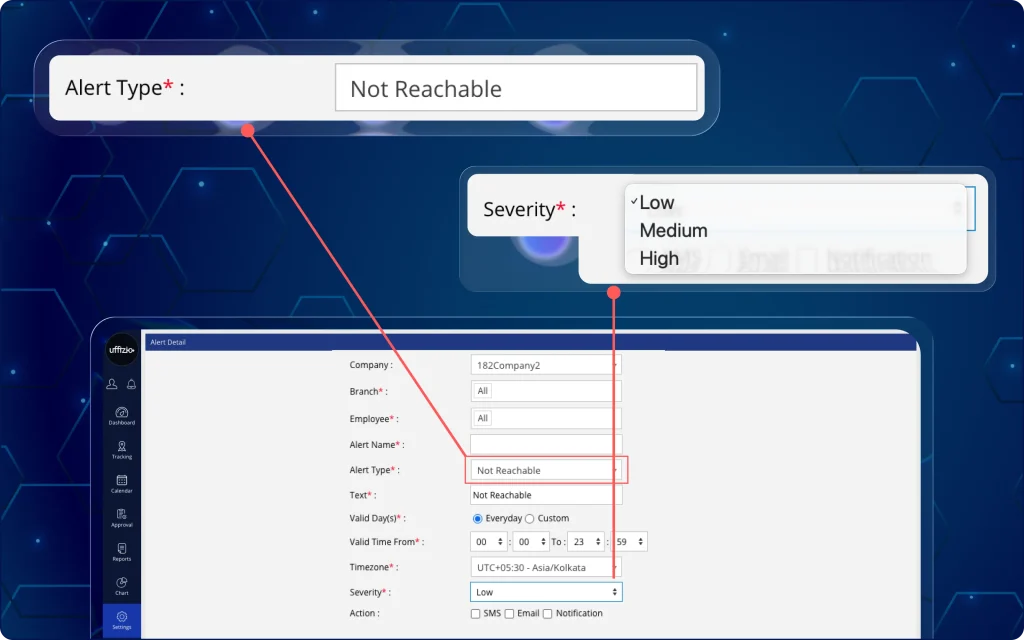
The Manager Web Dashboard now enables managers to configure and receive Not Reachable alerts for on-duty employees.
The new “not reachable alert” automatically notifies managers whenever an employee loses connectivity during working hours (as seen in image 8 below).
What can managers do now?
- Configure a new not reachable alert for selected companies, branches, and employees.
- Receive alerts when an on-duty employee becomes unreachable due to GPS disconnection or device inactivity.
- Trigger alerts based on the configured employee inactivity duration.
- Set the alert severity as high, medium, or low.
- Send alerts via notifications, email, or SMS, similar to other alert types.
Why does this update matter?
- Provides real-time visibility into employee connectivity during working hours.
- Helps managers identify unreachable employees without manual monitoring.
- Enables quicker response to GPS or device connectivity issues.
- Improves workforce supervision with automated inactivity alerts.
- Supports timely operational decisions through configurable alert notifications.
9. Track BLE device connectivity status in real-time on the manager dashboard
Previously, managers had no visibility into the status of allocated BLE devices or their connectivity.
We have now introduced a BLE Bluetooth button that integrates with the mobile application to serve as an instant SOS trigger (as seen in image 9 below).
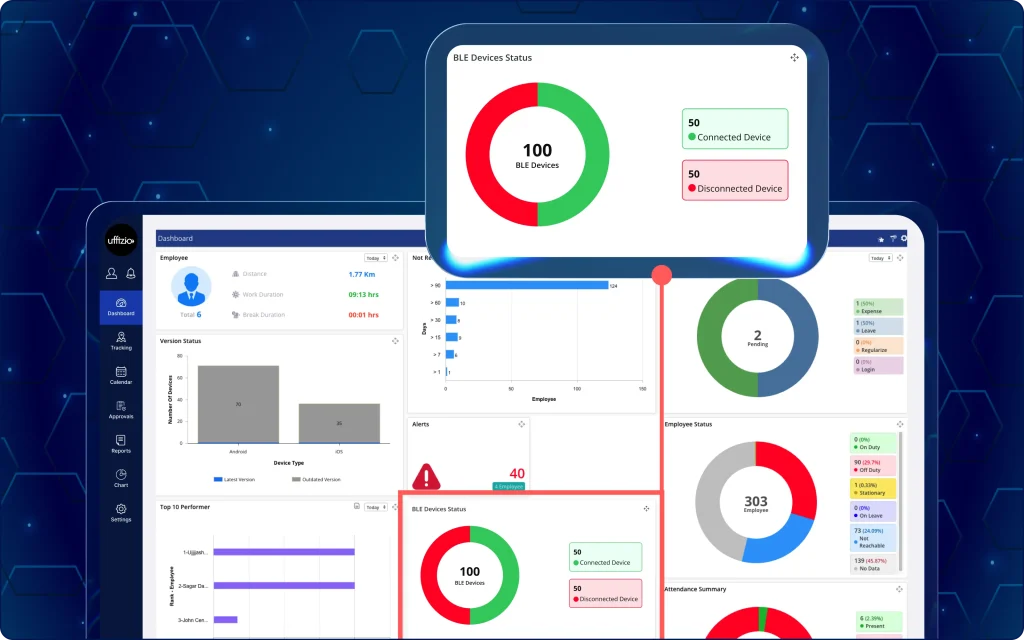
Thus, when the button is pressed, the device sends a real-time notification to the mobile app, which immediately initiates an emergency response.
The Manager Dashboard now displays live BLE device information for employees, making it easier to monitor device connectivity and availability (as seen in image 9.1 below).
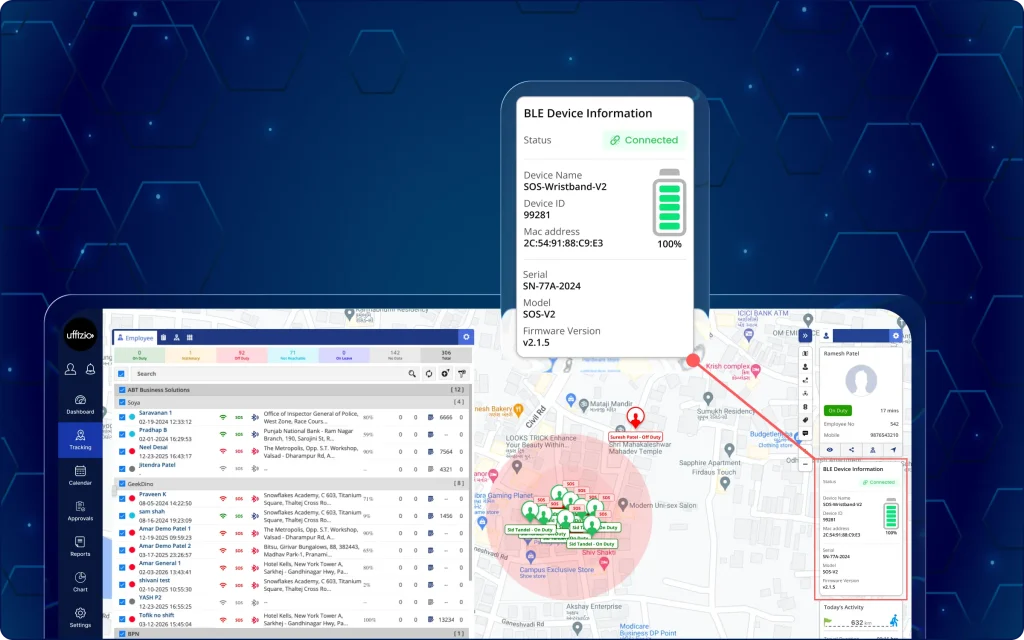
The latest update introduces live BLE device information on the Tracking Screen for monitoring connected and disconnected devices.
What can managers do now?
- Quickly identify whether an employee has an allocated BLE device.
- View a BLE indicator against employees with an allocated BLE device.
- View the total number of Connected and Disconnected BLE devices.
- Open detailed device records by selecting connected or disconnected device counts.
- Review device information, including company, department, allocated to, device name, device ID, serial number, model, MAC address, and device status.
Why does this update matter?
- Provides real-time visibility into BLE device connectivity.
- Helps managers quickly identify connected and disconnected devices.
- Simplifies monitoring of devices allocated to employees.
- Improves readiness for BLE-enabled emergency response workflows.
- Supports better device management with centralised BLE analytics.
10. Connect and manage BLE device active status in the TaskEye Employee app
Previously, field employees could only trigger emergency alerts via the SOS button from their mobile app with no additional emergency assistance facility.
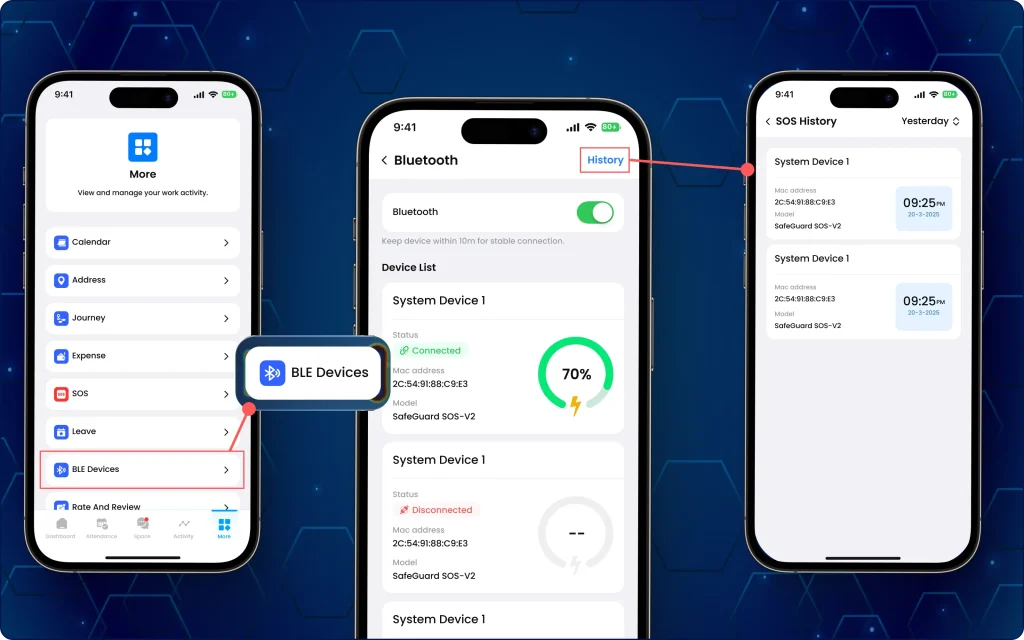
Employees can now pair their assigned BLE devices with the TaskEye Employee App and monitor their connection status in real time.
The latest update supports instant SOS alerts, live device monitoring, and automatic connectivity updates (as seen in image 10 below).
What can employees do now?
- Trigger an SOS instantly using the connected BLE device.
- Receive an on-screen SOS alert with a warning sound whenever an SOS is activated.
- Pair only BLE devices allocated by the organisation.
- Connect assigned BLE devices directly from the TaskEye Employee App.
- View recent SOS events from a dedicated SOS History section.
- View live device information, including battery percentage, device information, MAC address, and model.
- Receive automatic alerts when the BLE device goes out of range.
- Continue using the BLE device with automatic reconnection when it comes back within range.
- Get low battery warnings when the BLE device reaches predefined battery levels.
Why does this update matter?
- Enables faster emergency response with hardware-triggered SOS alerts.
- Improves employee safety through continuous BLE device monitoring.
- Reduces the risk of missed SOS events with connection and battery alerts.
- Provides visibility into recent SOS activities through a dedicated history.
- Delivers a more reliable emergency response experience with automatic device reconnection.
11. Add and update employees quickly from the TaskEye Manager app
Managers previously had to use the manager web dashboard to add or update employee records. They can now create and maintain employee profiles directly from their mobile devices (as seen in image 11 below).
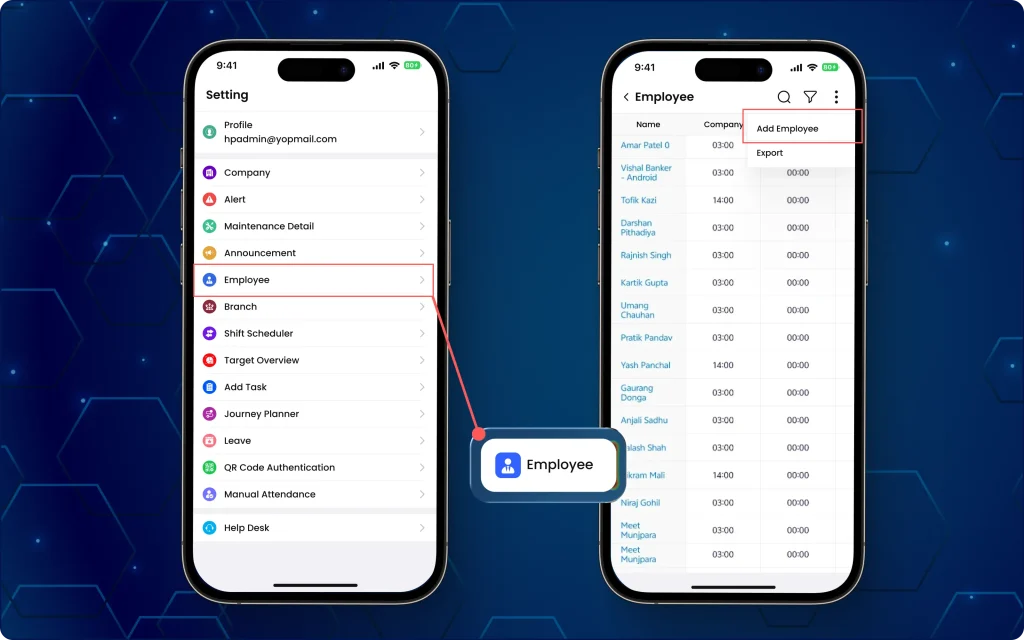
The latest update enables the same employee management capabilities directly from the TaskEye Manager App, making workforce administration more flexible.
What can managers do now?
- Add new employees directly from the TaskEye Manager App.
- Capture essential employee information, including personal, contact, and organisational details.
- Assign employees to the appropriate company, branch, department, and shift when creating employees.
- Configure reporting relationships by assigning a primary reporting manager.
- View and update employee records from the mobile app while preserving protected information, such as the employee’s mobile number during edits.
Why does this update matter?
- Extends employee management from the manager web dashboard to the TaskEye Manager App.
- Gives managers flexibility to add and update employee records conveniently.
- Improves consistency by capturing standardised employee information.
- Reduces the need to switch between devices for employee administration.
- Helps managers maintain accurate and up-to-date employee records more efficiently.
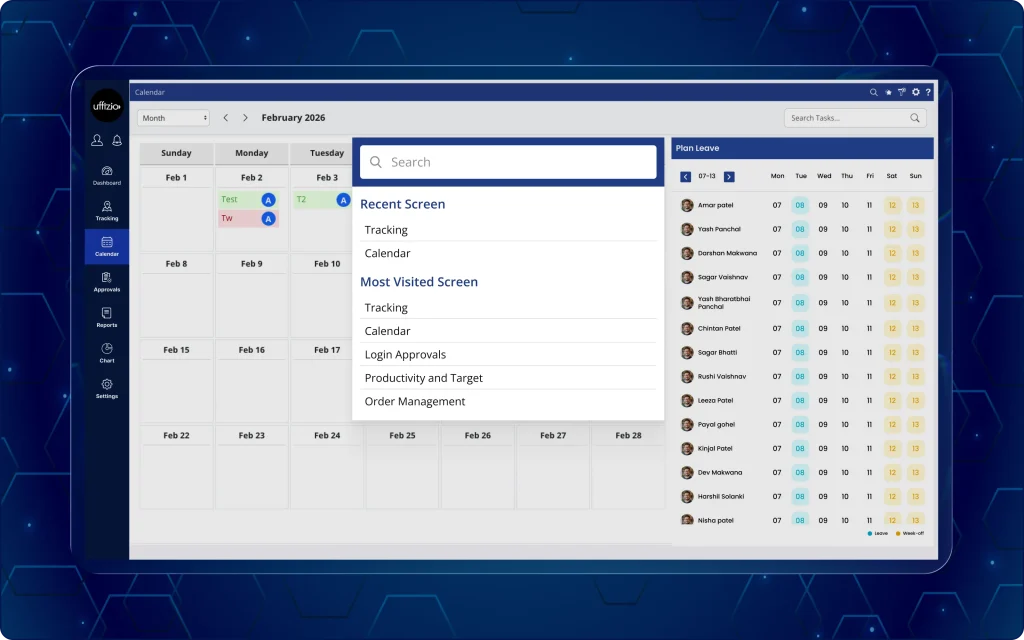
12. Access recent & most visited screens from global search on the manager dashboard
Previously, managers had to type a search query every time they used Global Search, even for frequently accessed pages.
The Manager Web App now provides instant navigation suggestions, helping managers switch between commonly used screens with fewer clicks.
The latest update introduces a smart quick-navigation dropdown that displays recently opened and most visited screens as soon as the search bar is opened (as seen in image 12 below).
What can managers do now?
- View up to 5 recent screens and 5 most visited screens directly from the global search dropdown.
- Access the most recently visited screens, displayed with the latest screen at the top.
- Quickly open the most visited screens based on daily usage without searching manually.
- Automatically switch to standard search results as soon as a search term is entered.
- View a No recent history message when no navigation history is available.
Why does this update matter?
- Reduces the time spent searching for frequently used screens.
- Makes navigation faster with recent and most visited screen suggestions.
- Improves productivity by providing quick access to commonly used modules.
- Delivers a smoother experience with keyboard-supported navigation.
- Helps managers move between daily tasks more efficiently.
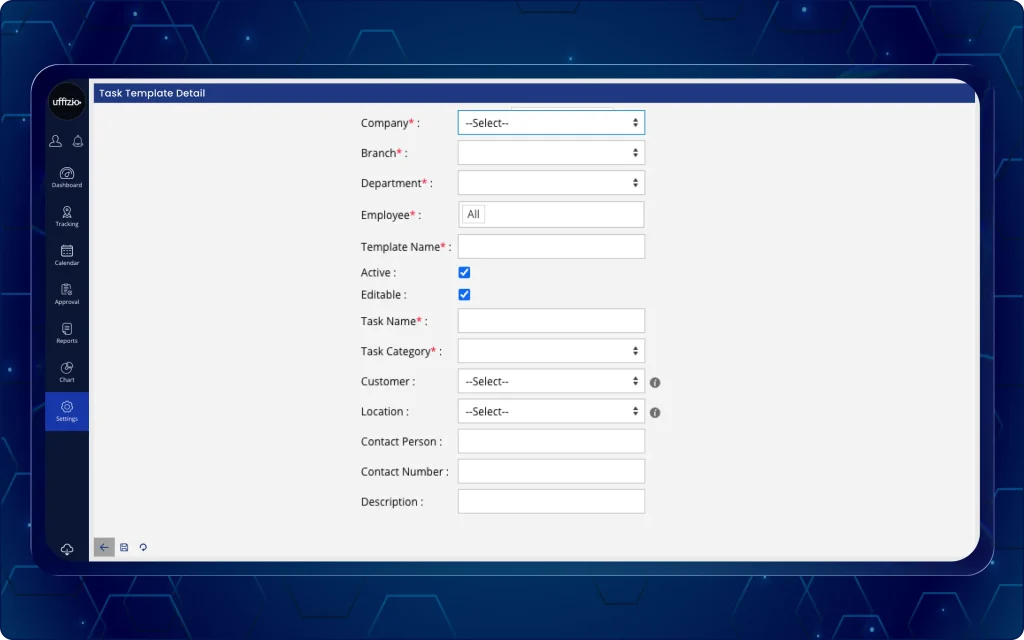
13. Create reusable task templates on the manager web app for faster task planning
Managers previously had to rely on employees to manually enter details of repetitive tasks.
Now, they can create, assign, and manage reusable task templates for individual field employees from their Web App (as seen in image 13 below).
The new task template feature allows them to create reusable templates that standardise task information and simplify the management of recurring tasks.
What can managers do now?
- Create reusable task templates with predefined task details.
- Assign task templates to specific employees or employee groups.
- Configure task information, including task name, task category, customer, location, contact person, contact number, and description.
- Control whether employees can edit assigned task details before submitting the task.
- Activate or deactivate task templates based on operational requirements.
- View, edit, and delete task templates from a centralised overview.
- Prevent duplicate template names within the same company for better data consistency.
Why does this update matter?
- Reduces repetitive task configuration for recurring field activities.
- Standardises task information across teams.
- Gives managers better control over reusable task templates.
- Minimises manual errors with predefined task details.
- Improves operational efficiency by simplifying recurring task planning.
14. Create tasks faster with location-verified auto-fill templates in the TaskEye Employee app
Previously, field employees had to enter recurring task details manually each time they created an urgent or current task.
Employees can now use assigned task templates to reduce repetitive data entry while creating tasks (as seen in image 14 below).
The new auto fill task feature lets employees instantly auto-fill assigned task details using predefined templates from their employee app.
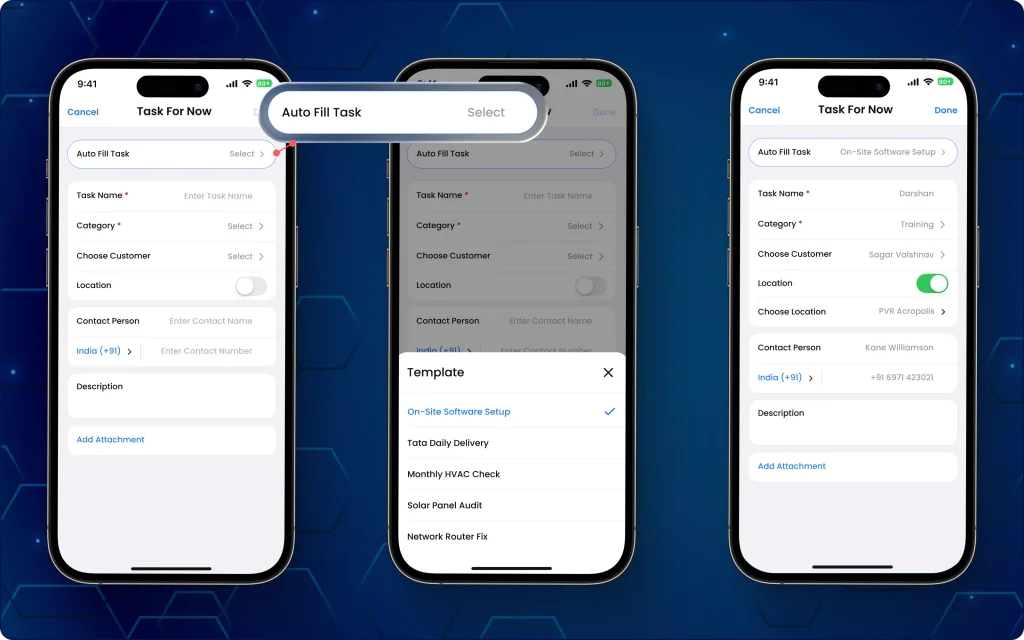
Additionally, location validation is now performed at the time of task submission instead of immediately after loading a task template.
What can employees do now?
- Access the Auto Fill Task option while creating a Task For Now.
- View all active task templates assigned to them via the manager.
- Load task templates without triggering an instant GPS mismatch alert.
- Automatically verify your location before submitting a task.
- Select a template to automatically view and add the available task details.
- Continue creating tasks with fewer manual inputs and greater consistency.
- Complete the task after reviewing or updating the pre-filled information, where permitted.
Why does this update matter?
- Reduces repetitive data entry while creating recurring tasks.
- Speeds up task creation with pre-filled task information.
- Improves consistency by using centrally managed task templates.
- Creates a smoother experience by avoiding unnecessary location alerts during task creation.
- Ensures location validation is performed only when it is required.
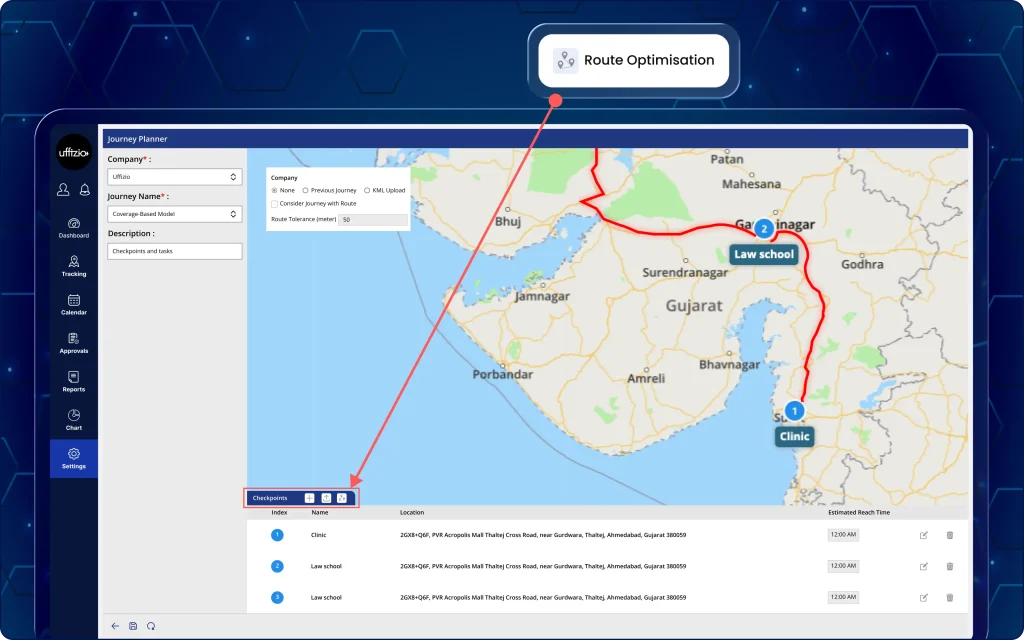
15. Optimise journey routes with smart checkpoint sequencing on the manager dashboard
Managers previously had to arrange journey checkpoints in the order they were added, which could result in inefficient travel routes (as seen in image 15 below).
The new optimise route feature in the manager web app automatically reorganises journey checkpoints based on geographic proximity to create travel routes quickly and efficiently.
What can managers do now?
- Optimise journey routes with a single click once three or more checkpoints are added.
- Automatically reorder checkpoints based on their geographic proximity.
- View the journey route update instantly on the map after optimisation.
- See the checkpoint sequence and index numbers update automatically to match the optimised route.
- Re-optimise the route whenever new checkpoints are added to the journey.
Why does this update matter?
- Reduces unnecessary travel by creating geographically optimised routes.
- Simplifies journey planning with automatic checkpoint sequencing.
- Helps field employees follow more efficient travel paths.
- Saves time by eliminating the need for manual checkpoint reordering.
- Improves route planning and allows managers to optimise routes as needed.