
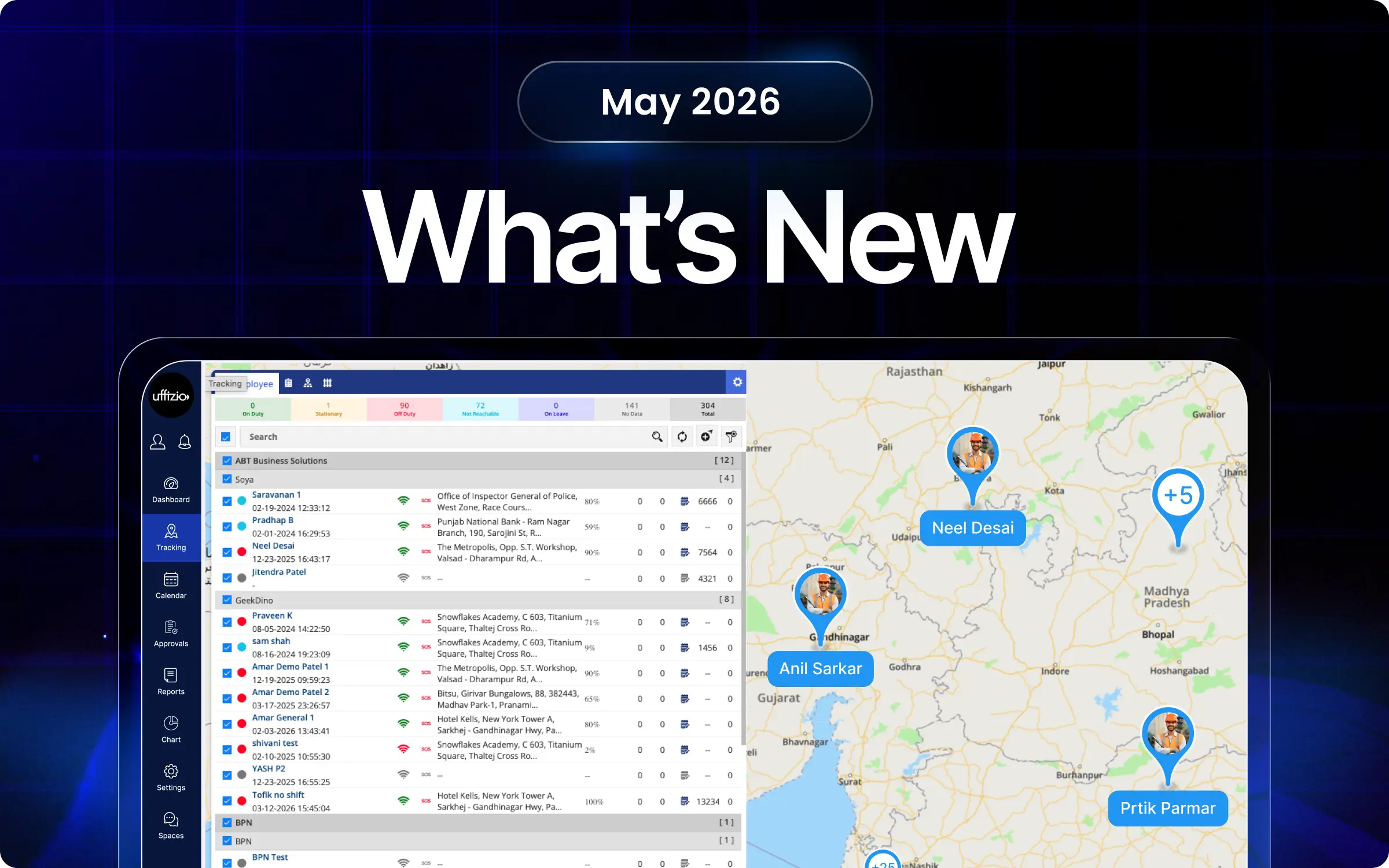
We continuously enhance the platform to simplify field operations and improve workforce visibility. This update introduces enhancements across shift management, journey tracking, attendance, expenses, idle, overstay, GPS & internet off alerts, and reporting to reduce manual effort and improve operational accuracy. Explore the latest enhancements designed to make daily execution faster, more structured, and more reliable.
TaskEye Updates
1. Eliminate manual shift scheduling with automatic rotational shift assignment
Previously, managers had to assign and schedule shifts manually, leading to delays in completing work and attendance inconsistencies, especially during 24-hour operations.
But now they can organise their shift scheduling assignment process through rotational shift management (as seen in image 1 below).
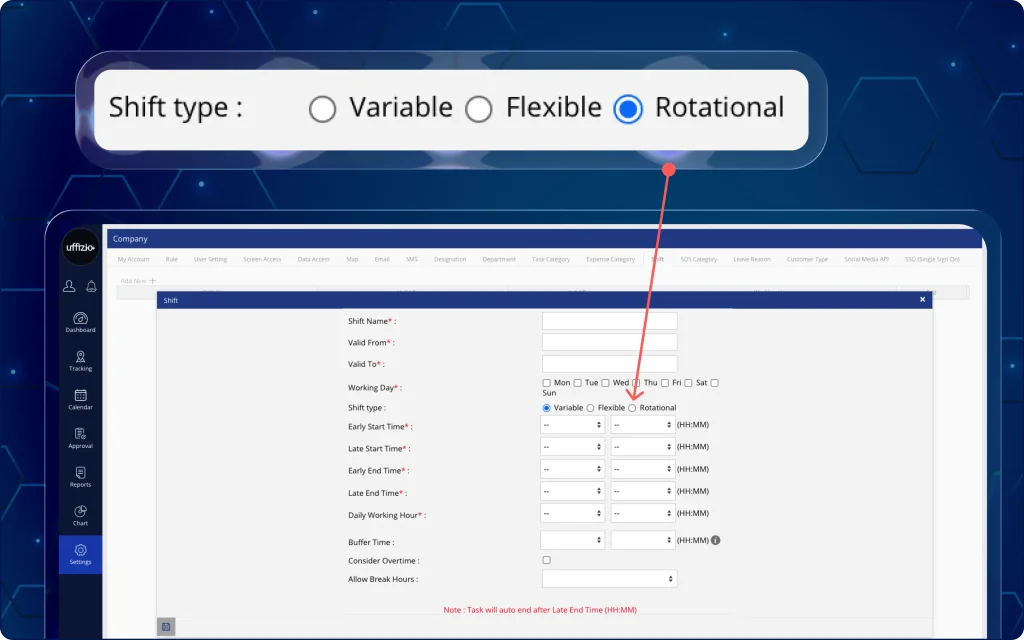
This functionality allows managers to automatically identify the current shift slot and manage employee shifts based on their check-in time.
What can managers do now?
- Create a new rotational shift category and add multiple shift slots (morning, afternoon, evening, night, 24-hour).
- Set up shift slots with specific start and end times to manage the 24-hour operations effectively.
- Enable auto-shift assignment and shift ending time based on the employees’ On-duty time.
- Enforce a strict policy of one assigned rotational shift per calendar day to maintain accurate attendance and manage work distribution.
- Allow flexibility for employees to continue their work the next day in case of overnight shifts.
- Get a live view of employee shift details, such as slot type, shift timings, and early/late shift login options for every live shift assignment.
2. Select a flexible shift schedule from the TaskEye employee app
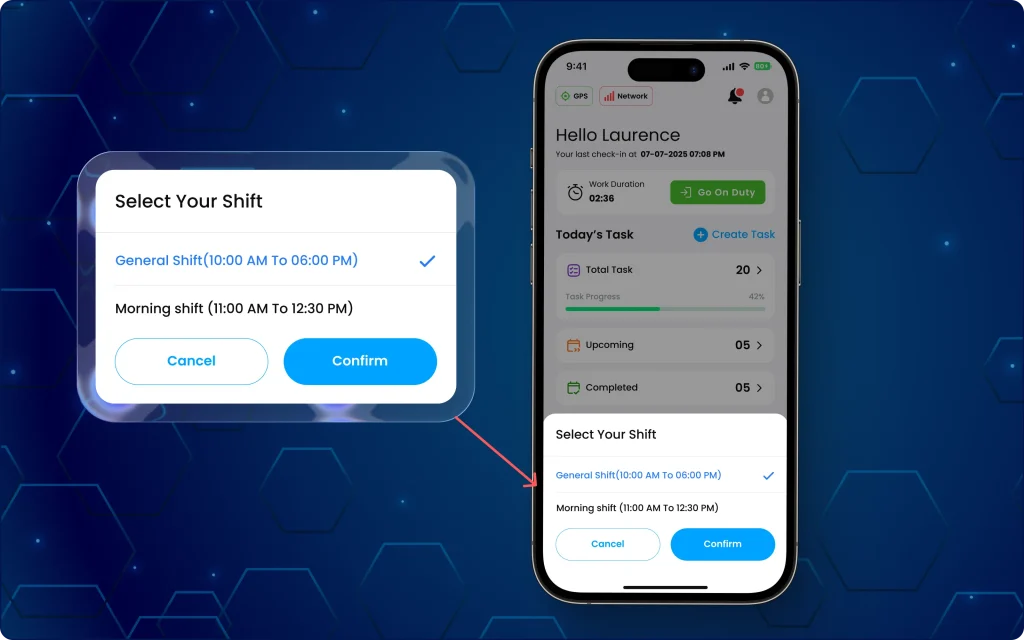
Manual shift scheduling causes confusion and overlaps for field employees, whereas automated shift scheduling provides clarity about their work shifts (as seen in image 2 below).
What can field employees do now?
- Receive accurate details on upcoming shifts based on the current login time for the particular day.
- Select a specific shift from a prompted list if check-in times overlap between multiple windows.
- View system alerts when attempting to check in outside of defined shift hours.
- Get restricted from selecting more than one rotation shift on the same day.
Why is this update important?
- Supports 24-hour and overnight workforce shift scheduling.
- Reduces errors in multi-shift operations and eliminates work shift confusion.
- Eliminates manual shift assignment, roster updates, and correction requirements.
- Prevents scheduling errors by restricting multiple rotational shifts per day.
- Simplifies daily attendance and shift management with automated work-hour detection.
- Provides real-time visibility into shift status, timing, and shift type via a live dashboard.
3. View assigned journeys and travel route progress from the TaskEye employee app
Previously, employees could not view the route travelled or even track their overall journey progress. This made it difficult for employees to have an overview of the distance they would have to travel to complete their tasks during the day.
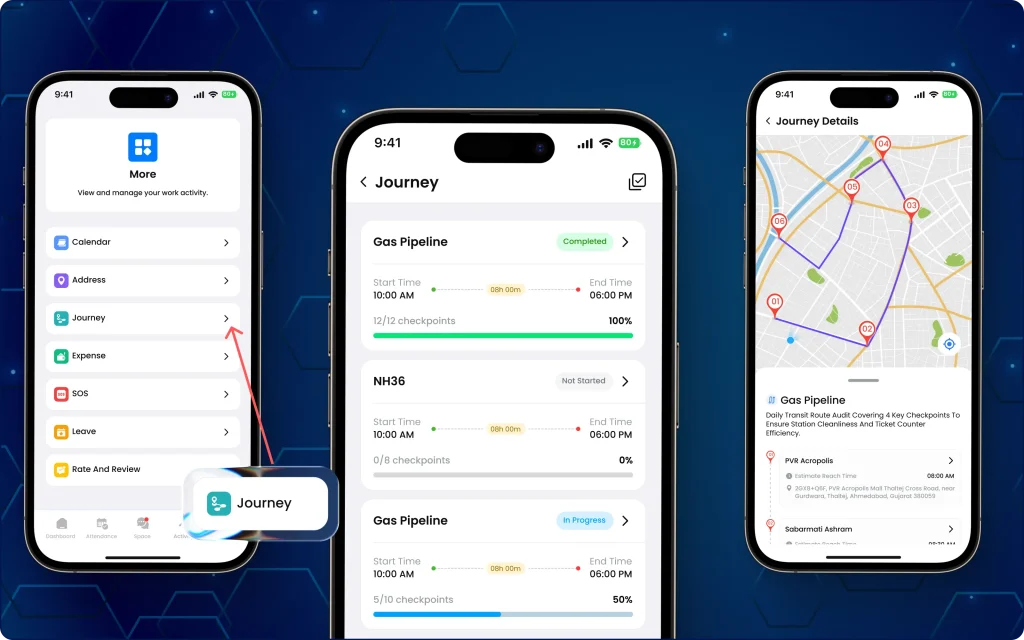
Now, a new journey module provides a map view of all the assigned routes, tracks checkpoint progress, and checks the remaining distance left to travel for task completion (as seen in image 3 below).
What can field employees do now?
- View a list of all journeys assigned for the current day.
- Track task completion progress based on completed vs total checkpoints.
- Filter journey views by specific categories like routes, route with checkpoint, or checkpoint-only tasks.
- Navigate directly to specific task details by selecting checkpoints from interacting with map pins and item lists.
- Access journey data in view-only mode for clear guided route execution.
Why is this update important?
- Increases transparency regarding the sequence and status of checkpoints.
- Supports better on-ground execution planning and aligns mobile view with planned journeys.
- Reduces confusion between multiple tasks and helps track progress during field movement.
- Enables faster navigation to task details and helps track progress during field movement.
4. Capture accurate travel distance with odometer reading and OCR scans
Till now, travel distance could be calculated only on the basis of the GPS data, which sometimes lacked accuracy and required manual verification.
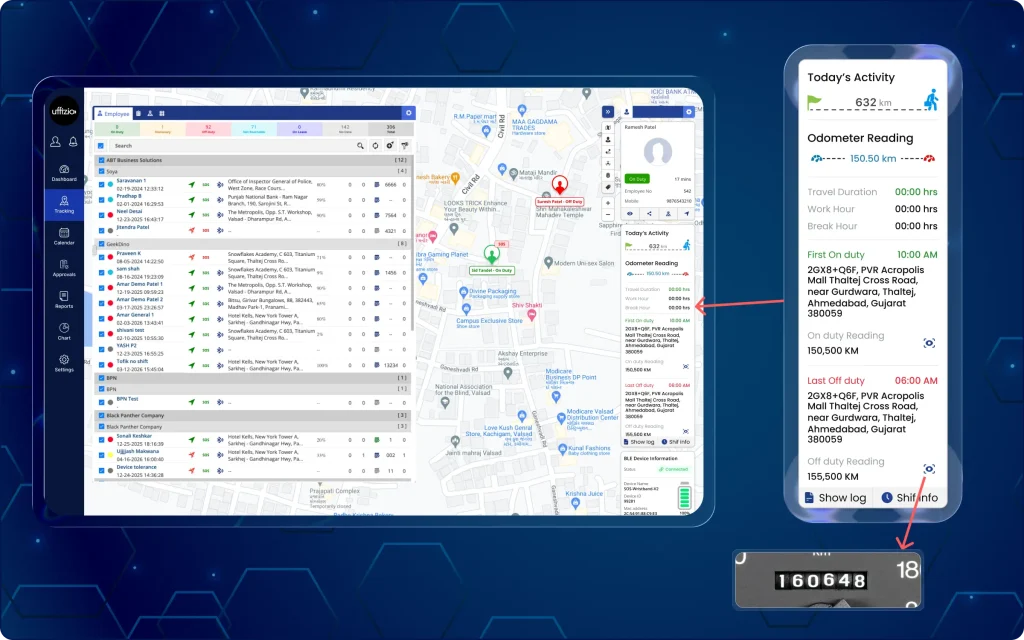
But now, with odometer-based distance calculation, managers can monitor the auto-extracted numeric readings and photo capture using OCR technology.
5. Set and monitor travel distance accurately on the dashboard
Admins can configure and review physical mileage data to ensure accurate travel distance reporting (as seen in image 5 below).
What can managers do now?
- Enable mandatory odometer-based distance verification according to company rules or for specific departments.
- View on-duty and off-duty odometer numerical readings with OCR-captured images.
- Access verified total daily distances and odometer detail reports from the live tracking section on the dashboard.
- Additionally, verify claimed travel expenses against confirmed vehicle mileage along with odometer readings from the attendance reports.
6. Record travel mileage via OCR scanning and odometer readings from the employee app
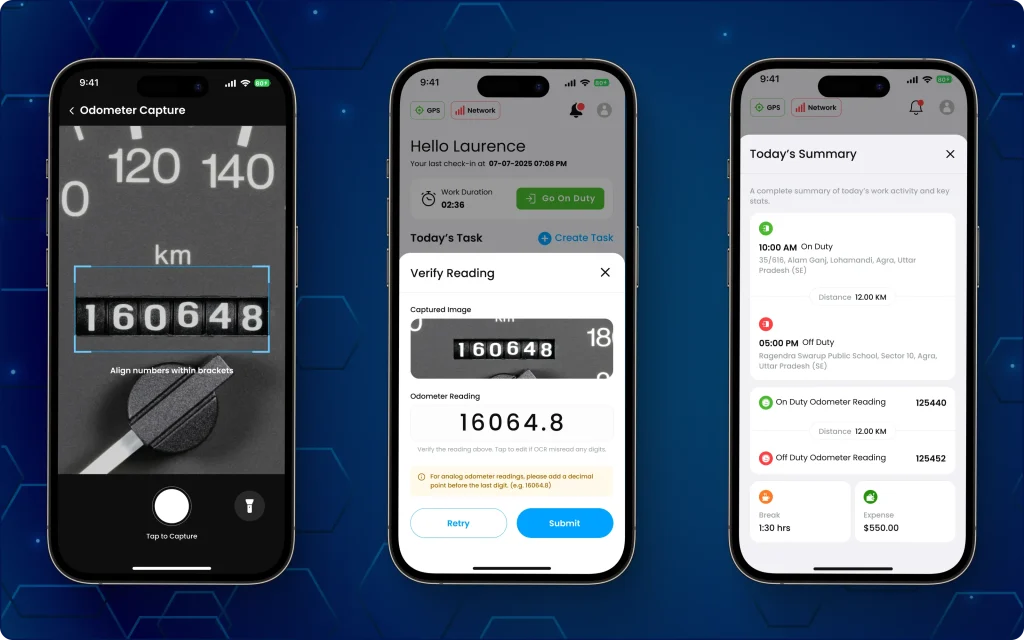
Field employees can now provide accurate odometer readings while travelling from one task to the other using automatic OCR-based image scanning (as seen in image 6 below).
What can field employees do now?
- Capture physical odometer readings during on/off duty status.
- Auto-extract numeric readings using the built-in OCR camera.
- Verify extracted numeric values and make manual corrections when necessary.
- Submit photographic proof of the odometer reading automatically with every duty change.
7. Review travel proof on the status dashboard from the manager mobile app
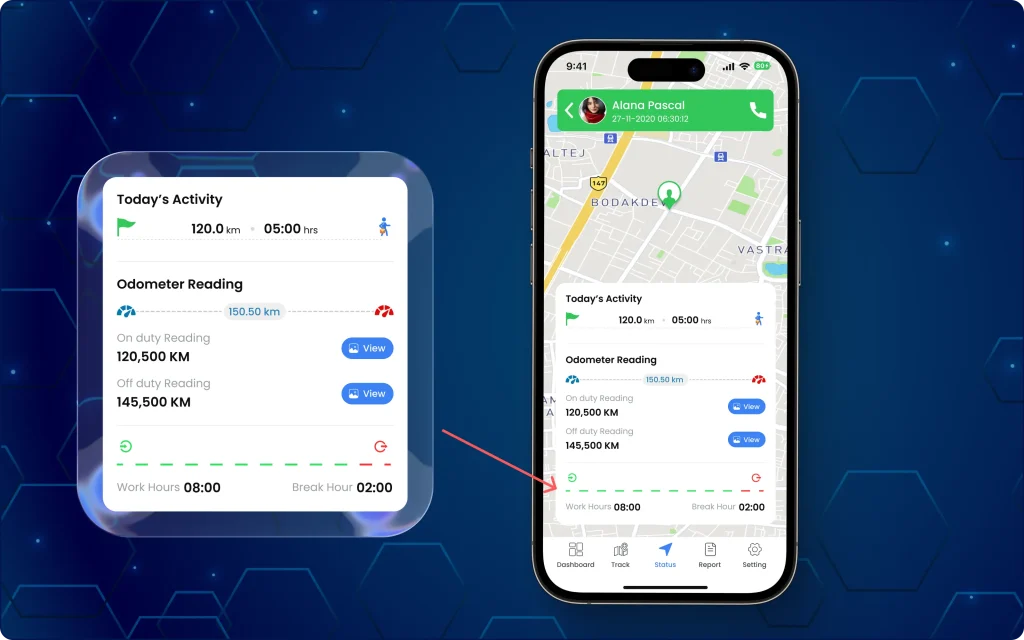
Managers can also track travel distance proofs submitted via odometer readings and OCR image capture quickly from their mobile app as well.
The status dashboard in the TaskEye manager mobile app provides real-time insights operational insights into the distance travelled by every employee (as seen in image 7 above).
What changes on the app?
- View total travelled distance by every field team staff for the day.
- Access on-duty and off-duty odometer readings for every shift.
- View captured additional odometer image captures for cross-verification.
- Track data in real-time based on employee activity and solve any delays.
Why is this update important?
- Eliminates inaccuracies associated with pure GPS distance tracking.
- Provides reliable, image-backed proof for audit and compliance.
- Streamlines expense validation processes for management.
- Increases operational transparency for all field-based activities.
8. Accurate leave management with supporting document attachments
Previously, there was no option to add documents related to leave requests, especially for sick leave. This required managers to contact every employee to confirm the validity of their leave requests.
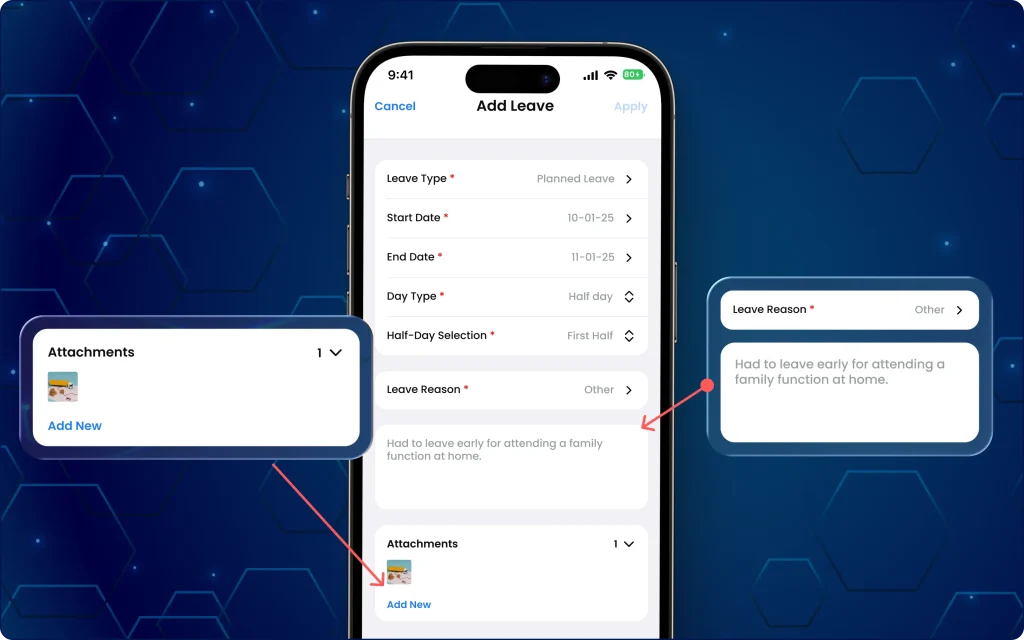
Now, the TaskEye employee application includes a section to attach leave proof documents when applying for leave or after leave has been approved (as seen in image 8 above).
This eliminates the separate verification requirement and increases leave-approval accuracy.
What has changed on the app?
- Add proof-of-leave documents as attachments (for example, a medical certificate in case of sick leave) while applying for leave.
- Upload supported documents in PNG and JPG file format; a maximum of 5 attachments per request is allowed.
- Capture new prescriptions, medical certificates, discharge summaries, or upload relevant files from your gallery.
- View and edit uploaded media files from the leave request screen at any time.
Why is this update important?
- Improves leave request validity by providing supporting proof of request reasoning.
- Reduces back-and-forth communication before leave request approvals.
- Promotes accurate record-keeping of leave requests for future reference and payroll management.
9. Detect and monitor overstays at unknown locations with real-time alerts on the dashboard
Earlier, whenever the employee stayed for an extended period at an unknown location, it was difficult to monitor their location and activity. This led to various operational gaps, a lack of work coordination, and delays in offering emergency assistance.
Now, the managers receive alerts as soon as the employee enters an unknown area other than the assigned work location (as seen in image 9 below).
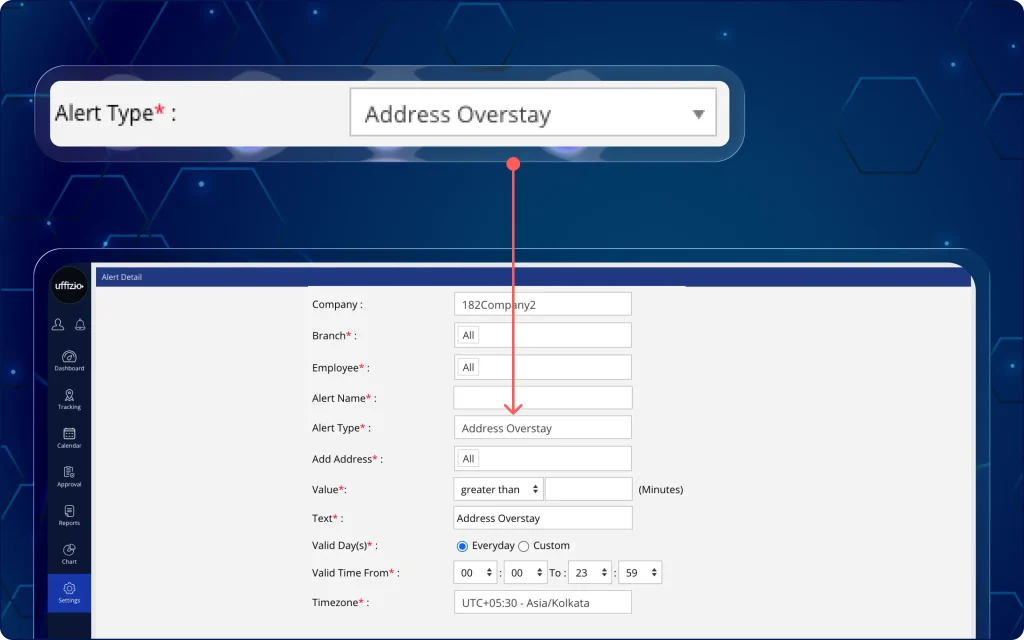
They get a detailed view of the employees’ location and the time duration of their overstay in an unassigned area.
What can managers do now?
- Set up unknown-location overstay alerts for every team member in the dashboard notification settings.
- Define a specific time limit for monitoring idle location time for every unknown area stoppage.
- Customise the medium of alerts through SMS, email, and system notifications.
- Specify the specific days, time, and timezone during which the system should send the alerts.
- Set alert priority levels such as high, medium, or low based on the safety-risk areas.
Why is this update important?
- Reduces response times for potential delays at unknown locations.
- Enables accurate and consistent monitoring across multiple field team locations.
- Expands visibility beyond geotagged locations and reduces inefficiencies in location tracking.
10. View the total distance travelled by the employees from the attendance screen
Previously, employees were not able to view the distance travelled for each trip they made to complete a task. This required them to track distance separately or take a manual estimate.
Now, employees can view an auto-updated total distance report for the full month in the TaskEye employee app (as seen in image 10 below).
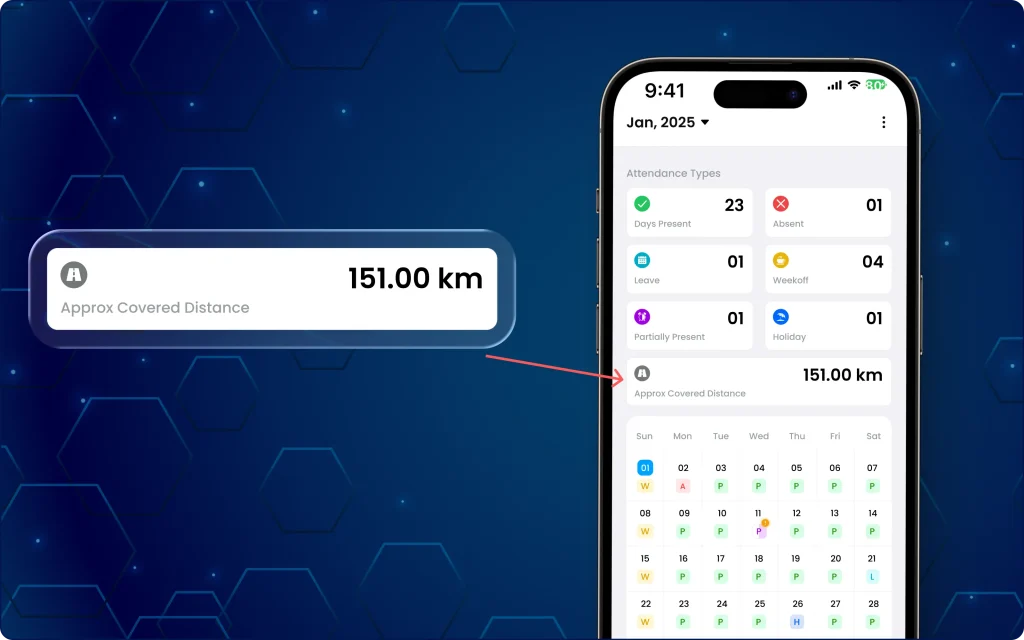
The monthly report updates get added to the attendance screen for a quick travel overview.
What has changed on the app?
- Displays the total distance travelled by every employee for the selected month.
- Updates the distance value automatically as navigation changes between months.
- Displays the unit of measurement (km/miles) based on company settings.
Why is this update important?
- Eliminates manual distance tracking or secondary calculations requirements.
- Provides accurate data on monthly travel activity from the Attendance section.
- Use consistent, verified distance calculations aligned with existing system logic.
11. Download multiple custom form reports from one excel file
Previously, managers had to download separate custom form reports for every custom form created by the employee. This was very time-consuming and led to field management inefficiencies during the reporting process.
Now, they can select multiple custom forms and export them together in a single Excel file. The downloaded file includes multiple separate Excel sheets for the employees (as seen in image 11 below).
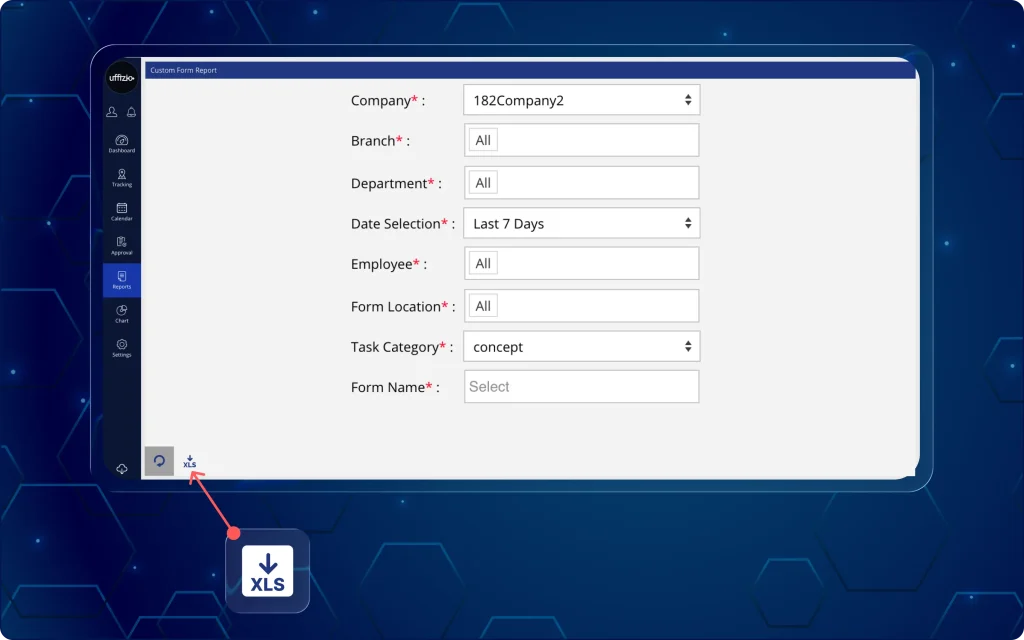
What can managers do now?
- Select and download multiple custom form reports efficiently.
- View each custom form in a separate sheet within the same excel file.
- Maintain exact data alignment between system records and exported files.
Why is this update important?
- Reduces time spent on downloading and organising multiple custom form reports.
- Enhances data accessibility across the organisation by keeping related reports in one file.
- Ensures accuracy between system records and exported data and reduces time spent on report preparation.
12. Track complete expense edit history with timeline and justified reasoning
Previously, managers had no way to restrict employees from editing the amount of expenses incurred. They had to approve the expense claim reports submitted by employees based on the entries made that day.
Now managers can see the complete expense timeline, including the date and time it was added, edited, and approved, on the dashboard approval screen (as seen in image 12 below).
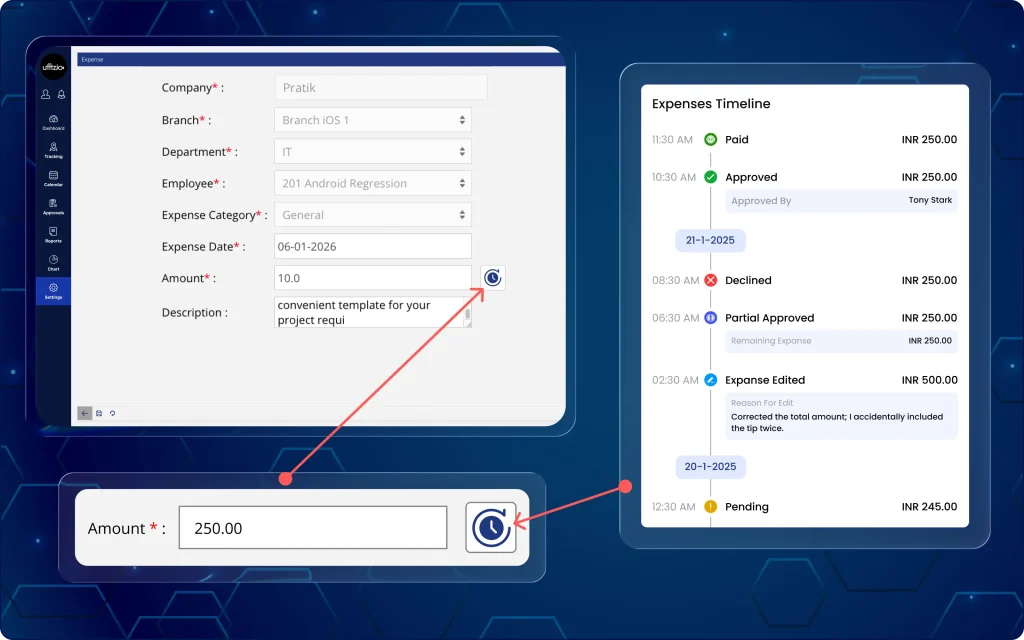
This enables them to have a clear, justified record of expenses with the “reason to edit” option.
What can managers do now?
- View a detailed, chronological list of expense claims submitted by employees for activities during the day.
- Track every expense status from new addition to edited to approved for accurate audit trail records.
- Get justified reasons for all the expense amounts edited by the employees throughout the day.
- Access all expense records with pre-set filters, such as status (pending, partially approved, and this month), to enhance the approval process.
- Explore the complete expense record report as a PDF for audit compliance.
13. Add expense edit reason along with details from the employee mobile app
Consequently, field employees must provide a valid reason for editing previously saved expense entries before final submission (as seen in image 13 below).
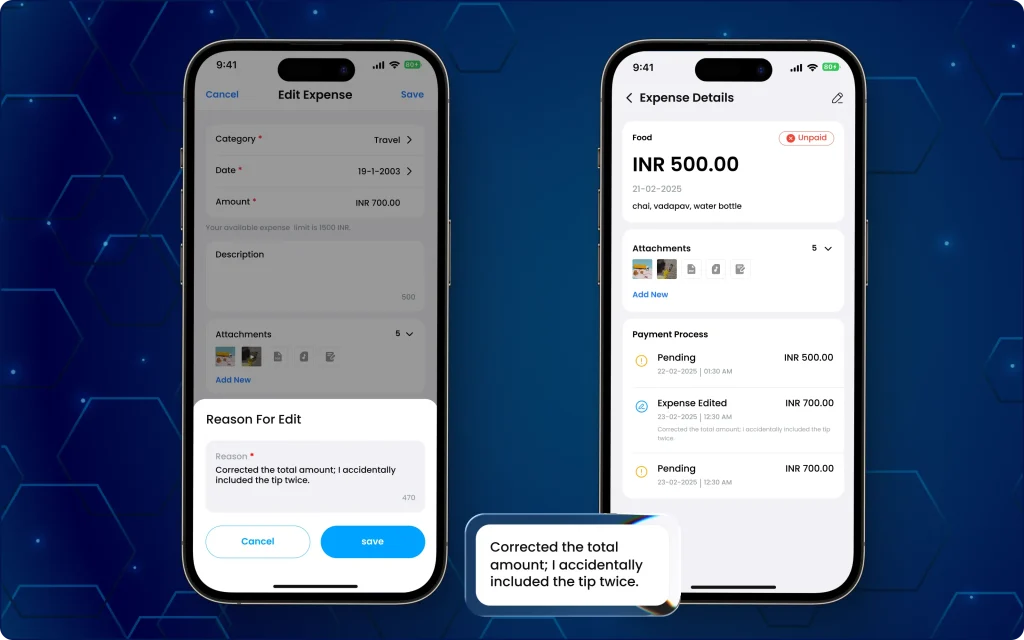
What can field employees do now?
- Enter the mandatory expense editing reason when the “reason to edit” field appears.
- Ensure that every change is recorded and the reason for editing is linked to the specific expense record.
- Tally the expense incurred for every task and verify that each expense entry has a justified reason written at the end of the day.
Why is this update important?
- Speeds up the manager review and approval process of expense records.
- Reduces managers’ effort in tracking expenses through automated filter defaults.
- Supports audit compliance and record-keeping requirements for all expense modifications.
- Provides accurate records for expense reimbursements and payroll management.
14. Manage and approve employee expenses directly from the manager mobile app
Managing expense approvals required switching to the web application, which slowed down the approval process.
Expense requests can now be reviewed, approved, partially approved, declined, and marked as paid directly from the manager app (as seen in image 14 below).
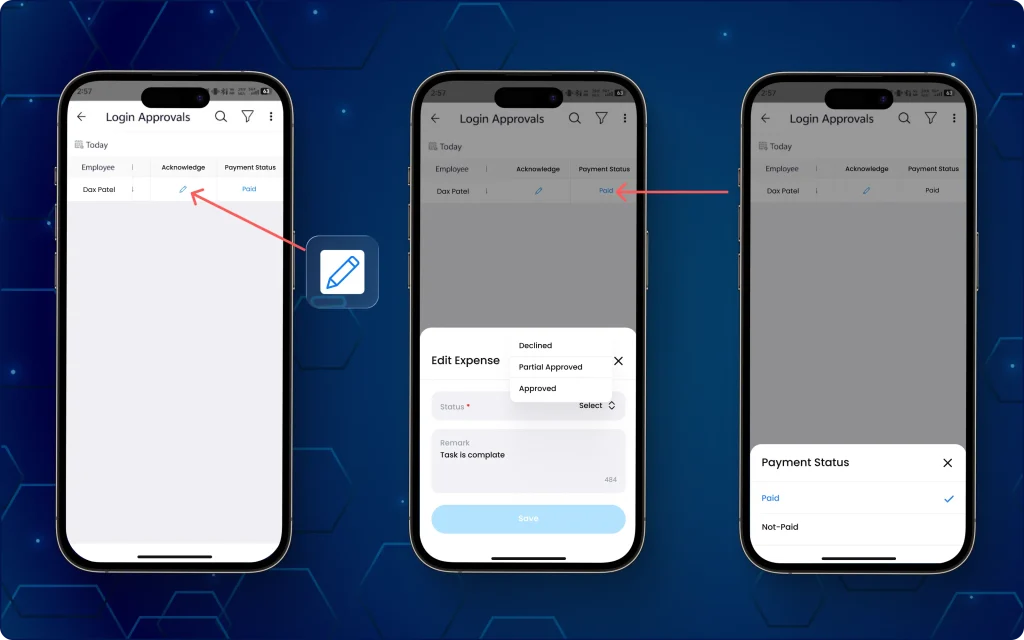
Hence, it is easy to handle expense approvals without depending on the web application.
What can managers do now?
- Review employee expense requests in the Manager App.
- View complete expense details, including category, amount, status, remarks, and supporting bills.
- Preview attached expense bills before taking action.
- Access expense history to review all actions and status changes.
- Approve, partially approve, or decline expense requests.
- Record payment status for approved expenses.
Why is this update important?
- Faster expense approval cycles from a single platform.
- Better visibility into expense requests and approval history.
- Easier verification with bill previews and detailed expense information.
- Improved tracking of approval and payment status.
- Reduced dependency on the web application for day-to-day expense management.
- Clear audit trail of every expense action and status update.
15. Stay updated with real-time employee activities and requests from the manager app
Previously, managers had limited visibility into employee requests, activities, and critical events while away from the web application.
Now, they can receive timely updates about important employee actions and operational events in one place.
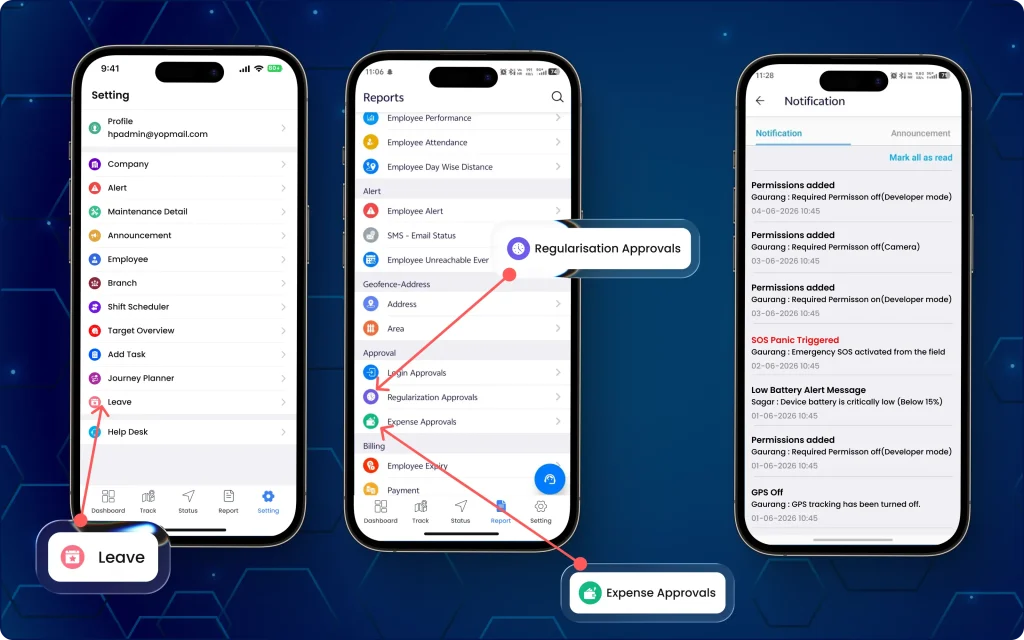
The manager app now delivers real-time notifications, helping them respond faster to approvals, alerts, and field activities (as seen in image 15 above).
What can managers do now?
- Receive notifications for leave, permission, attendance regularisation, and expense requests.
- Stay informed about employee alerts and critical field events.
- Get updates on geofence activities and employee location-related events.
- Receive notifications for SOS alerts and low battery events.
- View clear notification messages with relevant action details.
- Track pending requests that require review or approval.
Why is this update important?
- Faster response to employee requests and operational alerts.
- Improved visibility into field activities and critical events.
- Reduced delays in approval workflows.
- Better monitoring of employee compliance and movement.
- Enhanced employee safety through timely event notifications.
- Centralised communication for improved operational oversight.
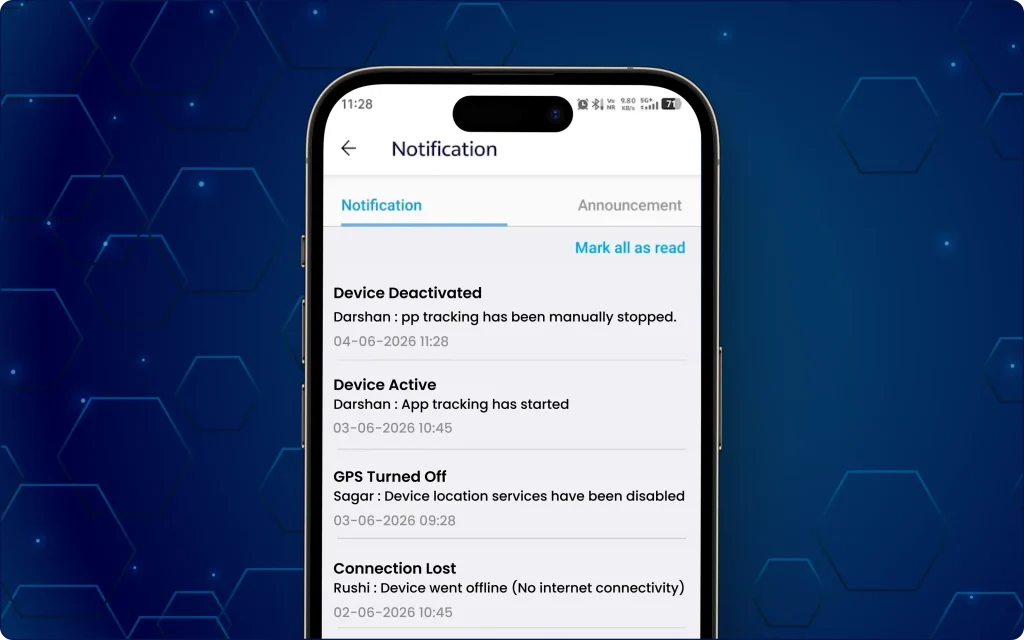
16. Improve device monitoring with instant GPS and internet disconnectivity alerts
Managers had limited visibility of activities or emergency situations when employee devices stopped sharing location data or lost internet connectivity.
The platform now supports GPS off and Internet off alerts, helping teams identify tracking and connectivity issues more effectively (as seen in image 16 below).
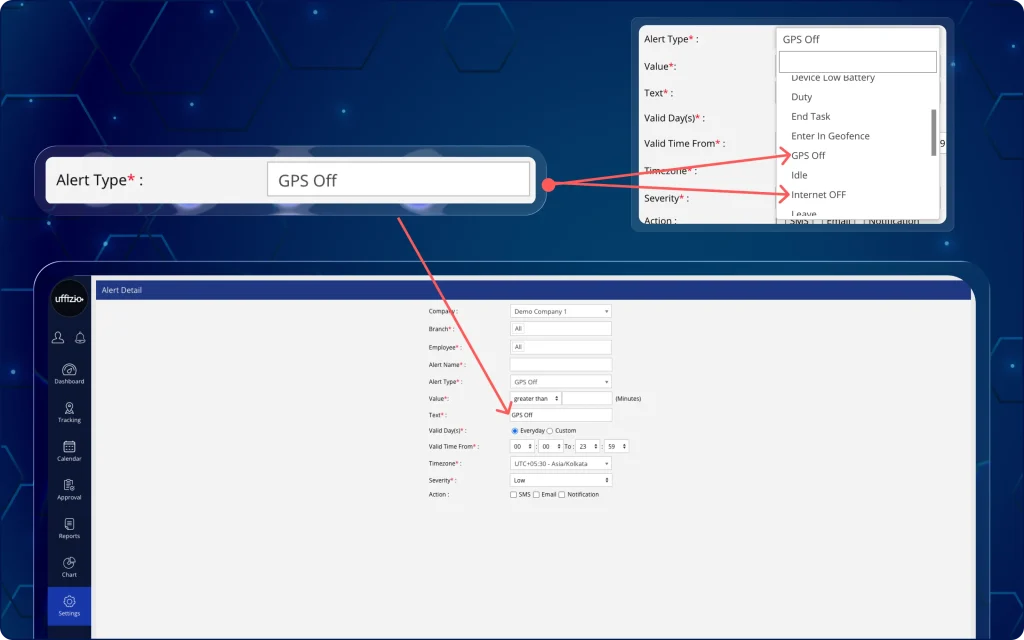
What can managers do now?
- Configure GPS off alerts based on a defined duration.
- Receive alerts when GPS remains disabled beyond the configured threshold.
- Configure Internet off alerts based on offline duration.
- Track extended internet outages using configurable alert limits.
- Receive contextual alert notifications based on configured settings.
17. Monitor device active status, GPS, and internet connectivity status on the manager app
The manager app now supports the same alert options and device behavior available on the web platform (as seen in image 17 below).
What has changed on the app?
- Configure GPS off and internet off alerts from the manager app.
- Apply duration-based alert thresholds for connectivity monitoring.
- Receive consistent alert behavior across web and mobile platforms.
- Manage device monitoring settings from a single mobile interface.
Why is this update important?
- Improves visibility into employee device connectivity and tracking status.
- Helps identify GPS-related tracking interruptions quickly.
- Enables better monitoring of extended internet outages.
- Supports faster action on connectivity and location-sharing issues.
- Provides flexible alert thresholds based on operational requirements.
- Delivers a consistent monitoring experience across web and mobile platforms.
18. Download attendance and task history reports from TaskEye employee app
Previously, field staff had to rely on scheduled reports generated by managers to access attendance and task history records.
The TaskEye employee app allows them to access and save their own attendance and task records directly from the app, with Excel and PDF download format options (as seen in image 18 below).
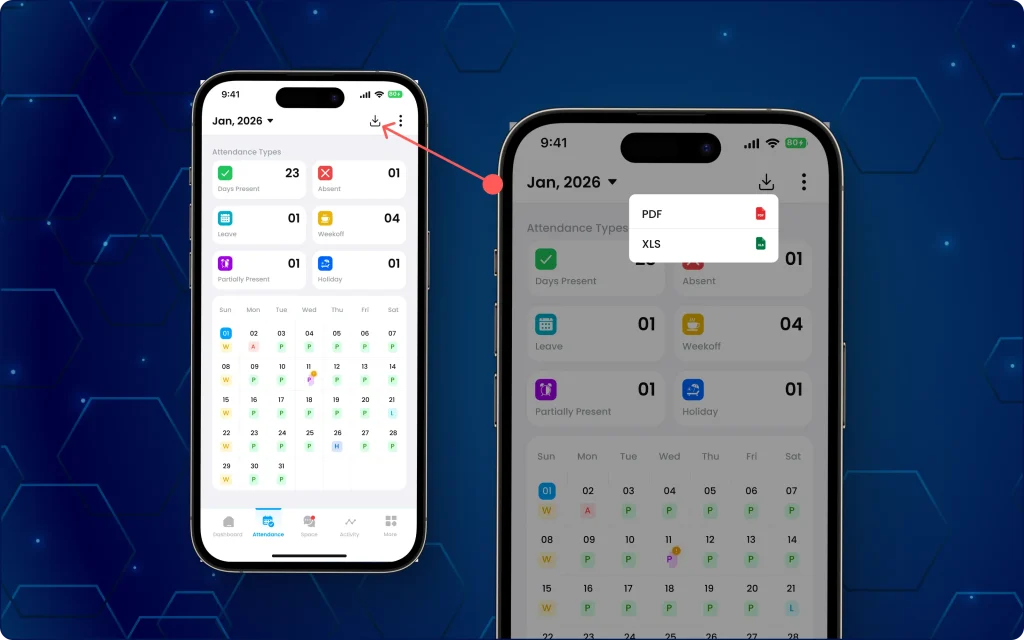
What has changed on the app?
- Download attendance reports for the selected month.
- Download task history reports from the Calendar section.
- Choose between Excel and PDF report formats.
- Generate reports based on the exact month currently being viewed.
- Access report data without depending on scheduled report delivery.
Why is this update important?
- Reduces dependency on managers for report access.
- Improves access to attendance and task history records.
- Supports better record-keeping and data sharing.
- Provides flexibility with Excel and PDF export options.
- Ensures downloaded reports match the selected reporting period.
- Makes report access faster and more convenient for field employees.
19. Enable seamless device switching & prevent data loss during logout
Previously, there were two issues:
- Whenever a field employee had to switch devices due to some issues during an active work session, the captured data was either incomplete or lost.
- Secondly, when the employee completed his shift and logged out while being in a rural, remote, or unstable network connectivity area, the data was not getting auto-synced before allowing logging out.
20. Continue working on your ongoing task after logging from another device
The TaskEye Employee App now maintains active sessions across devices and provides logout waiting warnings when unsynced data is at risk.
Employees can now continue ongoing work sessions seamlessly when accessing the app from another device (as seen in image 20 below).
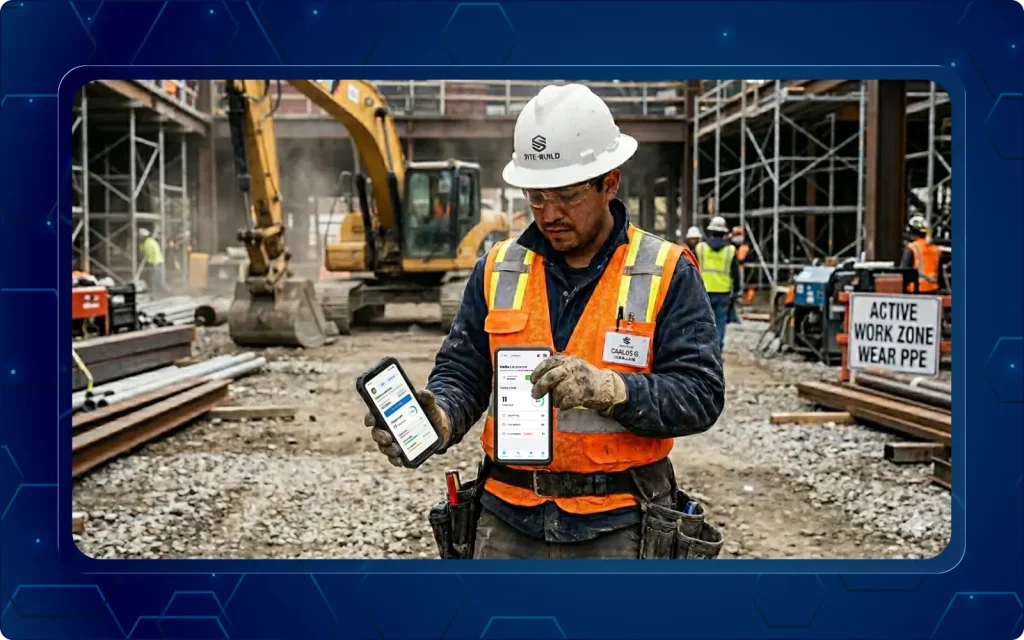
What has changed on the app?
- Continue an active on-duty session after logging in on a different device.
- Access previously recorded activities from the ongoing session.
- View current session information without starting a new work session.
- Maintain a single, continuous work record across devices.
- Resume work without losing ongoing session data.
21. Prevent employees from ending shifts before data auto-syncs in remote areas
The Employee App now checks for unsynced data before allowing logout when field employees are working in areas with unstable internet connectivity and their app is in Offline Mode (as seen in image 21 below).
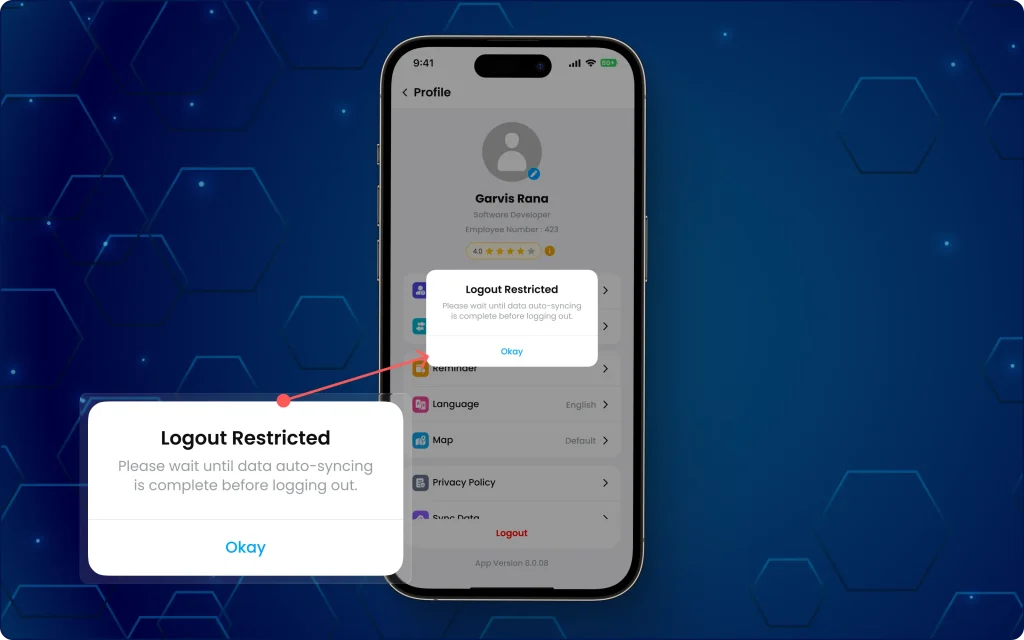
What has changed on the app?
- Detects unsynced attendance, GPS, and task data before logout.
- Display a warning when unsynced data is available.
- Allow employees to remain logged in and continue data synchronization.
- Provide visibility into pending data that has not yet been synchronized.
- Prevent accidental loss of offline work records.
Why is this update important?
- Improves data accuracy across employee work sessions.
- Reduces the risk of losing attendance, GPS, and task records.
- Supports uninterrupted work when switching devices.
- Maintains consistent session tracking across multiple devices.
- Increases reliability of offline data collection and synchronization.
- Provides greater confidence that critical work data is preserved.