
We are back with a new set of updates and enhancements to improve your daily field operational workflow. This month, our focus is on reducing manual work and improving visibility into what is happening across the field.
We have improved field activity reports, introduced interactive app widgets, added accurate SOS alerts, enabled activity link sharing, and added self-service features.
These changes will help field teams stay organised and efficient, and allow managers to take quick, accurate actions related to field activity.
Take a look at all the updates and enhancements that we have introduced across the TaskEye web app, Employee app, and the Manager mobile app.
TASKEYE UPDATES
1. Restrict employee logout from the TaskEye web app for better field work compliance
Previously, field teams could log out at any time, even if their work was not completed. Now, managers can disable the logout option in the TaskEye web dashboard for field teams as seen in image 1 below.
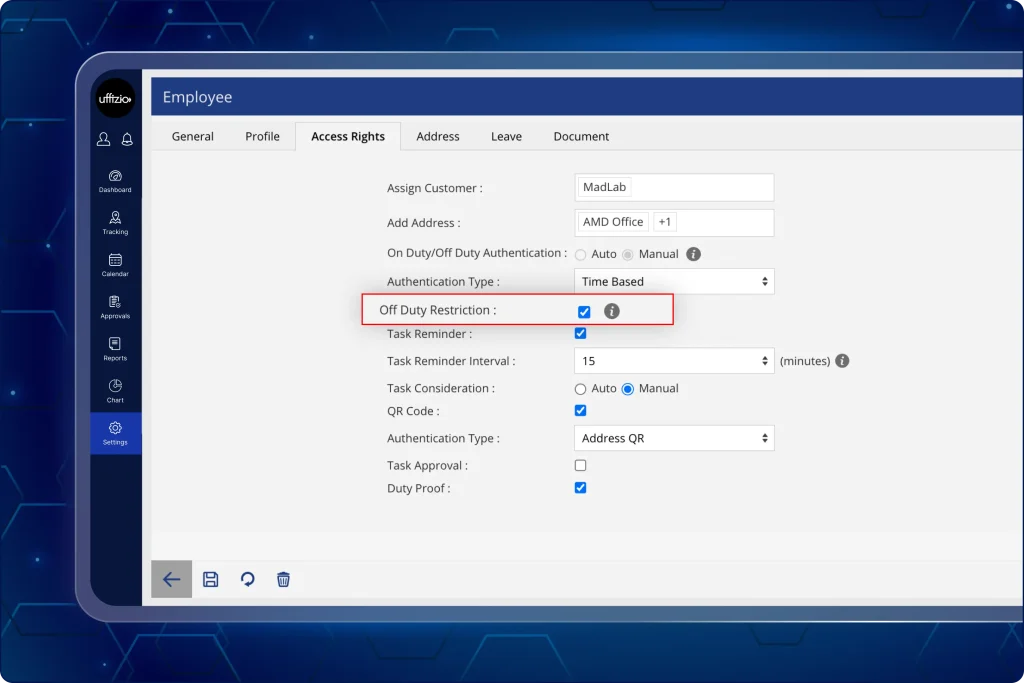
This ensures that field staff continue working sincerely and stay logged in during their working hours.
What can managers do now?
- Access the “restrict logout” configuration within the company rule settings.
- Enable or disable logout access using a checkbox.
- Apply the setting for all employees in the company instantly.
- Enforce login continuity without manual monitoring.
- Re-enable the logout functionality instantly if operational requirements change.
2. Set pre-shift completion employee logout restriction on the TaskEye employee app
Consequently, when the manager disables the logout option from their web dashboard for all the field employees in the organisation, the effect is automatically visible on the TaskEye employee app.
Hence, employees do not need to restart or update the app to see its effect on their mobile devices.
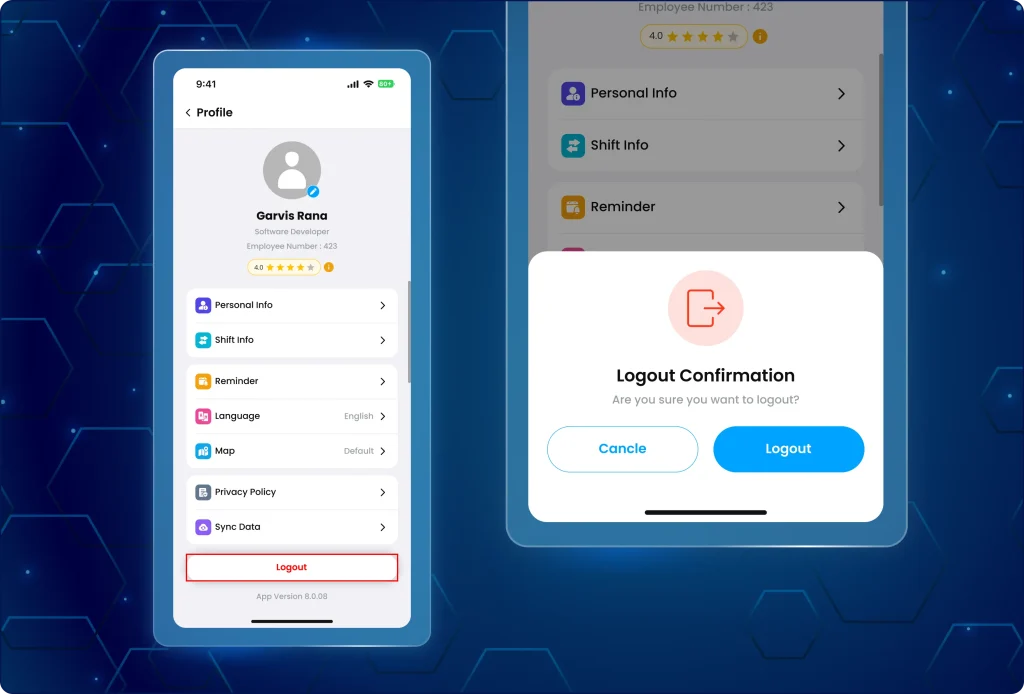
What has changed on the app?
- The logout button remains visible when the setting is disabled and becomes non-clickable when the restriction is enabled.
- Changes apply instantly without requiring re-login as seen in image 2 above.
- Configuration updates apply immediately across all active employee sessions.
- Session status remains the same during the particular employee’s shift to prevent accidental or unauthorised logouts.
Why does this update matter?
- Ensures field teams stay active and sincere during their assigned working hours.
- Reduces the risk of data loss or tracking gaps caused by frequent manual logouts.
- Prevents unauthorised or early logouts and reduces manual supervision effort.
- Updates take effect instantly, without requiring employees to re-log in or refresh.
- Allows administrators to manage employee app log-in and log-out app status company-wide with a single click.
3. Access detailed employee activity insights directly via the clickable app widgets
Previously, managers could view only the summary and numerical data on employee activities.
They could not click to view the detailed information on employee tasks, distance travelled, or unreachable employees.
Now, they do not have to switch to the web app to get a detailed view of the employee activities as seen in image 3 below.
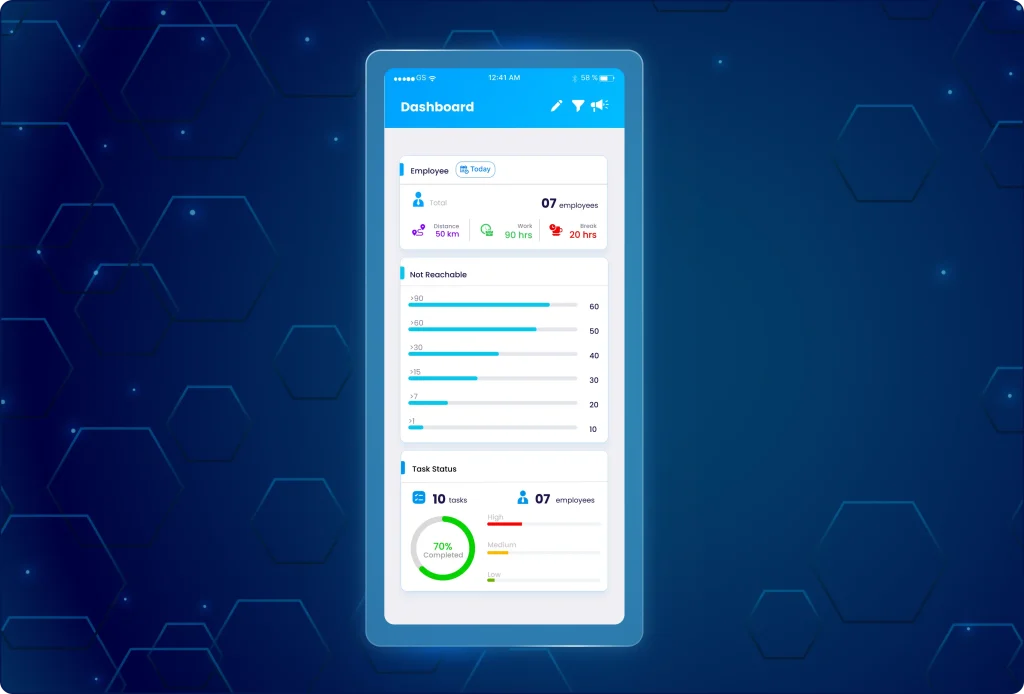
Field team activity details are now clickable via interactive widgets available on the Manager mobile app.
What can managers do now?
- Click on the task status widget to view specific lists filtered by priority (high, medium, or low).
- Click on the employee distance widget to open a detailed employee view of distance travelled, work done, and break time).
- Select specific rows in the not reachable widget to identify employees based on their unreachable duration and generate an unreachable event report for every employee.
Why does this update matter?
- Identifies critical issues, such as unreachable employees or high-priority task hurdles, in seconds.
- Reduces context switching between platforms and speeds up decision-making in the field.
- Eliminates the need for managers to access the web version to view detailed employee activity reports.
- Reduces the risk of manual filtering errors by using direct-link triggers from summary widgets.
- Ensures that field managers see the exact same data columns and logic on mobile as they do on the dashboard.
4. Access unreachable events & day-wise distance reports from the TaskEye manager app
So far, managers have had to log in to their web dashboard to view detailed records of employees’ daily distance travelled. Additionally, they had no quick way to track all unreachable employees and their activities.
Now, both the unreachable event and day-wise distance reports are available for viewing in the TaskEye manager mobile app.
Therefore, managers can view the same web-style employee activity reports without logging in to their computers as seen in image 4 below.
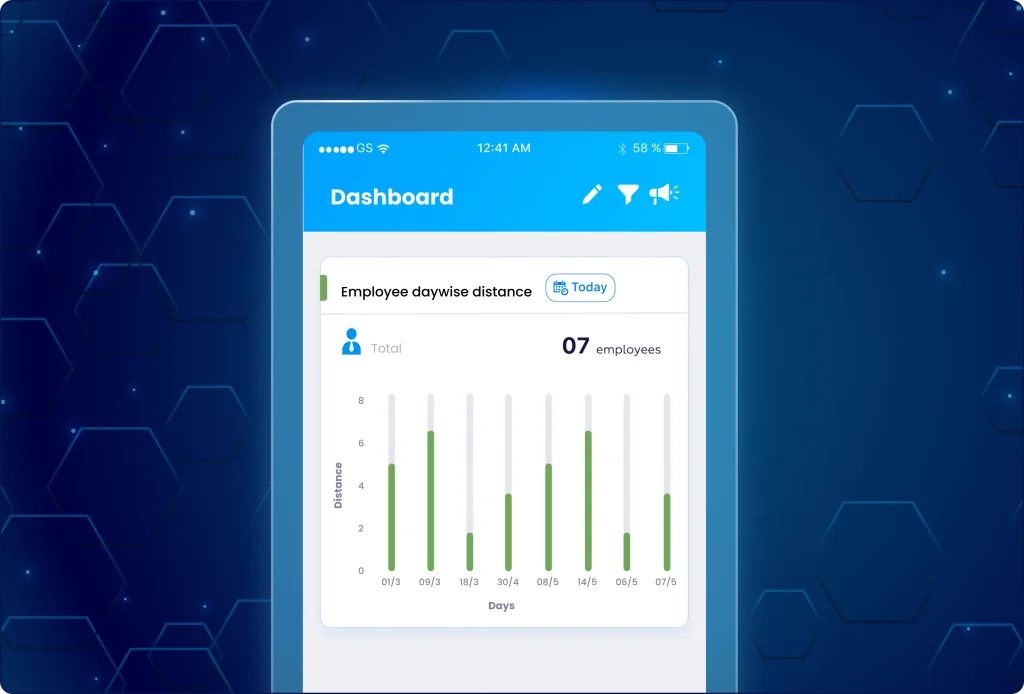
What can managers do now?
- View the unreachable event report to see exactly when and where employees lose connection.
- Check the day-wise distance report to see how many kilometers each team member travels daily.
- Use the “horizontal scroll” to swipe through 31 days of data while employee names stay locked in place for easy reading.
- Save and share data by exporting reports as XLS or PDF files directly from the mobile app.
Why does this update matter?
- Managers no longer need a desktop to see detailed activity reports of field employees.
- The scrolling grid interface is designed for mobile screens, so complex data stays organised and makes accessing reports easy.
- The mobile reports show the exact same details as the web version, so no information needs to be viewed in detail from the web.
- Users can create and send professional PDF or Excel files from the mobile app.
- Improves real-time tracking of employee activity, enabling faster issue identification and follow-up.
5. Download attendance and task history reports directly from the TaskEye employee app
Till now, field team members had no direct way to access their task history and attendance reports.
They had to wait for their managers to create and schedule employee activity reports and share them with their field team members.
Now, the field staff can download their own attendance and task history directly from the mobile app as seen in image 5 below.
This reduces the manager’s burden and keeps employees up to date on their daily on-field activities.
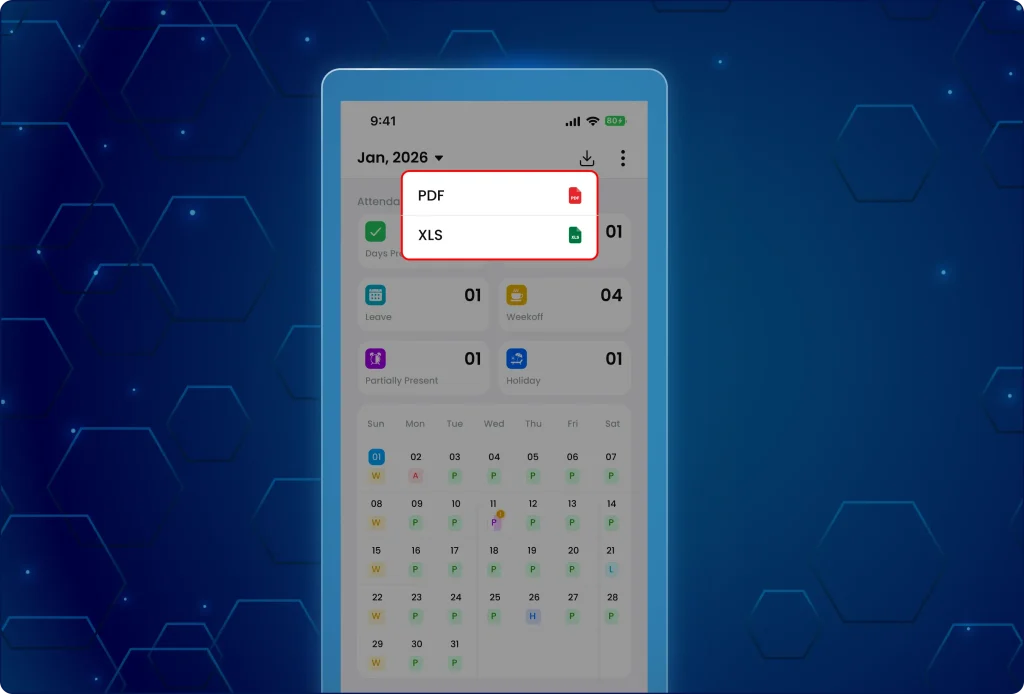
What can the field teams do now?
- Download the attendance report from the attendance screen using the top-right icon.
- Download the task history report from the calendar screen using the top-right icon.
- Access the task history for current or previous months only, as the system automatically hides options for future dates to ensure data accuracy.
- Generate a PDF detail report for any current or past month with a single tap.
Why does this update matter?
- Employees can access their task and attendance records immediately on their mobile device.
- Managers do not have to spend time setting up individual field activity report schedules for every team member.
- Reports are generated based on the month currently viewed on the screen, providing total control over data selection.
- Detailed PDF exports are ready for official use, mirroring the high-quality reports previously only available on the web.
- Improves transparency for attendance and task tracking, and simplifies report sharing and record keeping.
6. Manage extended date range in custom form reports on the dashboard
Previously, it was difficult to analyse custom form reports due to the limited date range.
Now, managers can analyse custom form data over a longer period and also remove any irrelevant or outdated task category displays across all devices.
This enables them to perform more detailed data analysis for every field activity and provide accurate work reports during audits and inspections as seen in image 6 below.
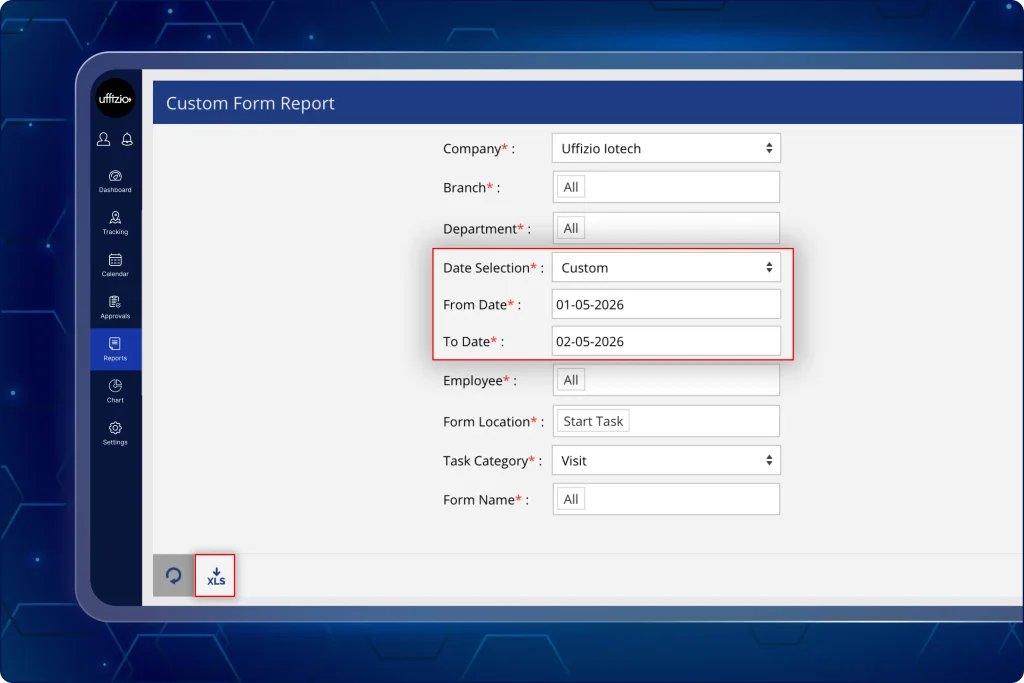
What can managers do now?
- Select a date range of up to 3 months in the custom form reports for better on-field activity analysis.
- View visit-level details in reports, including task start/end times, exact form locations, and captured on-site data.
Why does this update matter?
- Expanding from 7 days to 3 months allows for quarterly trend analysis and better decision-making.
- Including task timings and location data in custom form reports provides a complete overview of every site visit.
7. Filter active and non-active tasks for every team member from the task category section
Earlier, it was difficult to differentiate between active and inactive task categories. Furthermore, many irrelevant task categories were displayed when a specific category was selected.
This made the task detail overview screen very cluttered and difficult to analyse.
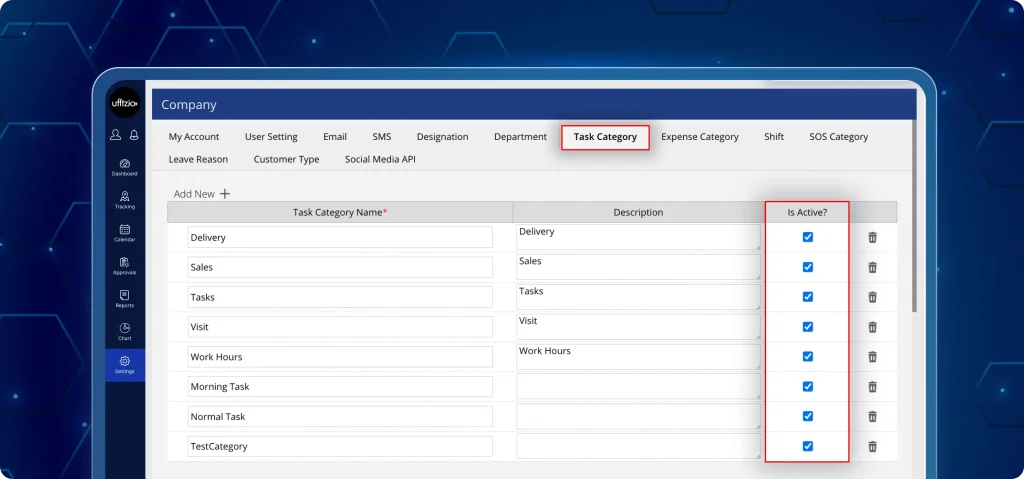
Now, managers can select and view all active categories and remove any irrelevant or outdated task category displays across all devices as seen in image 7 above.
This enables them to perform more detailed analysis of field activities and to simplify the task selection process for field teams.
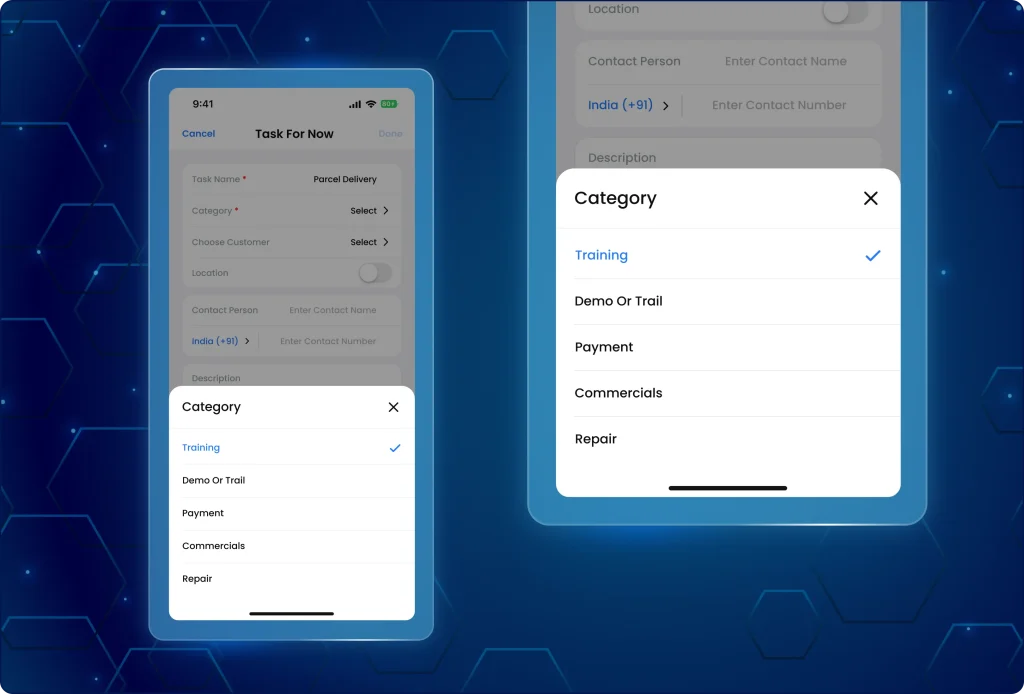
8. Select active categories while creating a new task from the TaskEye employee app
Consequently, the task selection from the pre-set categories is now cleaner and more relevant for field teams during daily operations.
Thus, when creating a task in the TaskEye employee app, the field team can now only add “active” categories from the category dropdown as seen in image 8 below.
What can managers do now?
- Use the new “is active?” checkbox to hide old, irrelevant, or seasonal task categories from the task category selection screen.
- Ensure a cleaner workspace by deactivating categories without deleting previous employee activity data.
Automatically maintain all current categories as active by default for a seamless transition.
Why does this update matter?
- Hiding inactive task categories helps field employees find relevant tasks faster and reduces category selection errors.
- Improves accuracy in task creation while maintaining continuity in existing workflows.
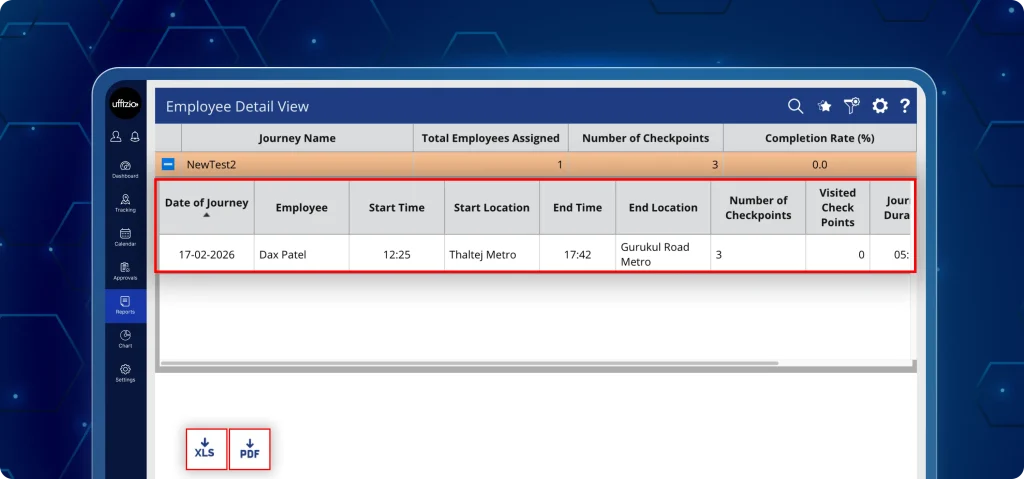
9. Analyse employee journey reports from the journey planner report on the dashboard
Previously, there was no way for managers to track and analyse journey and travel performance by employee and route.
Now, with the new journey planner report, managers can monitor all employee routes, journeys, and checkpoints as seen in image 9 below.
Additionally, they can compare the journey reports with the travel expense receipts submitted by their field teams.
This update provides a single view for analysing route efficiency, employee performance, and checkpoint-level data.
What can managers do now?
- Access a centralised journey planner report with journey-wise and employee-wise views.
- Start with a summary, expand rows to view specific journey details, then drill down further into individual checkpoint logs.
- Switch between employee-wise views (to audit team member) and journey-wise views (to audit specific route performance).
- View system-calculated metrics, including completion rate, journey duration, and visited checkpoints.
- Click any “place to visit” to open an instant map pop-up showing its exact geographic location.
- Add feedback in a pop-up on one report, and it will automatically appear across all related journey reports for total consistency.
Why does this update matter?
- Eliminates the need to piece together data from different screens; everything from high-level stats to specific task timings is in one place.
- Improves visibility into delays and partial completions, enabling faster identification of operational inefficiencies.
- Every checkpoint visit includes start/end times and locations, providing an undisputed audit trail of field work.
- Shared remarks ensure that any manager looking at a journey sees the same notes, regardless of which report they use.
- Supports data-driven planning and decision-making, and reduces manual effort with automated field data calculations.
10. Receive instant notifications for idle on-duty employees
Earlier, when the field employee was idle at a particular location, managers were not notified immediately, and they lacked clarity during active-duty tracking.
Now, idle notifications are triggered accurately for on-duty employees with complete context as seen in image 10 below.
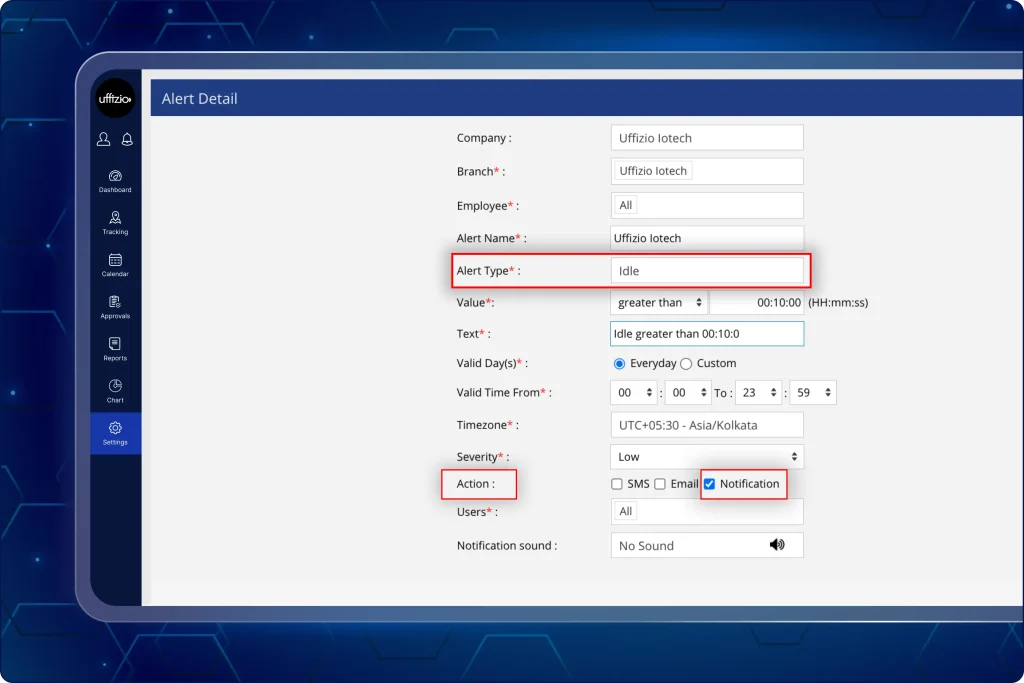
The system sends an automatic alert whenever a team member remains inactive while they are officially on duty. Every notification includes the exact time and location details of the idle event.
This allows managers to address productivity gaps as they occur in the field.
11. Share daily employee activity details via external links
Earlier, managers had to log in to their web app to share their field employees’ daily activity details with their clients.
But now they can share all the detailed fieldwork records, from attendance to travel details, via secure external links as seen in image 11 below.
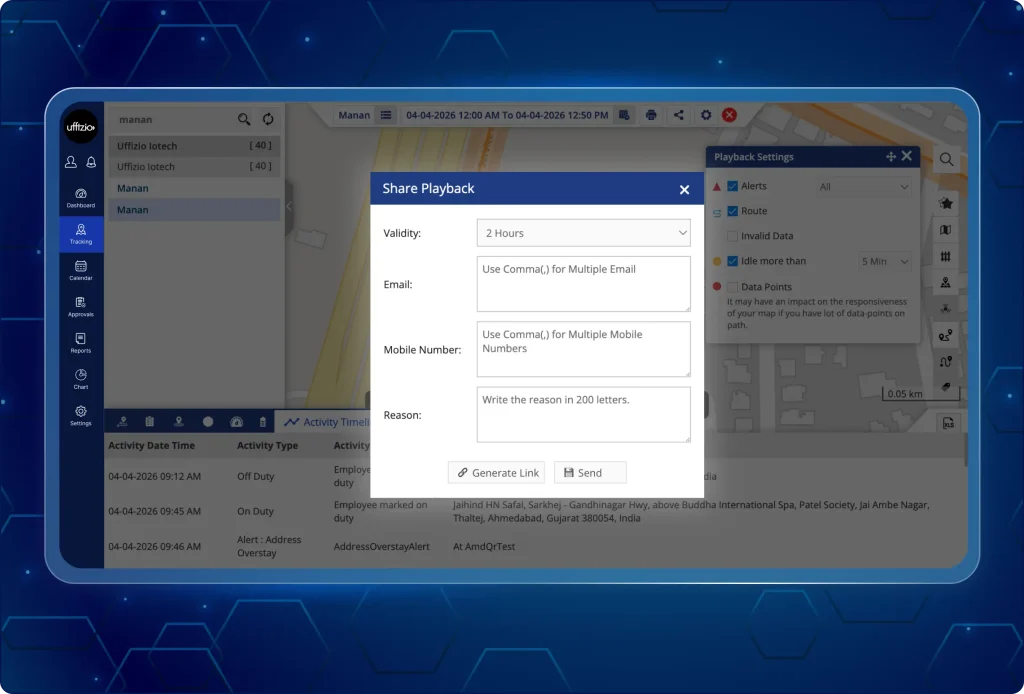
This allows the managers to share field team details quickly without logging in to the TaskEye web app.
In addition, the links can be accessed up to 1 hour, giving all clients enough time to analyse the records shared by the field team supervisors.
Why does this update matter?
- Simplifies route activity and task reports sharing with clients and external teams.
- Removes reliance on web application login with external link sharing.
- Maintains data security by granting time-bound access to all field activity records.
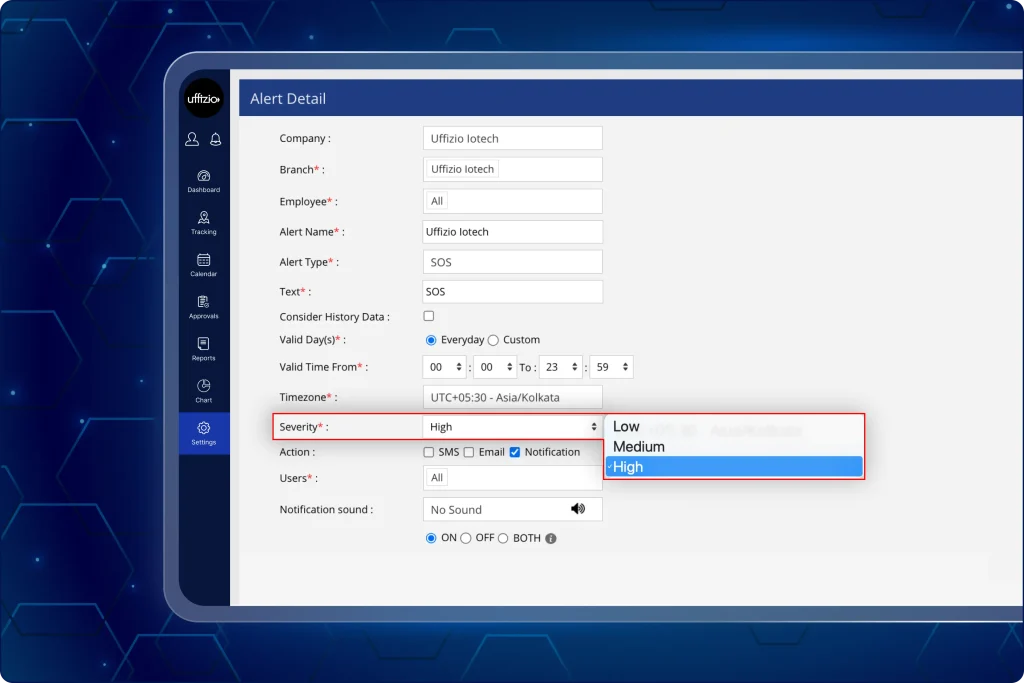
12. Provide quick emergency assistance with accurate high-frequency SOS alert notifications
Earlier, repeated SOS triggers within a short time did not show notifications to the managers. Now, every SOS trigger generates a notification without fail.
We have upgraded the emergency response system to ensure that no distress signal is ever missed, even during high-pressure situations as seen in image 12 below.
What can managers do now?
- Receive notifications for every SOS trigger and respond to emergencies with complete visibility.
- Monitor repeated alerts without missing any close time-bound alerts.
- The system now captures every single press of the SOS button.
- Consequently, even if the button is pressed multiple times in a very short period, the manager will receive a notification for every individual trigger.
- Guarantees that emergency signals are never filtered out or skipped by the system.
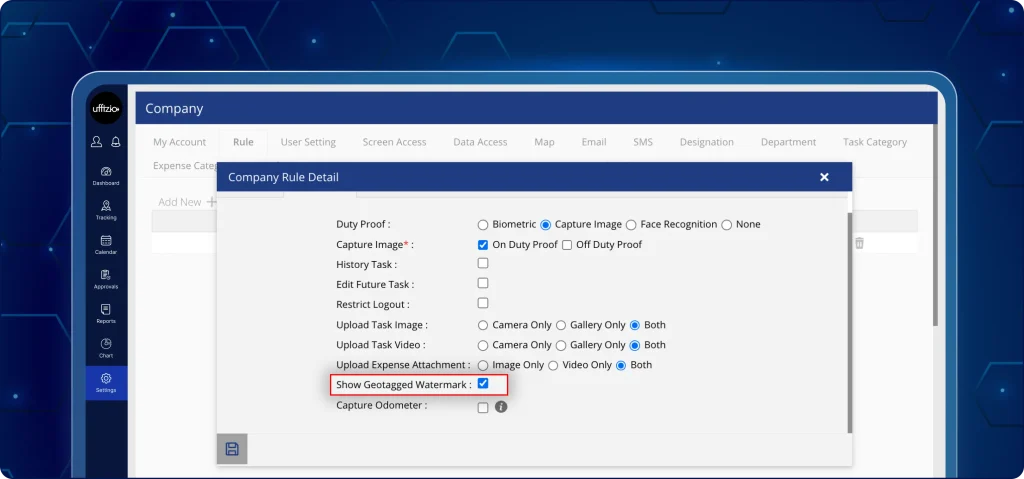
13. Enable or disable configuration for geo-tagged media watermarking
Earlier, geo-tagged media always included watermarking that could not be disabled. Now, watermarking can be enabled or disabled based on organisational needs.
Admins now have total control over how location and time data are displayed on media captured in the field as seen in image 13 below.
What has changed on the app?
- A new setting allows administrators to “enable or disable” watermarks for geo-tagged and timestamped photos/videos.
- When enabled, all on-site media will automatically display the precise location and time it was taken.
- Companies can now choose whether to show or hide these details based on their specific reporting requirements.