
At Uffizio, we are continuously innovating and enhancing the solutions we build. Here, you will find the latest updates across our platform, from improved field tracking to efficient task management. With these ongoing improvements, we aim to help you transform your field operations into a competitive, highly efficient field workforce management system.
TASKEYE UPDATES
1. Track field team tasks with target-based achievement tracking
Gain a clear view of how field teams and their daily fieldwork contribute to the company’s growth.
Our employee task and target tracking system ensures that all targets and achievements are captured without the need for spreadsheets or manual follow-ups.
1.1 Set, track, and review team targets on the dashboard
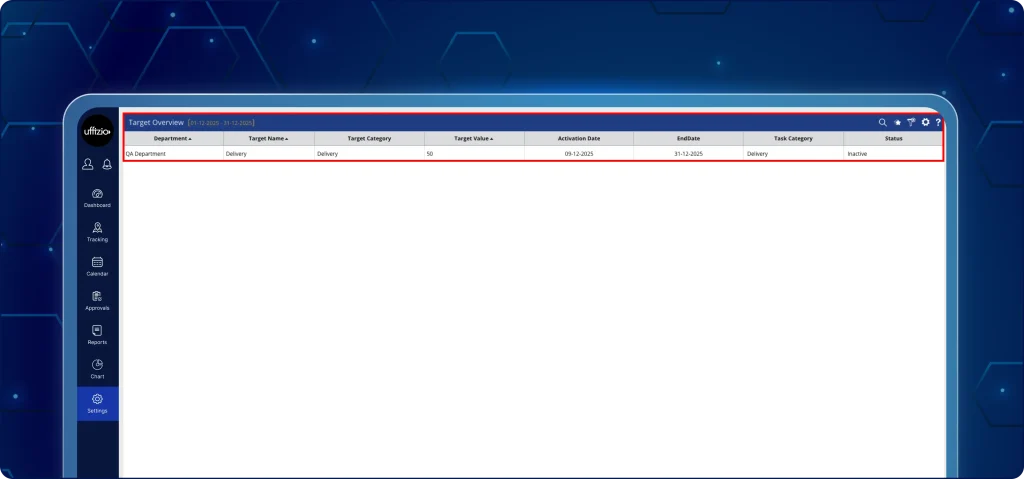
We have added a centralised KRA (key result area) management system to the web dashboard to improve employee tasks and target assessments.
Now, setting clear targets and tracking achievements is easy with an advanced task and target monitoring system, as seen in image 1.1.
What can users do now?
- Set targets for tasks, work hours, visits, deliveries, or sales.
- Assign specific KRA goals for individual employees or entire teams.
- Select specific task categories linked to system-defined task types.
- Define customised start and end dates for each target.
- Enter target values with relevant units, such as count, hours, or revenue.
- Add descriptions and supporting documents for better clarity.
1.2 Analyse target vs achievement reports
Now analyse target achievement progress using the dedicated productivity and achievement reporting section.
This section provides both summary and detailed productivity insights as seen in image 1.2.
Summary report includes:
- Company
- Branch
- Department
- Team member name and number
- Target name
- Target category
- Task category
- Activation date and end date
- Target value
- Achieved value
- Achievement percentage
- Target archived date
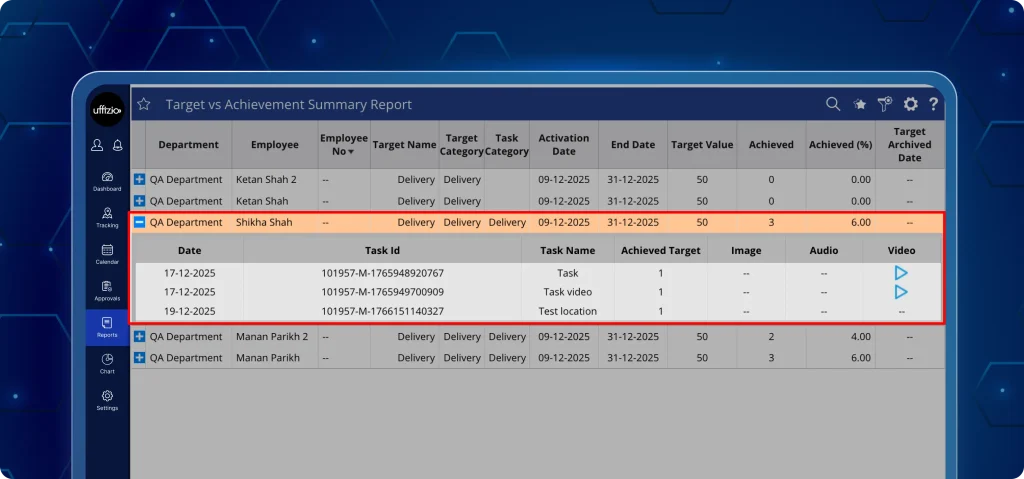
This allows management to quickly compare planned targets versus actual productivity.
Detailed activity record
Gain a detailed activity tracking record that shows:
- Date of activity
- Task name
- Achieved target value
- Verified task proof, such as: Images, audio, video, and more.
The system ensures that report values remain accurate and update quickly as new achievements are recorded.
1.3 Set daily & distance-based targets effortlessly
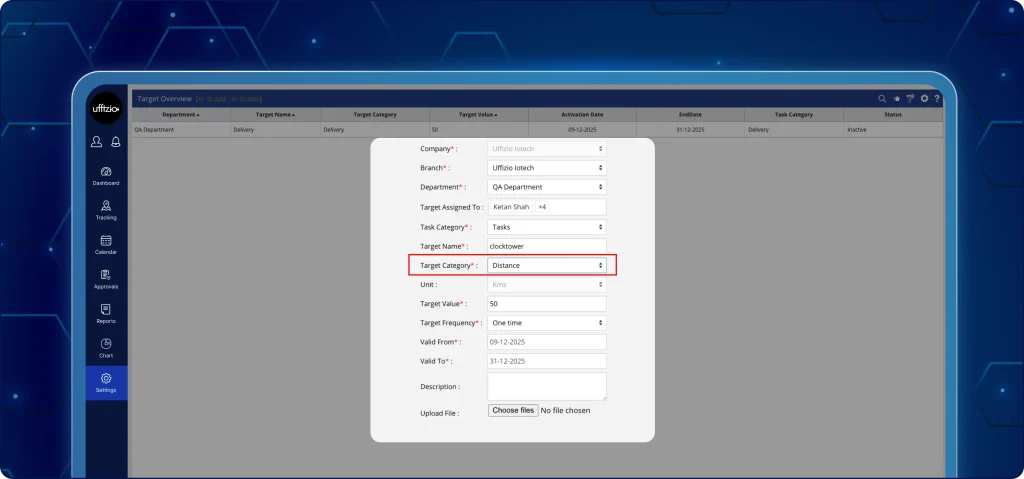
Distance travelled can now be included in the target measurement system as seen in Image 1.3 ( A ) and 1.3 ( B ) below.
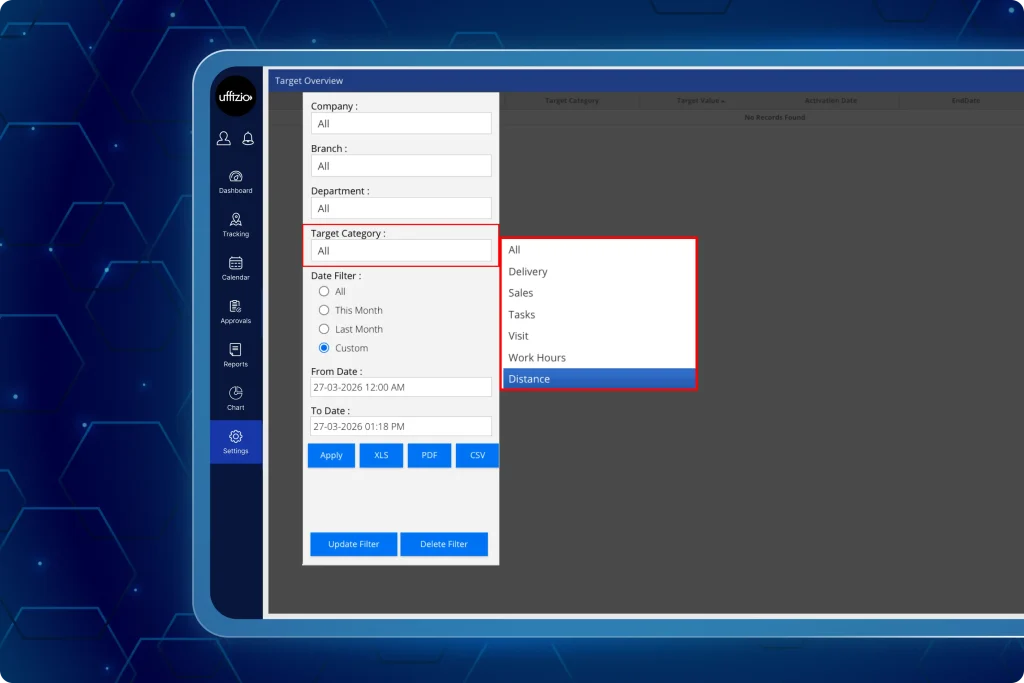
This ensures every on-field work is measured accurately.
What can users do now?
- Add Distance as a new target category (Distance units are fixed to KM and automatically tracked).
- Set the target frequency: One-time, Daily, Weekly, or Monthly.
- Define start and end dates for each target.
1.4 Record achievements directly from the field
Field achievements can now be directly recorded through the TaskEye Employee App (available on Android and iOS).
This ensures that fieldwork is reflected instantly in performance reports for management to acknowledge.
What’s new in the app?
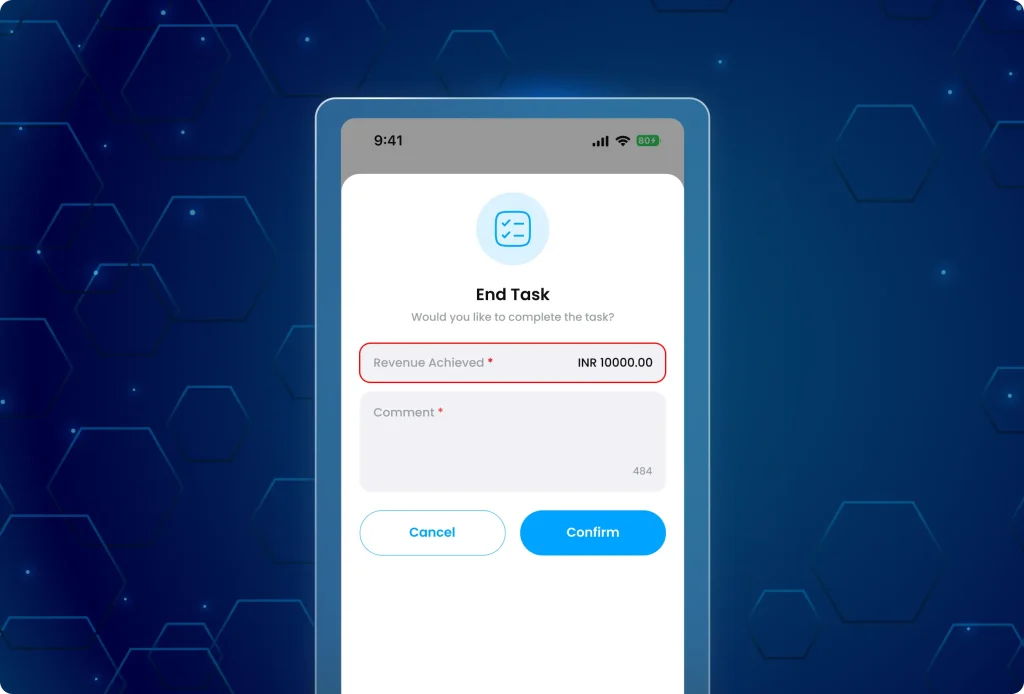
A new field has been added to the task completion form: Revenue Achieved as seen in image 1.4.
Thus, this field allows team members to enter the actual revenue or achievement value associated with the completed task.
What can users do now?
- No more manual tracking or reporting errors.
- Targets and expectations are easy to understand.
- Work progress is tracked in real time.
- Field team performance reviews become faster and fairer.
- Easy to identify top performers and productivity gaps.
2. Track and manage employee shifts with an automated shift scheduler
Managing complex team schedules should not be a manual struggle. Therefore, this update introduces a complete roster management solution that enables team shifts to be planned and managed from one place in advance.
Consequently, admins can now upload, view, and edit shifts in bulk, while field teams can see their weekly schedules with all leaves, holidays, and week-offs clearly marked.
2.1 Plan and monitor monthly shifts in one view
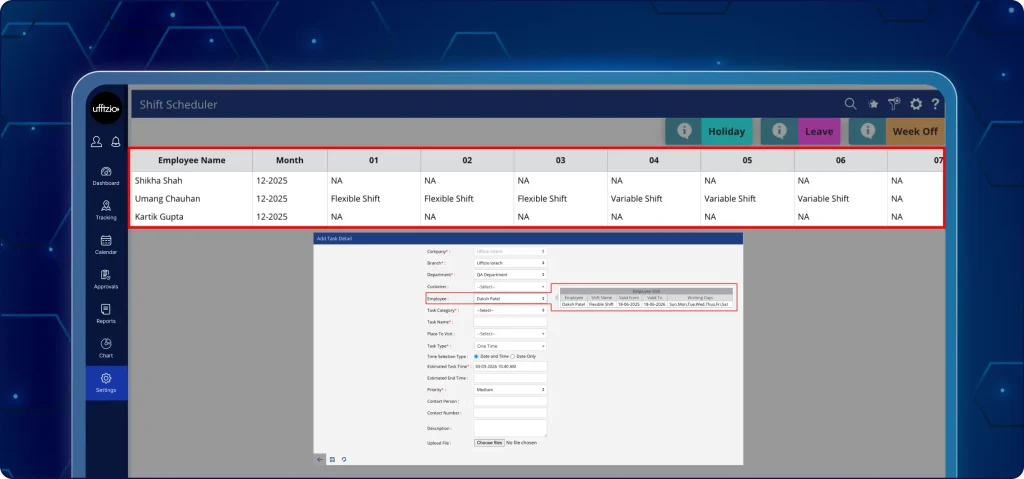
Monthly schedules can now be planned, shifts uploaded in bulk, and future shifts updated without manual coordination.
Keeping this in mind, we have launched a centralised shift scheduler in settings to eliminate shift assignments one by one.
Now, shifts update automatically in the monthly overview grid with no manual entry required as seen in the image 2.1.
This solution provides a single view of the organisation’s monthly shift schedule.
What can be done now?
- Upload shift schedules for multiple employees at once.
- Assign shifts or week-offs for the full month using Excel.
- Eliminate manual daily shift entry.
- Lock editing of past shift dates.
- Click on any future date to edit a shift.
- View team-wise monthly shift schedule.
- Export roster to Excel or PDF.
- Assign a shift once and let it update automatically unless changed.
2.2 Stay updated with the weekly shift calendar in the app
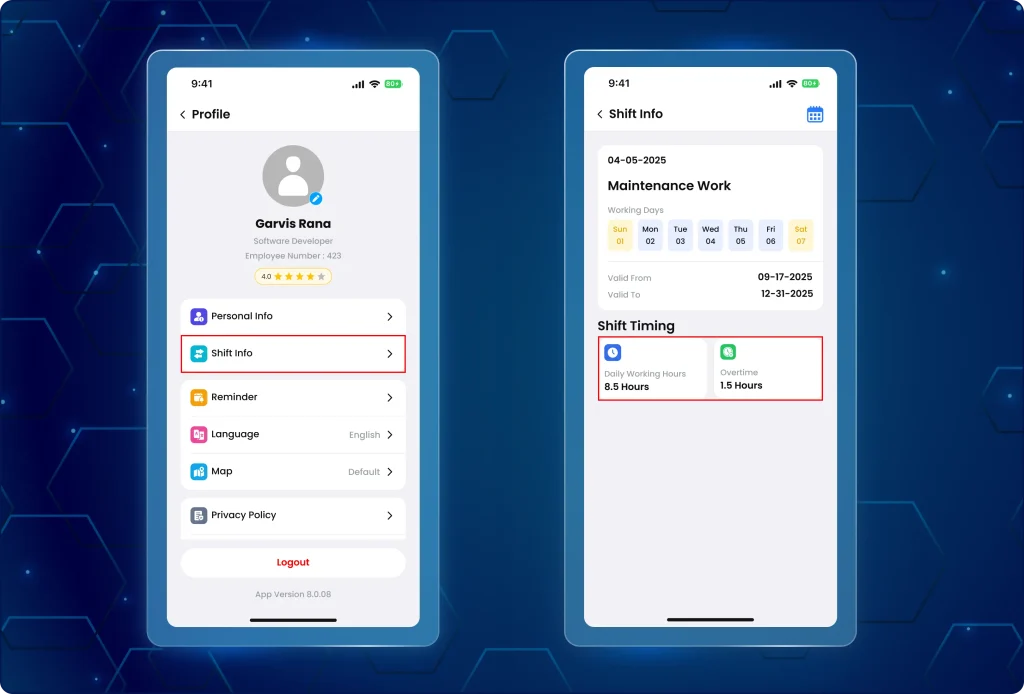
Team members can now view their weekly shifts in a clean calendar format as seen in the image 2.2. This ensures clarity on working days, weekends, holidays, and approved leaves.
Consequently, all field team staff can access their mobile shift schedule directly from their profile. This visibility ensures everyone knows exactly when and where they are expected to work.
What has changed in the app?
- Navigate the weekly calendar view with navigation buttons: < Previous / > Next.
- The current week is displayed by default, with today’s date highlighted.
- Past dates have been disabled from editing.
- Future and current-day shifts are clickable to view.
Additional enhancements:
- Only approved leaves are displayed.
- The calendar clearly shows all assigned shifts.
- Past days remain non-editable to prevent confusion.
Why does this update matter?
- Plan shifts in bulk using Excel and eliminate hours of manual entry.
- Monitor all field employee schedules in a single view.
- Update future shifts instantly with smart auto-update, unless changed.
- View accurate weekly shifts from the mobile devices.
- Week-offs, holidays, and approved leaves are clear and colour-coded.
- Save time, reduce errors, and improve operational efficiency with real-time shift updates.
3. Enable smarter attendance tracking with one-touch biometric login
Mark attendance faster and more securely with our updated biometric attendance login system. Our new update adds an additional layer to the existing manual, password-based attendance logging system.
Thus, users now have a quicker, more secure, and one-touch way of marking attendance using fingerprint and face ID authentication.
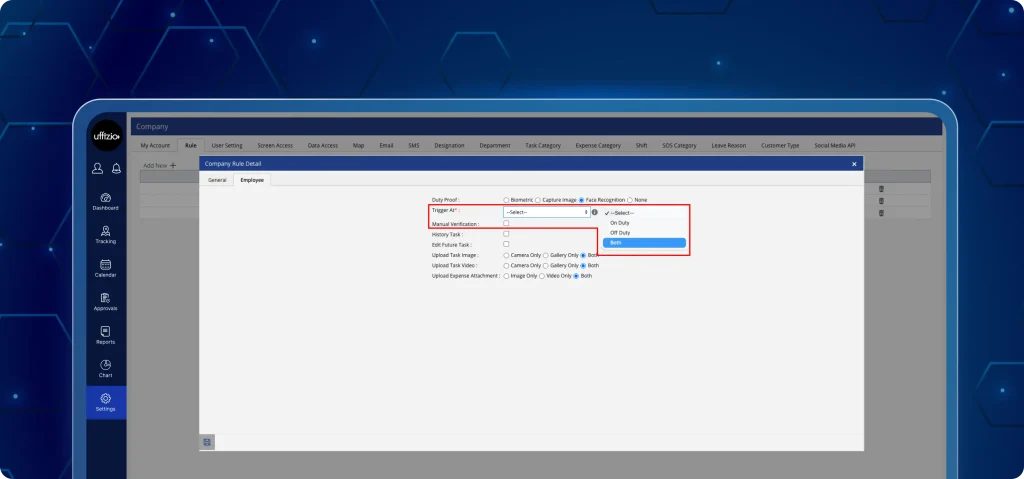
3.1 Centralised biometric control from the dashboard
We have introduced a systematic authentication system as seen in the image 3.1. This additional attendance login system provides full control over how field teams access the platform.
Biometric login can be enabled or disabled at both the organisation and individual team levels. Additionally, the device compatibility for biometric integration can also be checked.
What can users do now?
- Enable or disable biometric login for the entire company.
- Allow or restrict biometric login for individual users.
- Track successful and failed login attempts.
- View device compatibility and enrollment status (enrolled, not enrolled, or hardware not supported).
- Check biometric permission status in the permission widget (allowed / not allowed).
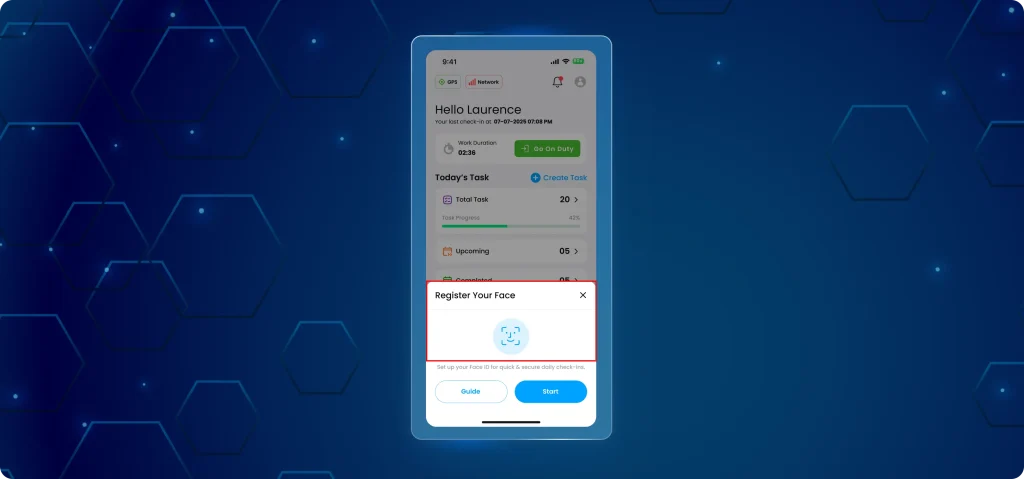
3.2 One-touch biometrics login from the TaskEye Employee App
Users can now mark on duty / off duty quickly using fingerprint or Face ID as seen in the image 3.2.
By using the device’s built-in fingerprint or Face ID login, the TaskEye Employee App provides an efficient login experience while keeping data 100% private.
What’s new in the mobile app?
- Upgraded device’s login options with biometric options, including fingerprint and Face ID.
- Biometric setup is optional after the first mandatory manual login.
- Past attendance cannot be edited; check-in is restricted to the current date only.
- User-friendly messages are displayed when biometric credentials are not set up.
Secure fallback options ensure users can always log in while maintaining admin control.
Important note on privacy & security
- The TaskEye Employee App does not store fingerprint or face data.
- It only uses the phone’s built-in secure authentication system.
- The app just requests permission; all biometric processes are handled by the device’s Android or iOS system.
Why does this update matter?
- Save time with a one-touch login for employees.
- Improved login activity monitoring for admins.
- Faster field team login and attendance marking.
- Secure, optional biometric authentication.
- Admin-level control at both the company and individual employee levels.
- Clear visibility into device support for proper setup.
- Uses your device’s built-in security, so no biometric data (like fingerprint or face data) gets stored.
- Complete audit logging for compliance and tracking.
4. Optimise field movement with the new journey planner
Previously, there was no structured way to follow planned travel routes. But, the new journey planner module now allows teams to plan, assign, and optimise travel routes, improving task management.
This update introduces a complete journey planner module, allowing admins to create multi-stop journeys and monitor movement, keeping teams on track and aligned with assigned tasks.
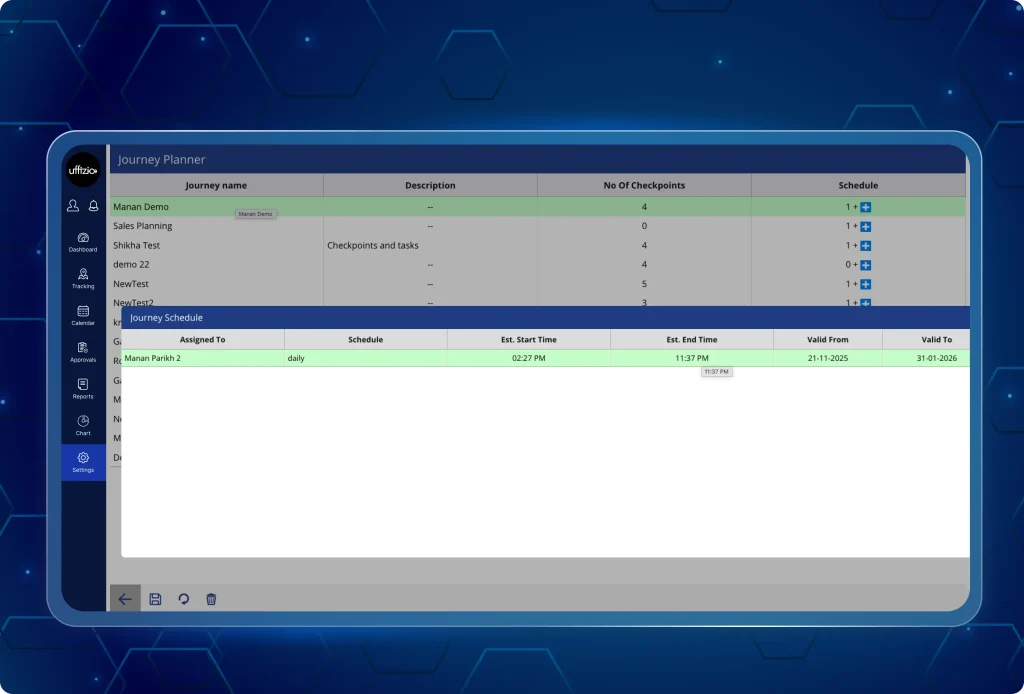
4.1 Schedule and monitor journeys from the dashboard
We have launched a centralised field journey planning system as seen in image 4.1. This journey planner reduces the gap between task management and location tracking.
Furthermore, this route-planning tool allows admins to plan an entire day’s movement on a single screen, assign routes, and automatically generate tasks linked to each checkpoint.
4.2 Introducing: Smart Journey Planner
Optimize field movement and reduce fuel costs with our most requested feature yet. Move beyond simple tasks into structured, multi-stop route planning.
-
Multi-Stop Optimization: Plan an entire day’s route on a map and assign it to teams in seconds.
-
Geofenced Accountability: Automatically record arrivals when a user enters a predefined area around a checkpoint.
-
Template Replication: Use our “Copy From” feature to instantly recreate successful past routes for recurring schedules.
What can users do now?
- Create named journeys and add multiple checkpoints.
- Select locations via the map-based journey planning screen or enter addresses manually.
- Upload checkpoints in bulk using standard mapping and location files.
- Assign journeys to teams, branches, or departments.
- Schedule journeys daily or weekly with start/end times and validity periods.
- Automatically generate tasks linked to each checkpoint.
Why does this update matter?
- Plan once, execute smoothly with optimised field movement.
- Save time with multi-stop route planning.
- Ensure accountability with journey-linked task execution.
- Improve efficiency with route tolerance and estimated arrival tracking.
- Gain better field oversight and centralised journey management.
- Easily copy previous journey routes for similar tasks.
- Shift from random visits to structured, journey-based planning.
- Reduce fuel costs and travel time through optimised checkpoint sequencing.
- Eliminate manual work by creating tasks automatically from journeys.
5. Faster task creation & global search with the new calendar view
We have introduced a new, faster, and more systematic way to create, find, and track tasks directly from our calendar view dashboard.
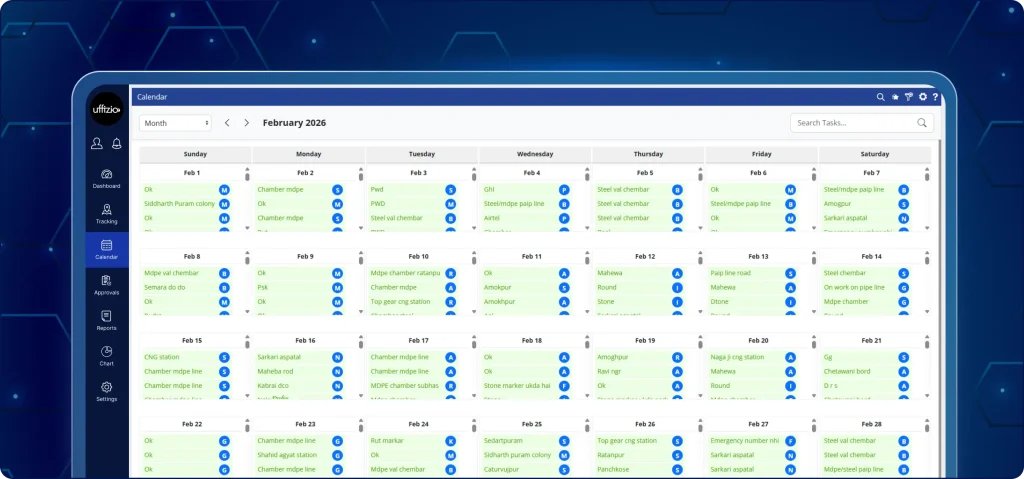
With the calendar view dashboard (as seen in the image 5 above) and global task search update, admins can:
- Add tasks instantly from calendar view.
- Search for them across systems using global task search.
- Track completed tasks in green without switching between tabs or searching for them manually.
5.1 Manage tasks faster from the calendar dashboard
The new calendar dashboard enables faster task creation, tracking, and management without switching between multiple tabs. From a single structured calendar dashboard, admins can:
- Schedule new tasks
- Track completed work
- Search system-wide tasks by Task Name or Task ID
- Edit upcoming or missed tasks directly from the calendar
What can users do now?
- Add tasks instantly by clicking on calendar cells.
- Search for any task across the entire system, with Task Name and Task ID.
- Identify completed tasks instantly through green colour coding.
- View actual vs. estimated timings via a detailed task popup.
- Control Calendar access with role-based permissions.
- Use the calendar in multiple languages.
- Edit missed or upcoming tasks directly from the calendar grid.
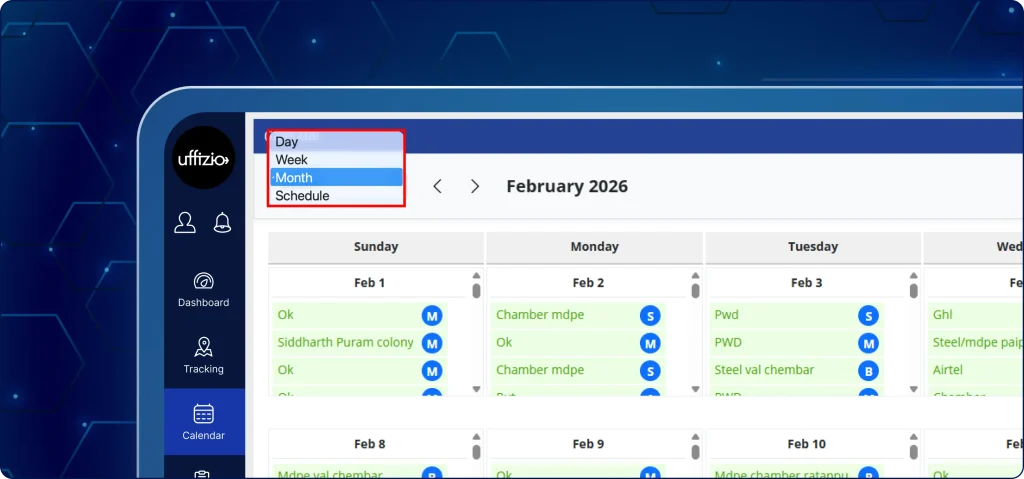
5.2 Completed tasks now appear in green
All tasks marked as completed now appear in green across:
- Day View
- Week View
- Month View
- Schedule View
Result:- As seen in the image 5.2 above, this provides instant visibility of finished work, enables faster task tracking, and shows a clear visual status.
5.3 Click any task to view detailed information
Get the detailed information on every task without opening the full task screen. Just follow the steps below:-
1: Click on any task in the calendar.
2: A status pop-up will open instantly.
3: View the task timings and other details instantly
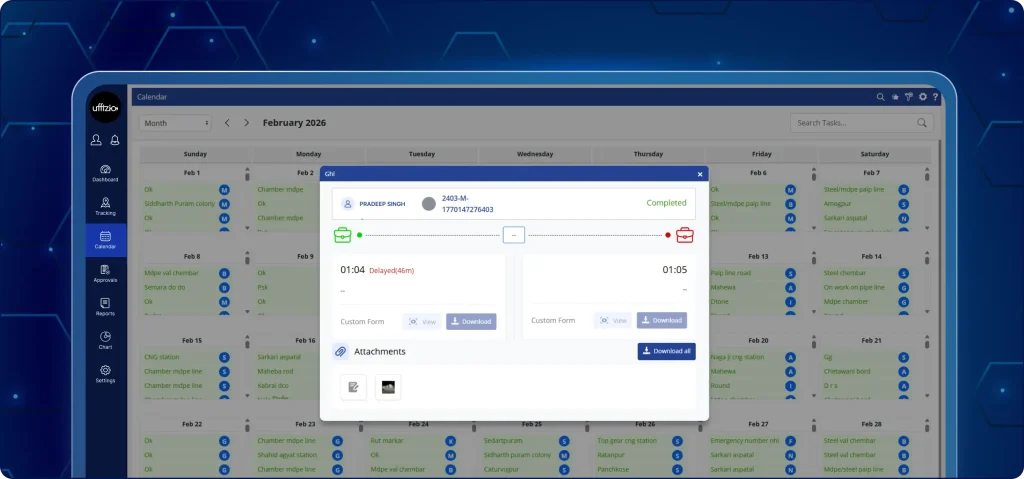
What appears in the pop-up?
As seen in the image 5.3 above,
For completed tasks, it shows:
- Actual start time
- Actual end time
For missed & upcoming tasks, it shows:
- Estimated start time
- Estimated end time
- Edit icon (to modify the task)
Note that the edit option is not available for completed tasks.
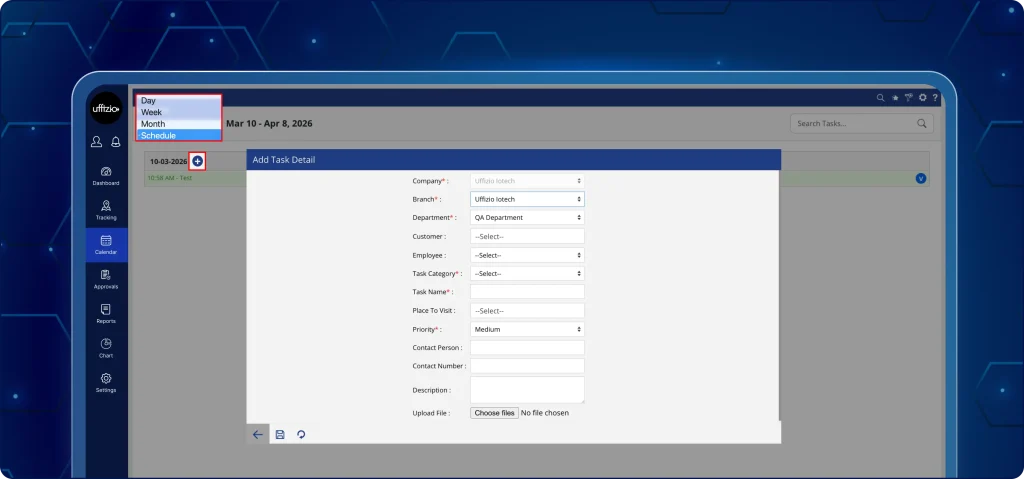
5.4 Quickly add tasks from the calendar
New tasks can now be created directly from the calendar grid as seen in the image 5.4. Hence, the tasks can be edited as long as they are not marked complete.
Furthermore, all current tasks can be edited, and future tasks can be scheduled.
5.5 Global task search across your entire system
Task search is now available across the entire system as seen in the image 5.5. Thus, it is not limited to visible tasks in the calendar.
In addition, the tasks can be searched by Task Name or Task ID.
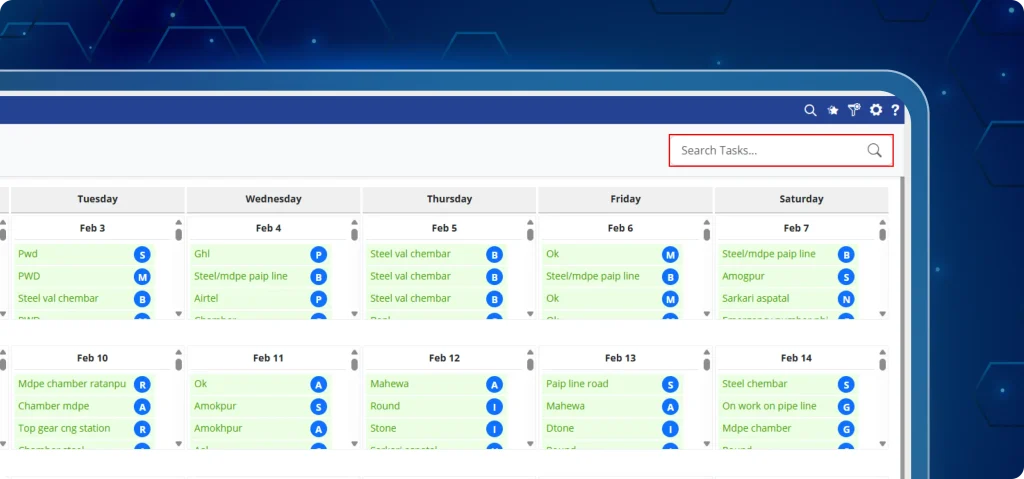
All assigned and updated tasks are searchable, even if they do not appear in the current calendar view. Hence, it provides instant access to any task, even if it is not visible on the current calendar view.
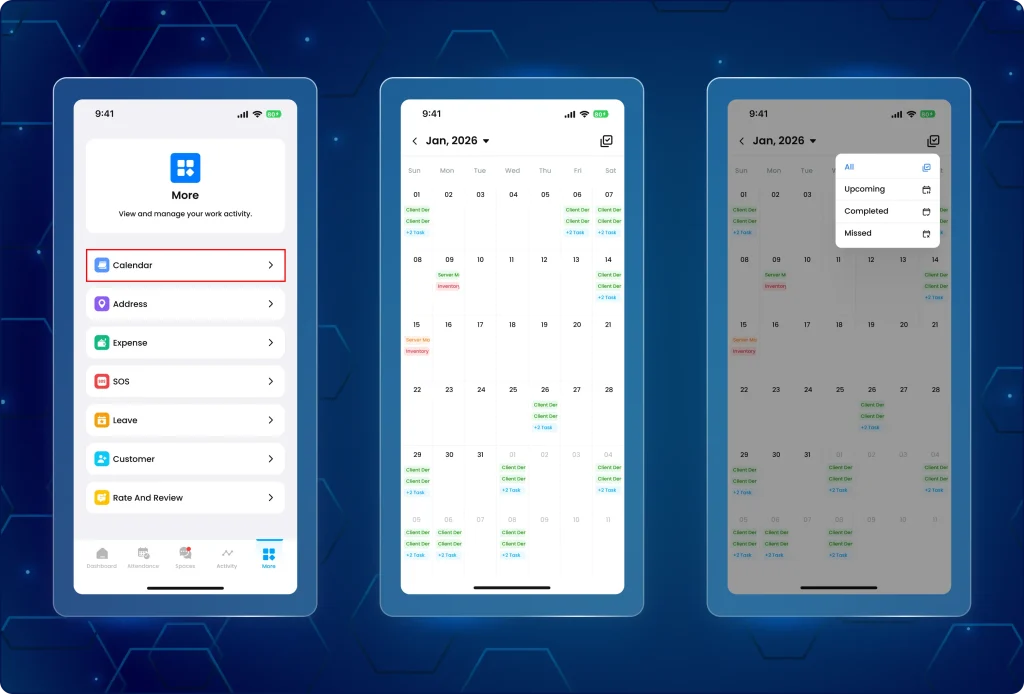
5.6 Clear tracking and faster updates with the TaskEye Employee App
Daily task tracking has become clearer and more organised through the TaskEye Mobile App.
Teams can now update their daily targets through a new calendar view mobile app interface as seen in the image 5.6.
What has changed on the app?
- Completed tasks now appear in green. This makes it clear which tasks are finished and which are pending.
- One-tap task calendar view shows precise details about start and end times for every task.
- Multi-language translation support is now available for non-English speaking teams.
Why does this update matter?
- Faster task creation and clear visual tracking.
- Global system-wide search finds any task by ID in seconds.
- Pre-filled fields prevent date and assignment errors.
- Colour-coding task details provides an instant view of team productivity.
- Multi-language translation support eliminates task submission errors and miscommunications.