
We are back with another set of enhancements to transform your basic field team monitoring into efficient employee management system. We are continuously making enhancements in our software to make your field team’s work more efficient and productive.
Our latest features help you save time, reduce manual efforts, and manage your field activities effectively. Explore what’s new in the month of march and see how our performance monitoring and verified fieldwork tracking tools maximise your company’s growth.
TASKEYE UPDATES
1. Master team productivity with smart target allocation and frequency tracking
A new target frequency has been added to the target creation form. Now, the users can track whether the target is one-time, daily, weekly, or monthly.
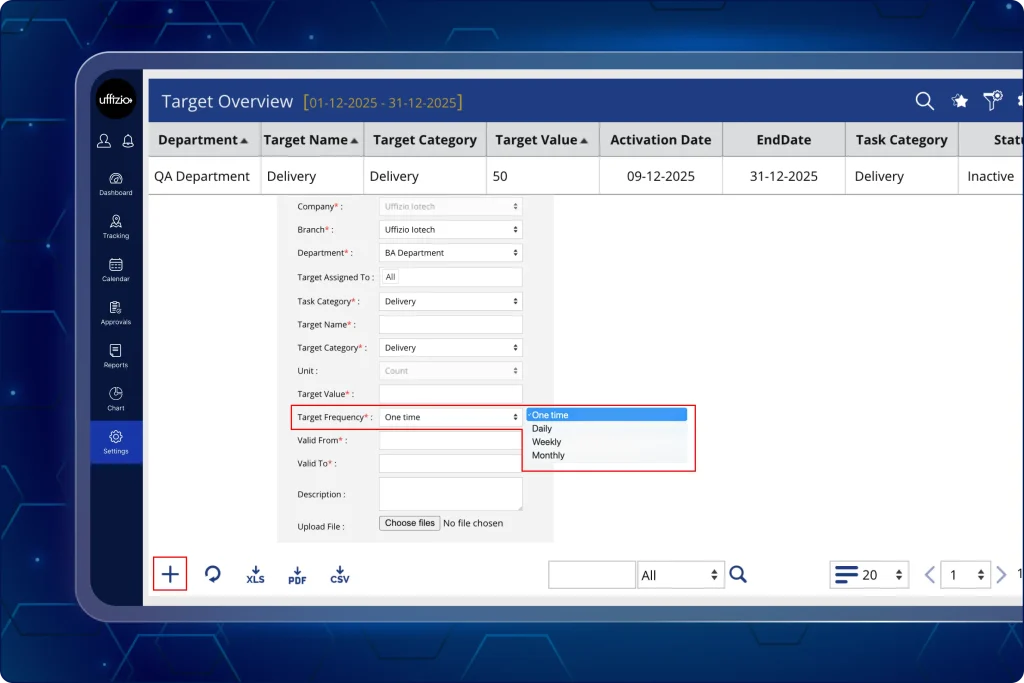
The updated target creation screen now includes the following details (as seen in the image 1 above):
- Company
- Branch
- Department
- Target Assigned To
- Task category
- Unit
- Target Value
- Target Frequency
- Valid From
- Valid To
- Description
- Upload File
2. Automate field team’s performance via smart productivity matrix
Daily performance tracking is now centralised with a new employee productivity matrix.
This system automatically calculates scores based on specific parameters: tasks, distance travelled, working hours, and target achievement.
Such a data-driven approach allows for real-time measurement and comparison of field efficiency across the organisation.
2.1 Customise productivity formulas for every department
Create a custom productivity score calculation for every department to ensure fair and objective evaluations (as seen in the image 2.1 below). Each department can have only one productivity configuration.
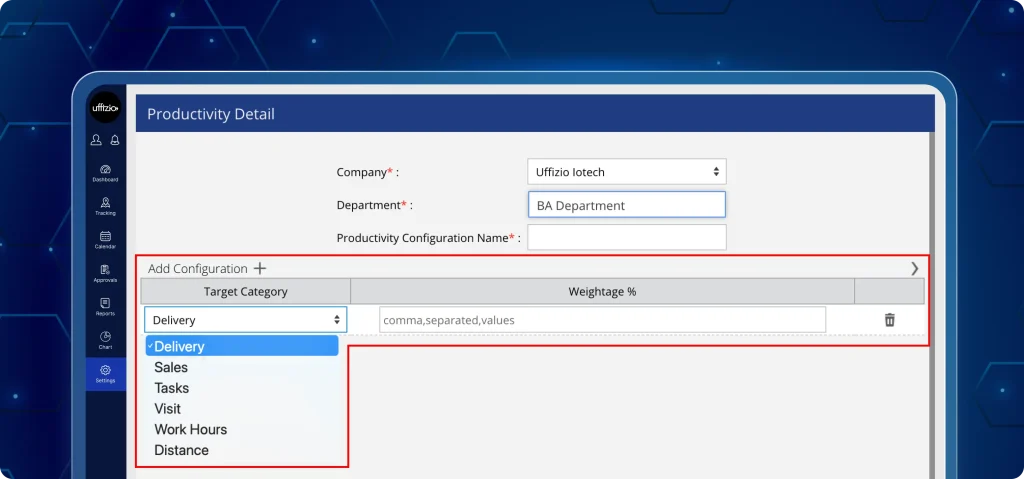
This ensures that performance metrics remain relevant and standardised to specific roles and responsibilities across the organisation.
Note: Only targets that are 100% completed are considered in the productivity calculation.
Additionally, existing reports with date filters are now aligned with the new performance matrix formula. This synchronisation ensures consistency when viewing data across different sections of the platform.
What can be done now?
- Assign percentage weights for tasks, distance, working hours, sales, visits, unreachable duration, and other configured targets.
- Prevent duplicate target categories within the same configuration.
- Ensure total weightage equals 100% via system validation to prevent errors.
- Ensure each productivity configuration name is unique across the system.
- Define specific target frequencies (daily, weekly, or monthly) for consistent tracking.
- Set “valid from” and “valid to” dates to automate target lifecycles.
- Add or remove target categories as needed.
Why is it important?
- Automatically calculates productivity scores based on tasks, distance travelled, working hours, and target achievement.
- Allows each department to have a unique productivity formula, ensuring performance evaluations are relevant, standardised, and role-specific.
- Provides a clear, objective basis for comparing employees and departments, eliminating reliance on manual calculations or biased assessments.
- Supports assigning weights to multiple targets, setting frequencies (daily, weekly, monthly), and automating target lifecycles with “valid from” and “valid to” dates.
- Prevents duplicate target categories and ensures total weightage equals 100%, maintaining data integrity and avoiding configuration errors.
3. Analyse top performing team members instantly
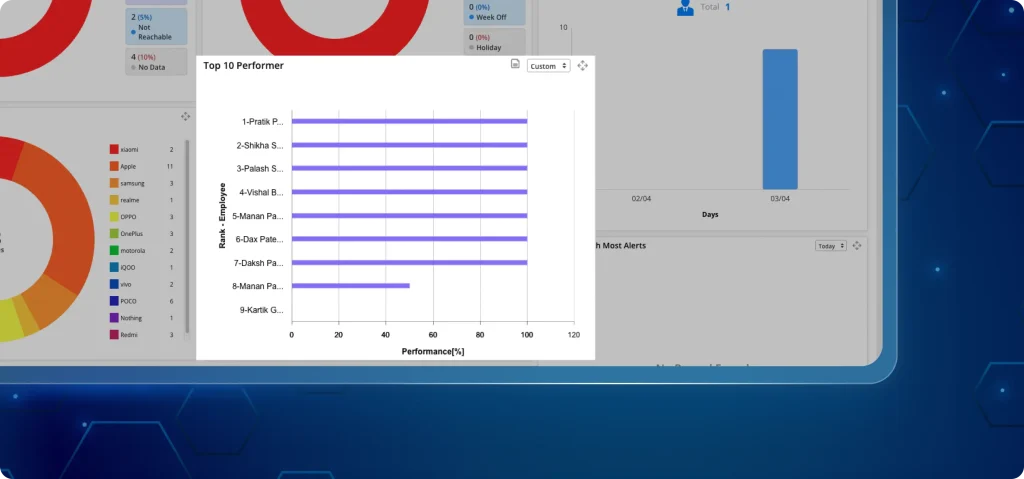
Instantly analyse field team productivity with automated scoring and star-based performance ratings.
The summary view shows:
- Total targets assigned vs fully completed per employee.
- Average productivity score (Weighted %).
- Employees are automatically ranked using a 5-star performance rating based on their achievement vs. weighted goals (as seen in the image 3.1 below).
3.1 Get a quick team performance overview via a dashboard widget
Get a high-level snapshot of team productivity instantly upon login, without running a single report.
The dashboard provides a clear visual summary of workforce performance without requiring manual efforts.
What does the widget display?
A Donut chart showing the team’s average score at the centre. The centre score represents the average productivity calculated across all employees.
- High Performers (>80%) – Represented in Green.
- Average Performers (50–79%) – Represented in Orange.
- Low Performers (<50%) – Represented in Red.
Categorised Count: Shows the exact number of employees falling into each performance bracket.
Why is it important?
- Automatically calculates daily productivity scores based on tasks.
- Eliminate manual spreadsheets and unorganised reports.
- Identify high, average, and low performers instantly through colour-coded widgets.
- Enable fairer performance scoring for department-specific weighted targets.
- Conduct faster, more accurate performance reviews with real-time dashboards.
4. Send critical alerts faster with Social Media API integration
Delays or missing notifications for critical alerts cause inefficiencies in field work completion.
With the new Social Media API integration, organisations can now deliver high-priority tasks and alert notifications instantly.
This integration reduces the action time with WhatsApp and Telegram notifications along with in-app push alerts.
4.1 Manage Social Media API alerts on the dashboard
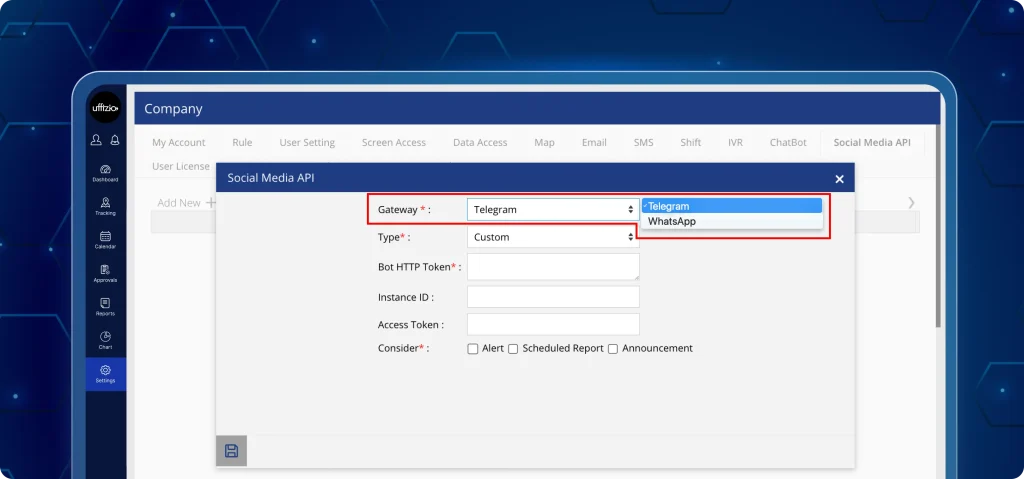
Admins can now set up social media API credentials directly within the company settings (as seen in the images 4.1 below).
What can users do now?
- Activate the Social Media API tab in the company screen.
- Set-up API credentials for WhatsApp and Telegram.
- Select high-priority alerts that trigger external social media messages.
- Manage all API credentials from a single screen.
What can admins view?
- API set up and connection status.
- Configured social media channels.
- Social media API Triggered alert history.
Result: Social media integration ensures critical information reaches the relevant personnel immediately, even if the mobile app is not active.
Why is it important?
- Ensures critical alerts are delivered via widely used messaging platforms.
- Reduces the gap between incident happening and field team action time.
- Provides a reliable secondary notification channel alongside built-in push notifications.
- Simplifies the management of external API integrations from a single dashboard screen.
- Automates the delivery of task updates, reducing the risk of missed manual communications.
5. Improve task accuracy with verified location selection
Inaccurate GPS tagging often leads to unreliable task location data and field assignment reports.
Now, the tasks that are created under “Task for Now” capture precise and verified field location addresses.
5.1 Record accurate task locations on the mobile app
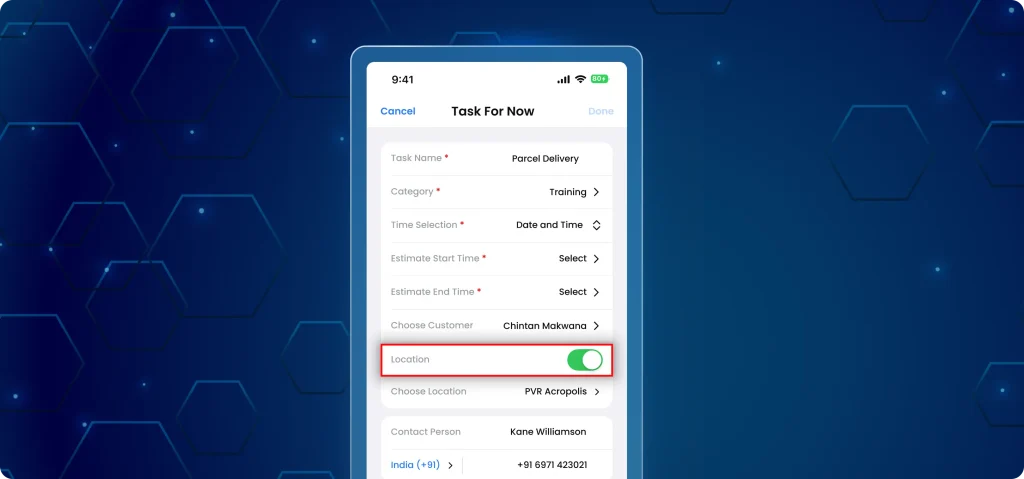
Field users can now select and verify their exact site locations in real-time while creating tasks (as seen in the image 5.1 below).
What has changed on the app?
- Specific location selection: A new “location” field allows users to search and pick a specific site address instead of relying on raw GPS coordinates.
- Instant verification: The system immediately verifies if the physical location matches the selected site address.
- Real-time alerts: If the user is not at the correct site, the platform displays an alert: “Your current location does not match the selected address.”
- Automatic inaccurate location selection: Invalid address selections are discarded instantly to prevent incorrect data entry.
Note that the app includes built-in location authenticity checks that prevent task submission unless the user is physically present at the verified site address.
Why is it important?
- Replaces basic GPS tagging with precise, verified site addresses.
- Ensures field teams are physically present at the selected location before starting a task.
- Provides clear site-specific history for all live field activities.
- Delivers accurate location data to admins without requiring manual corrections or guesswork.
- Aligns “Task for Now” with “Task for Future” for a consistent user experience.
6. Flexible leave management and post-approval cancellations
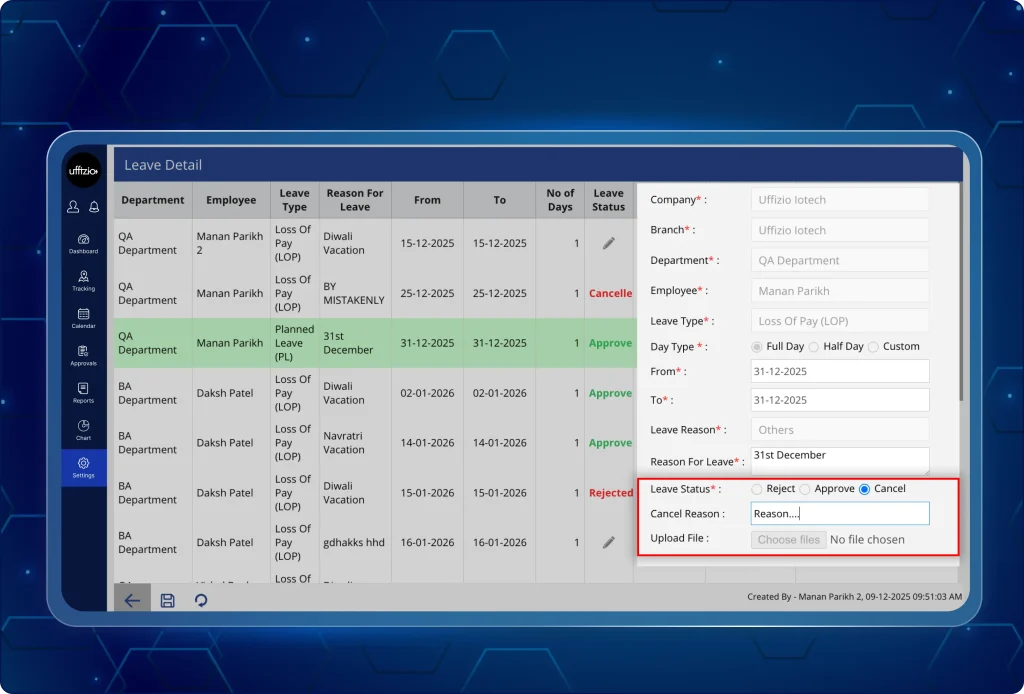
Previously, it was not possible to cancel the leave after it was approved (as seen in the image 6.1 below). In addition, there was no facility to take continuous half day leaves or two half day leaves on the same day.
Now, the new leave details page allows users to approve, modify, and cancel leaves efficiently, with automatic leave balance updates.
Additionally, the admins can approve, reject, or cancel the approved leaves, as well as manage consecutive half-days and multiple half-day leave entries.
6.1 Manage approvals and cancellations on the dashboard
Users now execute quick actions directly from the leave overview screen to handle approved requests without manual approvals/rejections.
What can users do now?
- Approve or reject pending requests directly from the leave overview screen using the new edit icon.
- Cancel approved leaves for current or future dates.
- Cancelled leaves automatically credit the days back to the field user’s balance.
6.2 Manage custom and half day leaves efficiently
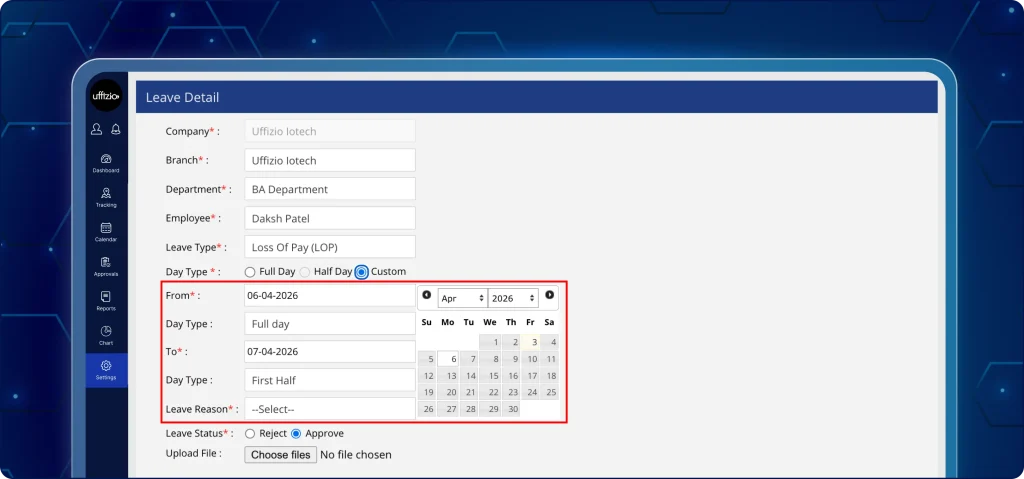
The platform now supports consecutive half-day leaves and allows managing complex multi-day leave requests with half-day flexibility (as seen in the image 6.2 below).
What can the users do now?
- Use the custom option to apply for multi-day leaves with half-days on the first or last.
- Apply for two half-days on the same date, which automatically combine into a full-day leave.
- View accurate leave duration before submitting requests.
6.3 Apply, modify, and cancel leaves on the mobile app
Field users can now request leaves and plan their time off with more flexibility through the mobile app (as seen in the image 6.3 below).
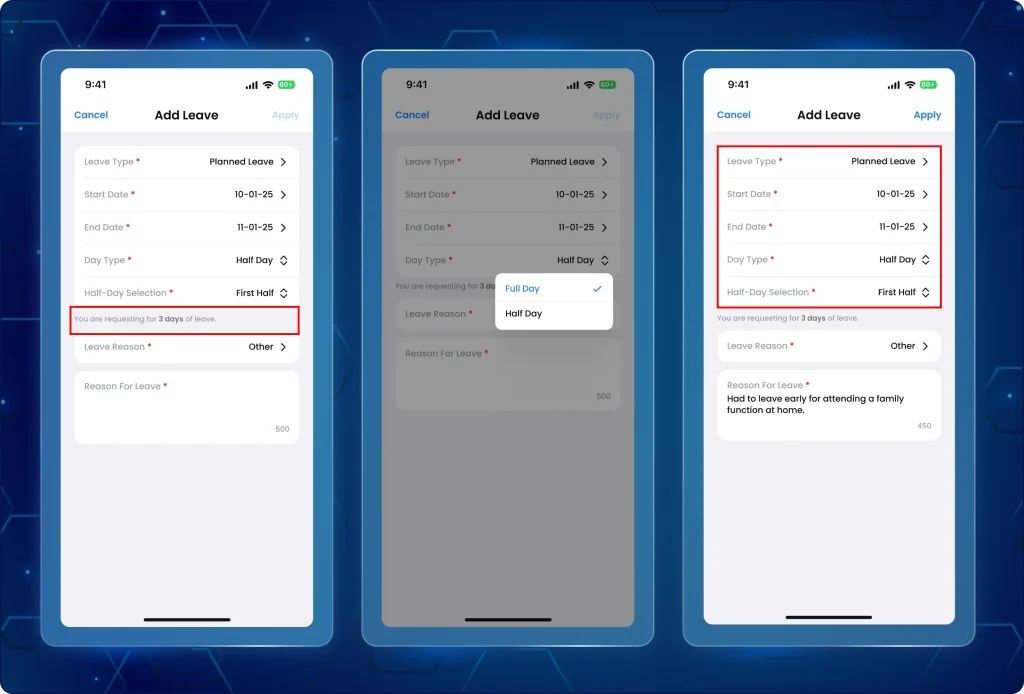
What has changed on the app?
- Cancel already approved leaves for future dates.
- Apply consecutive leaves with half-day options (first/last day).
- Apply multiple half-day leaves on the same date.
- Apply mixed leaves in a half-day and full-day leave combinations.
- Applying for two half-days on the same date now automatically merges them into a single full-day entry.
- A new “custom” toggle allows users to define half-days at the start or end of a long leave period.
Why is it important?
- Facilitates faster leave approvals and actions from a single screen.
- Automates leave balance adjustments when cancellations occur, removing the need for HR to manually adjust balances.
- Supports mixed scheduling by allowing mixed half-day and full-day combinations.
- Maintains clean attendance records by merging overlapping half-day entries.
- Provides users with a clear, actionable history of all leave modifications.
- Quick action popups allow managers to process high volumes of requests without page reloads.
7. Reliable custom forms with traceable reports and verified field data
Previously, missing task details and unverified field media records in the custom forms made tracking and task validation difficult.
Now, download custom forms in PDF and Excel include Task name and Task ID ensuring verified linking with every task (as seen in the image 7.1 below).
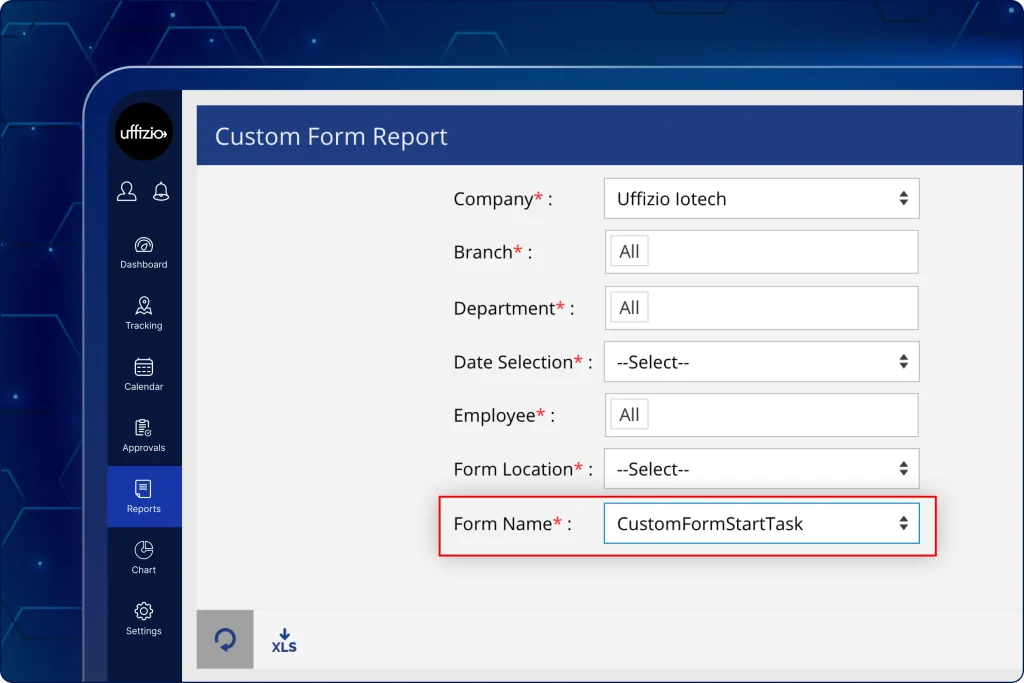
Additionally, media files attached in the custom form now include watermarking to enhance the security and authenticity of work proofs.
7.1 Track task-linked custom forms on the dashboard
Task-specific custom form data is now easy to identify within downloaded PDF and Excel reports.
What can users do now?
- View Task ID added immediately before the Task Name in custom form PDF downloads (for Start/End Task).
- Export excel reports with Task Name and Task ID columns.
- Automatically hide task-related columns when the form is not linked to a specific task.
- Track exact tasks linked with every custom form submission.
7.2 Monitor video file attachments in custom forms
Previously, proof-of-work collected from the field was limited to only images and texts.
Now, admins can receive video-based field proofs along with images and text inputs (as seen in the image 7.2 below).
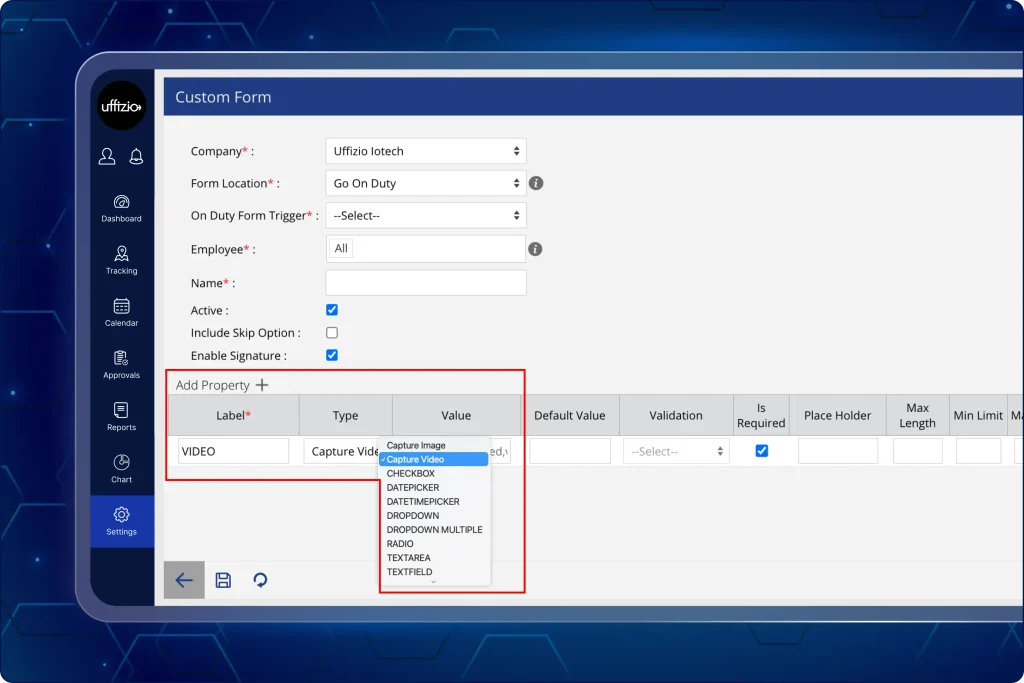
What can users do now?
- Select “capture video” as a field type while creating/editing forms.
- Trigger the device’s built-in video recording interface from the mobile app.
- Use a simplified setup where irrelevant options are automatically disabled.
7.3 Set up flexible signature option in custom forms
Previously, it was mandatory to add a signature for submitting a custom form. Now, admins can control when a signature is required.
It is easy to enable and disable the signature field (as seen in the image 7.3 below).
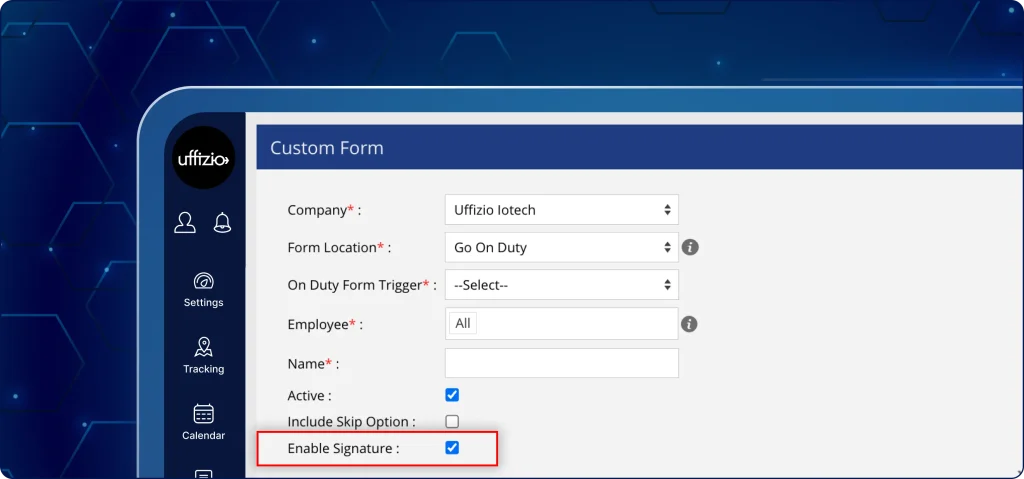
What users can do now?
- Enable or disable signatures using the Enable Signature checkbox (enabled by default).
- Display or remove the signature pad in mobile app forms.
- Include or exclude signature from the following reports such as: employee task history, employee attendance logs, and work hour report.
7.4 Customer bulk upload now includes address details
Earlier, customer uploads required manual address updates.
The bulk upload process now supports full address data with validation, accelerating the onboarding of new clients (as seen in the image 7.4 below).
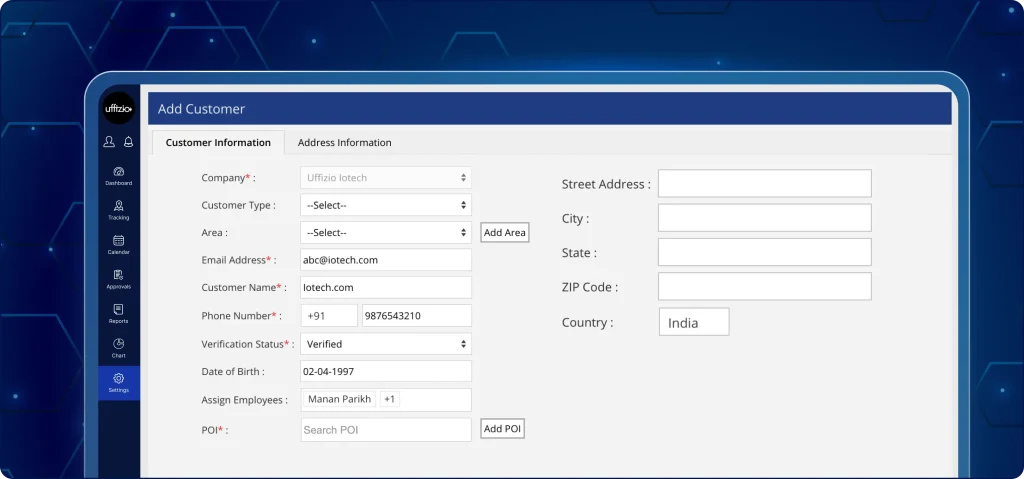
What can users do now?
- Add street address, city, zip code, and country data directly into the import sheet.
- Utilise a predefined country drop-down to ensure data consistency.
- Upload customer data with valid address details in a single step.
7.5 Field data images and videos now have built-in watermarks
All media files lacked built-in verification marks causing copyright and data manipulation.
Now, all images and videos include an automatic watermark overlays containing essential task and location data (as seen in the image 7.5 below).
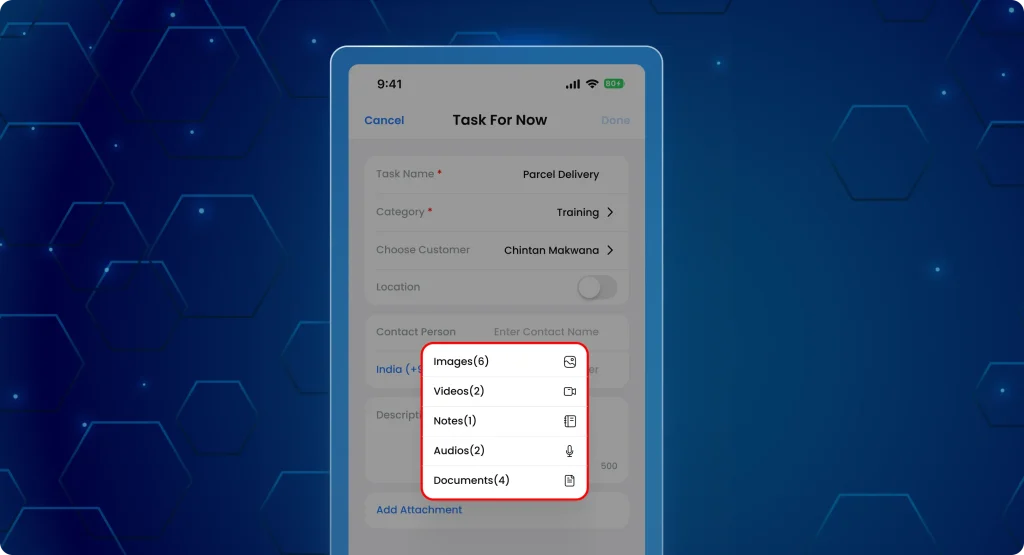
What has changed on the mobile app?
- Every image and video now includes: Task ID, timestamp (date & time), and location.
- The system applies the watermark at the time of capture.
- The video field triggers the device’s built-in camera interface.
- Recorded videos attach directly to the form entries.
- No manual action or third-party app is required by the field user.
Why is it important?
- Media includes task, time, and location details to ensure authenticity.
- Every report is linked to a Task ID and Task Name for accurate tracking.
- Eliminates manual post-upload address corrections.
- Attachments open in full screen for easier review.
- Removes unnecessary signature steps and supports video capture.
8. Monitor real-time field team activity status from a single screen
Previously, admins had to switch between multiple taps and sections for tracking field team attendance, alerts, and task-related activities.
Now, the centralised daily activity tracking screen combines all the field team members actions into a single chronological order.
8.1 Updated table layout in the activity tracking playback view
The platform now has an updated table layout in the playback view.
Therefore, now shows detailed activity descriptions along with the activity date & time, activity type, and location for every event (as seen in the image 8.1 below).
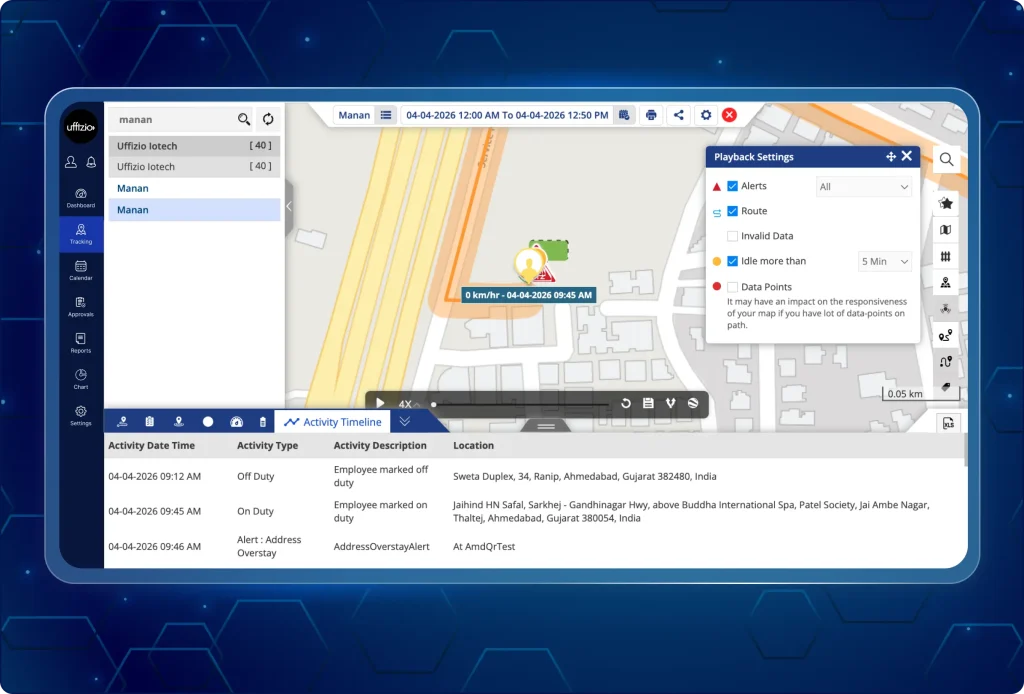
What can users do now?
- View a chronological activity timeline for any employee on a selected date.
- See activity description between activity type ( derived automatically based on the activity type ) and location for clear context.
- Quickly understand the context of actions like GPS changes, task start/end, alerts triggered, and permissions updates.
- Get detailed information about alerts with alert type and alert name.
8.2 Generate department-wise employee status reports
Now, admins can download their field team status reports from the dashboard.
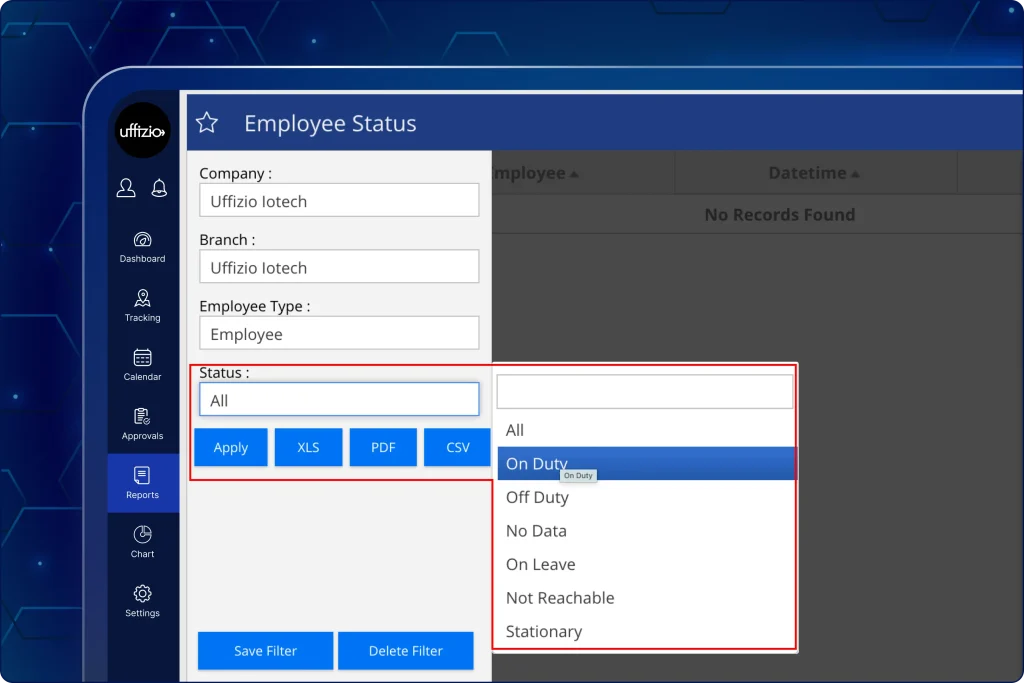
The detailed employee status dashboard screen shows the following particulars (as seen in the image 8.2 above):-
- Department name
- Employee name
- Date & Time
- GPS network status (On/Off)
- Location (current address details)
- Work status such as (On duty, Off duty, No data, Stationary, and Not reachable)
Why is it important?
- Eliminates the need to switch between multiple screens to track employee’s daily activities.
- Provides specific reasons for data gaps, such as disabled GPS or revoked app permissions.
- Clear descriptions for tasks, attendance, and alerts activity descriptions explain what happened, why, and at what time.
- Groups alerts and task movements together to help managers understand the sequence of events.
- Permissions and alerts details are also included automatically for detailed activity analysis.
- Missing activity names are clearly flagged and listed under the category “details not found”.
9. Verify field data with geo-tagged media timestamps
Previously, lack of visible metadata on captured media( images & video) required organisations to cross-reference GPS logs to verify task accuracy.
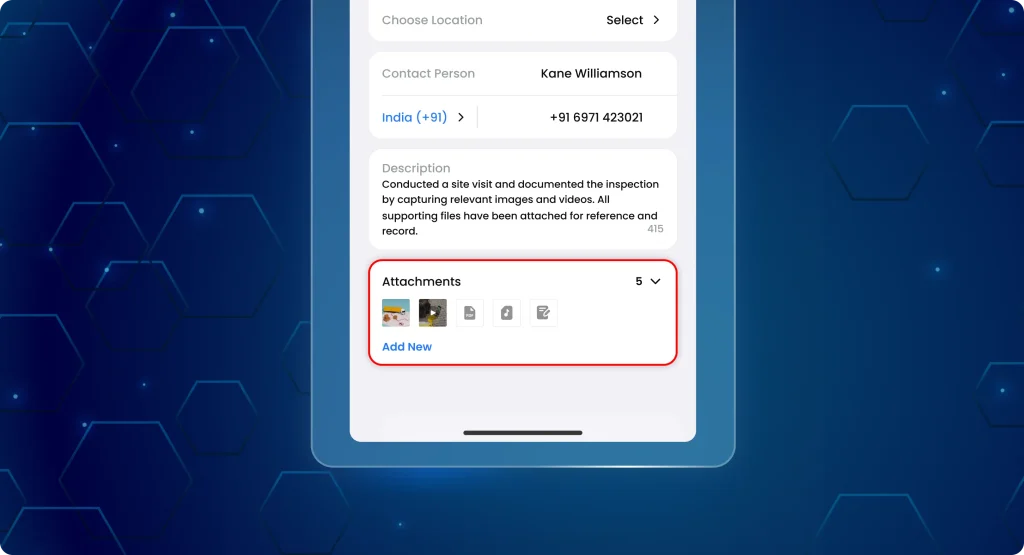
The TaskEye mobile app now auto-embeds the Task ID, Date & Time, and Location directly onto every image and video captured during task execution.
9.1 Update non-editable evidence from the field
Field teams can now upload non-editable proof of work automatically, ensuring their submissions are transparent and reliable (as seen in the image 9.1 below).
What has changed on the app?
- Capturing an image or video instantly triggers a metadata overlay in the bottom-left corner.
- Text colours auto-adjust to ensure the Task ID, date, and location remain visible on any background.
- The system locks the metadata into the media file, making it permanent and non-editable for audit purposes.
- If a full address is unavailable, the system automatically displays precise latitude and longitude coordinates.
What can users do now?
- Capture images or videos with an automatic overlay showing: Task ID, date & time, location
- Ensure the geo-tagged timestamp is permanent, non-editable, and clearly visible without blocking the media content.
- Use media files in reports or audits with verified task context.
Why is it important?
- Provides non-editable, permanently embedded metadata for every field submission.
- Displays key task details such as task ID, task name, task location directly on the media for instant verification.
- Strengthens accountability by linking the specific “when” and “where” to the Task ID.
- Ensures location data is always present by using coordinates when a physical address is not found.
10. Identify when field teams are active but idle during commutes
Previously, supervisors had no way to track the field teams who were active but idle at a particular time and location. Manually analysing data is a stressful process prone to errors.
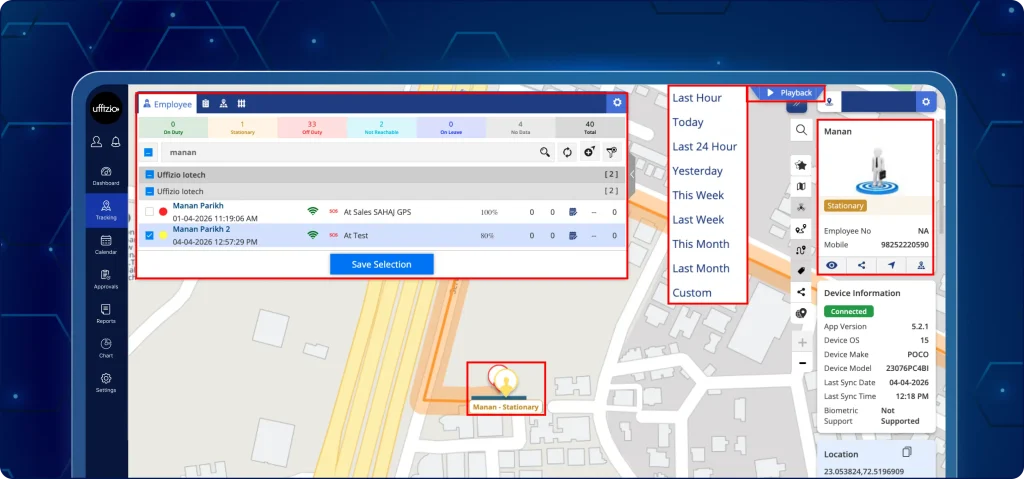
Now, organisations will have visual idle playback markers to track idle durations from the playback tracking map on the dashboard.
10.1 Track stationary activity on the dashboard
The users can now set up custom duration timelines to automatically track and number idle events during route playback (as seen in the image 10.1 below).
What can users do now?
- Use idle markers to show or hide yellow markers on the playback route.
- Select a duration (e.g., 5, 10, or 15 minutes) from the drop-down to define how long stationary periods qualify as “idle”.
- View the yellow markers along the playback route placed automatically when a team member exceeds the pre-defined stoppage limit.
- Click the idle markers numbered in chronological order (1, 2, 3…) to understand the exact order of stops during the day.
- Hover over or click any marker to view the start time, end time, and total duration of the idle period.
- Excludes engine-off stoppages or short pauses below the set idle time durations.
10.2 Share trip playback securely with external links
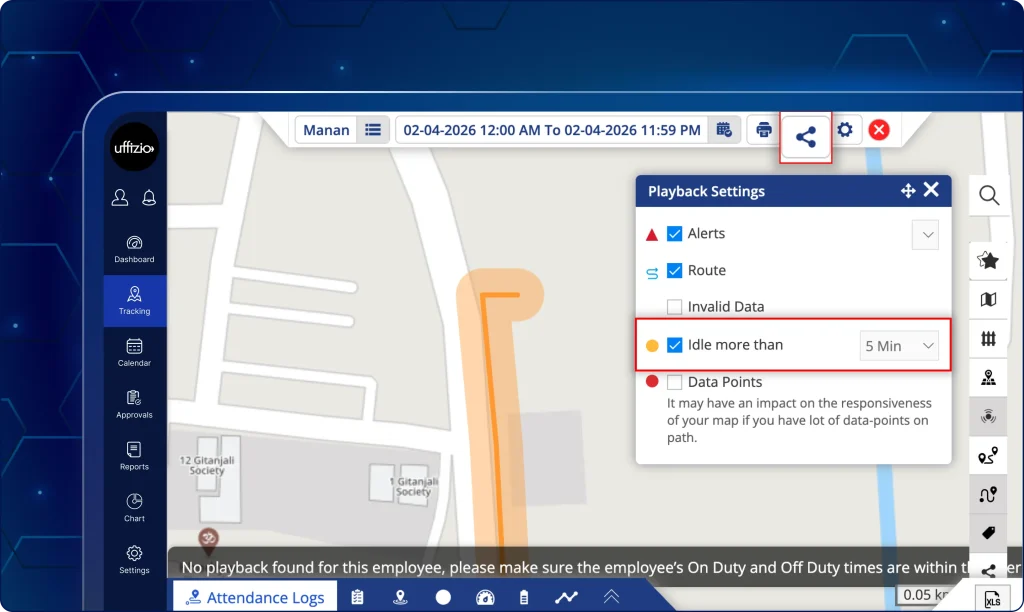
Previously, there was no way to share the route playback data for future analysis. Now, the users can share the route data with screenshots and recordings (as seen in the image 10.2 below).
They can also create secured, read-only access links for specific team members to ensure transparency with clients.
In addition to this, admins can also access all the trip logs for external stakeholders without logging into the system.
What can users do now?
- Create secure URLs that remain valid for a specific duration (e.g., 1 hour) to protect data privacy.
- Set the validity period and enter recipient details (Email/Mobile) and the reason for sharing directly in the “Share Playback” pop-up.
- Use the “Send” functionality to deliver the interactive link to external parties instantly.
How does it work?
- Open playback from the tracking module.
- Click the new share icon located at the top right of the playback map.
- Configure the link expiry and recipient information.
- The system generates a unique, encrypted URL that grants temporary access to that specific trip history.
Shared links provide read-only access with route playback and activity details.
What do the external recipients see?
- Interactive map: A read-only view of the route path, including idle markers and a playback controller (Play, Pause, Speed).
- Consolidated bottom panel: A collapsible information tray providing full transparency through four specific tabs:
- Attendance logs: Verified punch in/out times.
- Tasks: A clear list of assigned and completed work.
- Data points: Precise GPS logs including time, speed, and addresses.
- Activity timeline: A chronological sequence of the day’s events.
Why is it important?
- Removes the need for supervisors to cross-reference raw logs to find long waits or stationary periods.
- Provides a clear visual story of the employee’s day, highlighting exactly where time was spent between tasks.
- Numbered markers allow managers to quickly communicate about specific stops (e.g., “Why was there a 20-minute idle at Stop No. 3?”).
- Idle playback setting ensures only significant idle events are highlighted to focus only on the most critical delays.
- Provides clients with interactive, undeniable “proof of service” in real-time.
- Enables stakeholders to view data without the friction of account creation or login credentials.
- Protects sensitive data through time-bound links that automatically expire after use.
- Empowers managers to resolve queries with a single link rather than manual report preparation.